Main window
The main window features three tabs, the toolbar, the main menu, an interface combo box and additional controls:
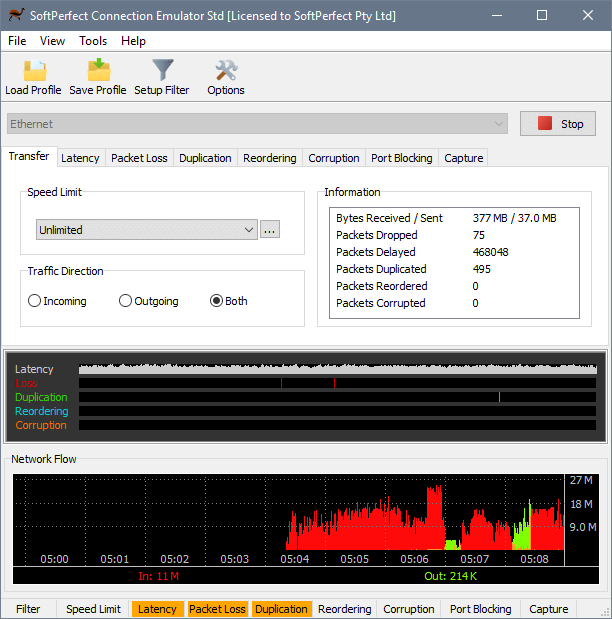
Load Profile reads the configuration from an XML file previously created with the Save Profile command. The profiles are useful if you have got multiple simulation configurations each having specific settings. The Setup Filter button opens filter configuration. Unless you define a filter, the speed limit and other simulation settings apply to all packets traveling through the selected network connection. The filter allows you to apply the simulation settings to one or more IP connections, while letting all other traffic flow unrestrictedly. The Options button provides access to several user preferences that you may want to adjust.
On the Transfer Rate tab you can specify the speed limit by choosing from the predefined items or by defining your own. The Traffic Direction can also be set here; this option defines whether the incoming, outgoing or both traffic directions will be affected by transmission limits and modifications, including those on other tabs, such as packet loss, corruption or latency.
On the Latency tab you can specify whether you need latency or a delay to be applied to packets:
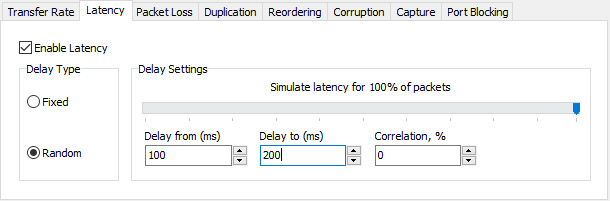
Note that if you choose to process traffic in both directions, the latency will apply twice on a duplex connection: first when the packet goes out, and then again when the reply comes back in.
The difference between ‘Delay from’ and ‘Delay to’ will define latency jitter, i.e. the variation in packet delay. The greater the difference, the more significant jitter it produces.
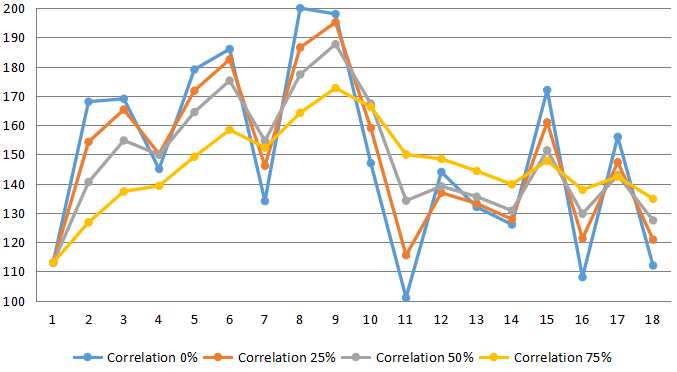
When using variable latency, you can also specify correlation. Correlation indicates how much each current value depends on the previous one. The 0% correlation means the values are entirely random and independent of each other. Setting the correlation greater than 0% makes the sequence of values less random, therefore decreasing jitter. This chart demonstrates the effect of correlation on random latency between 100ms and 200ms:
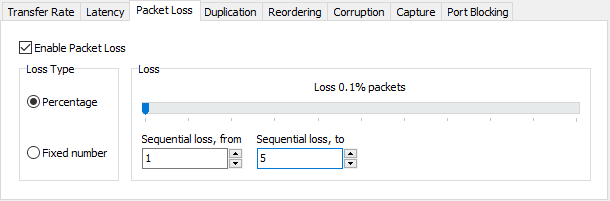
On the Packet Loss tab you can specify the percentage or number of packets that should be lost in transit. These packets are dropped upon receiving or sending out.
The software can simulate individual and sequential packet loss. For individual packet loss, set both Sequential loss, from and Sequential loss, to to 1. Otherwise, you can specify the minimum and maximum lengths of lost packet sequences, and the software will randomly generate loss sequences within that range:
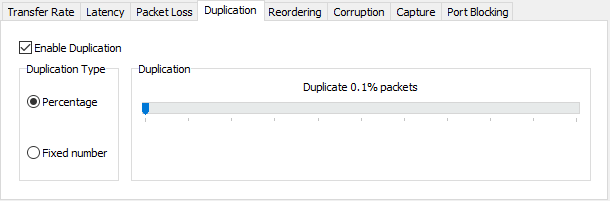
On the Duplication tab you can specify whether any packets will be duplicated upon receiving or sending out. The software merely sends out a duplicate packet twice whether to the remote computer or to the local TCP/IP stack:
On the Reordering tab you can specify what percentage of packets will be transmitted in a wrong order:
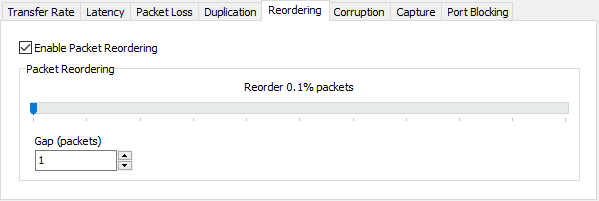
The emulator will take a packet out of the flow, then normally pass the number of packets specified as the Gap, and then insert the packet previously taken out. For example, if the gap is set to 2, the flow consists of packets A, B, C, D, E and F, and packet B was chosen as a victim, they would arrive in this order: A, C, D, B, E, F.
On the Corruption tab you can specify what packets will be corrupted. The software flips a random bit in a packet to simulate a transmission error or a faulty network device.
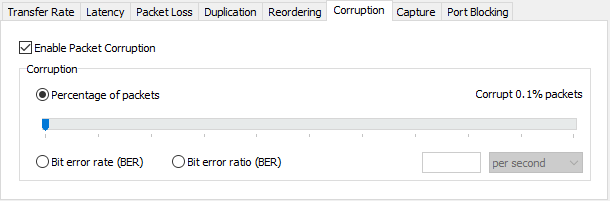
There are three ways to specify packets corruption:
- Percentage of packets mode has victim packets chosen randomly within the specified probability.
- Bit error rate (BER) is the number of bit errors per unit of time; for example, 2 corrupted bits per minute.
- Bit error ratio (BER) is the number of bit errors divided by the total number of transferred bits. For example, a ratio of 10e-7 or 0.000001 means 1 bit in 1 000 000 is corrupted.
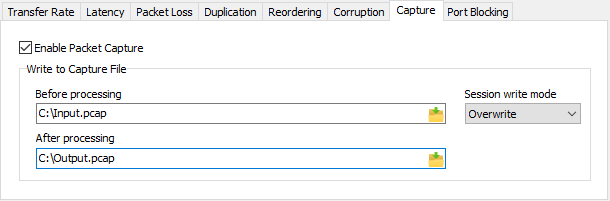
On the Capture tab you can setup logging packets to a Libpcap file for further analysis:
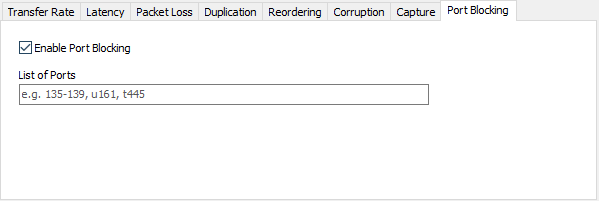
On the Port Blocking tab you can list individual ports or port ranges, packets to and from which should be dropped. To specify the protocol, prepend the port number with the letter T for TCP or U for UDP. If there is no prefix, both TCP and UDP will be dropped. This allows you to simulate a firewall or the situation where an ISP filters incoming packets.
Manipulation visualisation
The emulator features a live chart displaying manipulations performed on each packet. Each tick represents one packet that had latency, loss, duplication, reordering or corruption applied to it. Latency chart shows delays in proportion to each other: longer vertical lines represent longer delays.

Setting up a filter
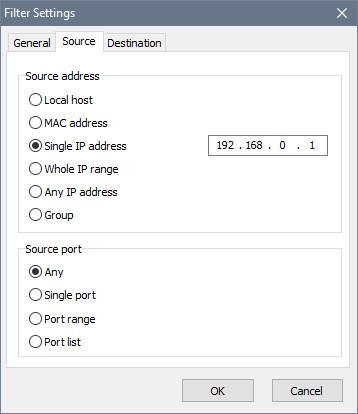
In order to restrict the simulation to a specific IP stream, you can define a filter. The filter compares the protocol field, the source and destination address fields in IP packets as well as source and destination ports in TCP/UDP packets to decide pass a packet or process it. Both IP protocol versions 4 and 6 are supported:
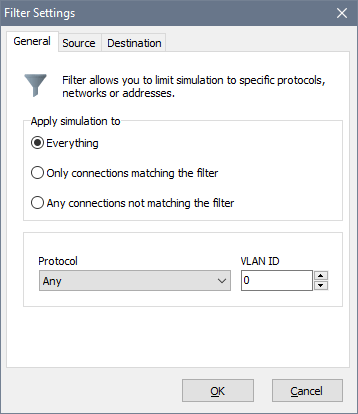
If you are running one or more virtual local area networks, you can also restrict the simulation to a particular VLAN:
Bridging
Sometimes you may need the emulator to be installed between two non-Windows network devices. In this scenario you can use the bridging feature built in to the application. To access this feature choose Tools - Bridging from the main menu:
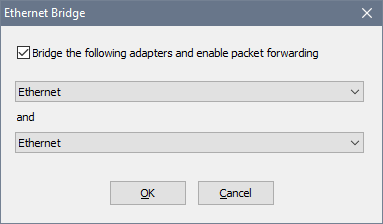
The adapters in the bridge need to be real physical adapters (NICs) hooked up to other network hardware as shown below:

When an emulation session is in progress, SCE will be forwarding all packets arriving to the first NIC to the second NIC and vice versa. The bridge itself will be able to communicate with either side, provided its IP configuration is correct.
Active connections
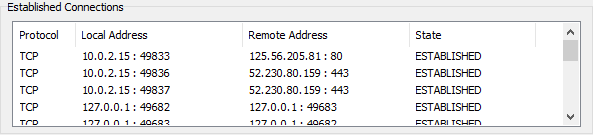
SCE can display all currently established TCP connections. Choose View - Display Connections to show/hide this view. You can terminate some or all connections to stress test your application or device using the popup menu:
Preset parameters
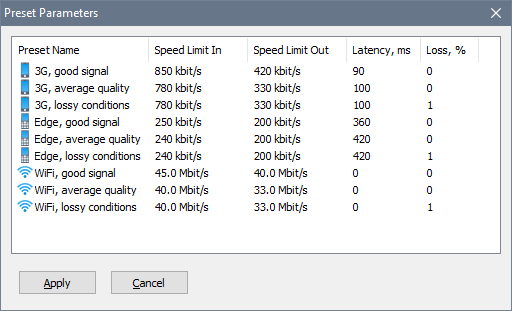
For convenience SCE comes with a few predefined sets of speed limits, latency and losses. These are different from profiles and are simple sets of connection parameters that represent real-world devices. For example, a 3G data connection in case of a weak signal would likely offer reduced speeds and a packet loss. If you are required to test your application or device in these conditions, you can either fine-tune everything manually, or choose one of these presets:
Command-line switches
SCE supports the following command-line parameters:
consim.exe [/runtime:120] [/hide] [/quit] [config_file.xml]
If SCE is launched with a XML-file specified, it will load the specified configuration profile and begin emulation automatically. If emulation is already running, it will load the specified file and continue with the new parameters.
If the /runtime switch followed by a number of seconds is present, emulation will run for the specified number of seconds and then the application will terminate. To run the application without the user interface, specify /hide to hide the main window. To terminate emulation immediately, specify /quit to close the running instance.
End User Licence Agreement (EULA)
This software and the included documentation is copyright SoftPerfect Pty Ltd. All rights are reserved. The software may be used, installed or copied only in accordance with the terms of the licence described in the following paragraphs.
DISTRIBUTION TERMS
The evaluation version of the software may be freely distributed, provided that the original distribution package is not modified in any way.
EVALUATION VERSION
This is not free software. You are hereby licensed to use this software for evaluation purposes without charge. The evaluation version may be of a limited duration, or have some features limited or disabled. To use the software without these restrictions, you need to purchase a licence.
GRANT OF LICENCE
The software is licensed, not sold. Upon purchase of a licence, SoftPerfect grants you non-exclusive, non-transferable right to use the software and all its features according to the terms of this EULA and the purchased licence type as described in the Licence Types section.
LICENCE TYPES
- Single Device Licence grants the purchaser, or agents of the purchaser, rights to install and use the software on one device only (e.g. computer, server, USB flash drive or virtual machine) at any given time. The licence can be reinstalled on the same device at any time, or deleted from one device and then moved to another. To install and use the software on more than one device simultaneously, you must purchase the corresponding number of single device licences or one of the special licences listed below.
- Multiple Licence Pack grants the purchaser, or agents of the purchaser, rights to simultaneously install and use the software on up to as many devices as is stipulated by the quantity in the pack. For example, the “Up to 10 Devices” pack allows installing and using the software on up to ten devices at the same time. Each device licence within the pack is identical to a single device licence.
- Site Licence grants an organisation, or agents of an organisation, rights to install and use the software on an unlimited number of devices within one organisation site, including any cloud-based installation and use performed from that site. An organisation site is defined as a location, or group of locations, used by the organisation that are all within 100 miles (160 kilometres) of each other.
- Worldwide Licence grants an organisation, or agents of an organisation, rights to install and use the software on an unlimited number of devices at an unlimited number of locations used by the organisation, including any cloud-based installations and use performed from those locations. If not listed, please contact us for the worldwide licence price.
- OEM Licence grants an organisation, or agents of an organisation, rights to use and distribute the software with their own hardware or software products. These products must provide substantial additional functionality to this software, and not include any potentially unwanted programs.
Where applicable, additional licence subtypes include:
- Home Licence grants a private individual rights to install and use the software at home, that is in a place of residence, for domestic purposes with no intention to generate income.
- Business Licence grants an organisation (a company, corporation, firm, enterprise or institution, or part thereof) or a person rights to install and use the software in a commercial and non-commercial environment for the purposes of or in connection with running a business, supplying products or services to other organisations or individuals, or generating income.
DISTRIBUTION OF LICENCE KEYS
Except for the specific purposes described in the Grant of Licence and the Licence Types sections, licence keys issued by SoftPerfect may not be distributed by any person, organisation or their agents without written permission from the copyright holder.
MODIFICATIONS
Unauthorised modification, decompilation or reverse engineering of the software or any subset of the software without written permission from the copyright holder is strictly prohibited.
USE
This software is distributed “as is”. No warranty of any kind is expressed or implied. You use it at your own risk. In no event shall SoftPerfect or its agents be liable for any loss or inaccuracy of data, loss or interruption of use, or cost of procuring substitute technology, goods or services, or any other loss or damages.
You may not use this software in connection with any illegal, fraudulent, infringing, harmful or offensive activity.
TERMS OF ACCEPTANCE
Installation or use of this software signifies your acceptance of the terms and conditions of the licence. If you do not agree with them, you must stop using and remove the software from your devices. SoftPerfect reserves all rights not expressly granted here.