How to compact a VirtualBox VDI file
Virtual Disk Trim product page & download
A dynamically allocated VDI grows as the virtual machine writes to it and does not get smaller when files are deleted in the guest. To reduce its size on the host, the image has to be compacted. This guide describes two ways to reclaim unused space: the conventional way with VirtualBox built-in functionality, and an easier way with Virtual Disk Trim.
Built-in solution: VBoxManage
VirtualBox removes only the blocks that are filled with zeros, so the free space has to be zeroed inside the guest first.
In a Windows guest, with SDelete from Sysinternals:
In a Linux guest with ext2, ext3 or ext4, boot into recovery mode, remount the file system read-only and run zerofree on its device:
Then shut the VM down and compact on the host:
When a disk image does not shrink
- The free space was not zeroed. Compacting without zeroing gains almost nothing, because the space occupied by deleted files still looks like filled with data.
- The disk is a VMDK. VirtualBox compacts VDI and dynamic VHD images only.
- The disk is fixed-size. It always takes its full size.
- The host is short of space. Zeroing makes the image grow towards its full size before it can shrink.
Simpler solution: Virtual Disk Trim
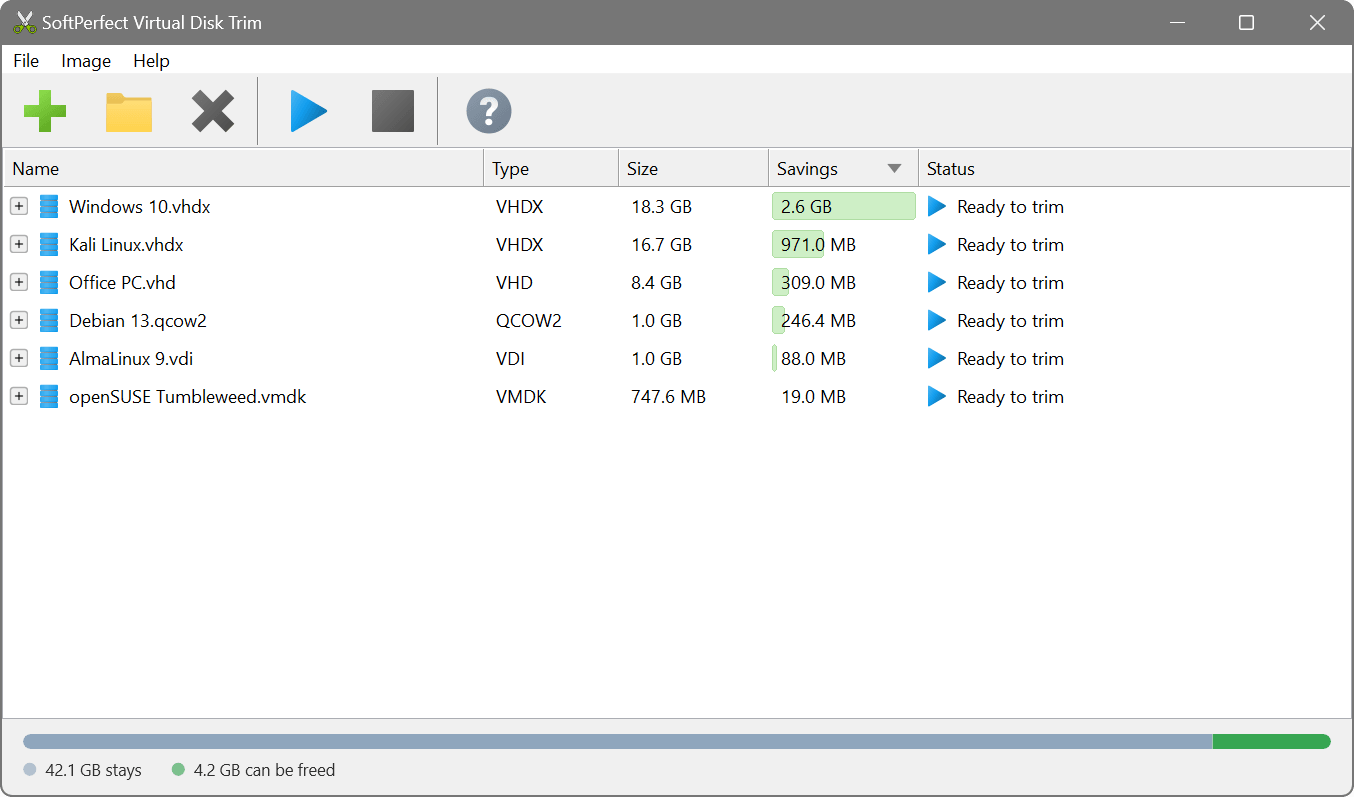
Virtual Disk Trim reads the guest file system from the image file itself and rebuilds the image without the unused blocks. The virtual machine stays off, nothing needs to be zeroed, and VirtualBox does not have to be installed. Simply:
- Shut the virtual machine down.
- Add the VDI or the folder with all your images to Virtual Disk Trim. The Savings column shows what each could give back.
- Press Trim. The image will be trimmed and then verified against the original before replacing it.
Or from the command line:
The trimmed disk keeps its UUID, so VirtualBox recognises it as the same disk. Delete snapshots first: a snapshot disk is declined, but the base disk under it is not recognised as one and must be left alone.
Which to choose
VBoxManage works and costs nothing, but it needs the guest running for the zeroing, can take a long time, can cause extra SSD wear, and needs spare room on the host.
Virtual Disk Trim is the better choice when:
- you don't want to start the VM or boot it into recovery mode;
- the guest uses XFS or btrfs, which zerofree does not handle;
- the host has no room for the image to swell first;
- the disk is a VMDK, which VirtualBox will not compact;
- the disk is fixed-size (it will become dynamic and drop unused space);
- you want to remove page, swap and hibernation files as well.
Moving to another hypervisor? The vdtrim command line tool trims and converts in one pass; the name of the output defines the format:
Shrink, compact or compress?
VirtualBox calls this operation compacting. Shrinking or reducing a VDI usually means the same thing: dropping the blocks the guest no longer uses. Compressing is different: it packs the data itself, as file compression on the host does, which saves space at some cost in speed. Reducing the capacity the guest sees is a different thing again: the partition has to be shrunk inside the guest first.