Virtual Disk Trim for Windows, macOS and Linux
Shrink virtual machine disk images without starting the VM
 SoftPerfect Virtual Disk Trim makes virtual machine disk images smaller. A virtual disk grows as the guest system writes to it, but it does not shrink when files are deleted inside the guest: the space is free as far as the guest is concerned, yet it still takes room on the host. Over time an image can occupy far more than the data it holds.
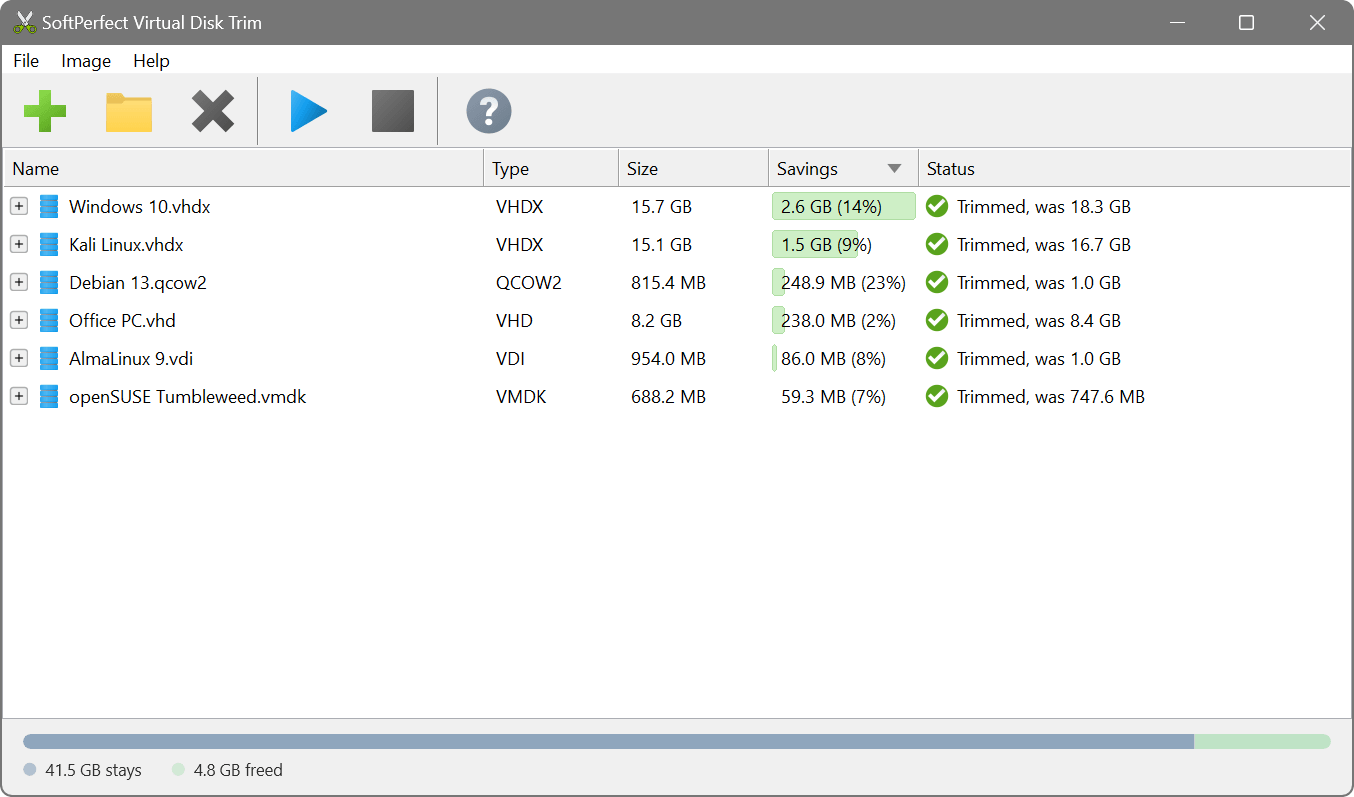
Virtual Disk Trim gets that space back in the most direct way. It opens the image file, reads the guest file system’s own record of which blocks are in use, and rebuilds the image without the blocks that hold nothing. The virtual machine is never started, nothing is mounted and nothing inside the guest is changed. Every trimmed image is read back and compared with the original before it takes the original’s place.
The same tool works for every common hypervisor and guest system, on whichever computer the image happens to be: a Hyper-V disk can be trimmed on a Mac and a QEMU disk on Windows, with no virtualisation software installed.
Key features
- Every common image format: VHDX, VHD, VMDK (in one file or split into pieces), VDI, qcow2 and raw.
- Windows, Linux and Mac guests: NTFS, FAT, exFAT, ext2/3/4, XFS, btrfs, APFS, HFS+, LVM volumes including thin pools, and Linux swap.
- No virtual machine required. The guest is not started and needs no tools, password or preparation, so appliance images, templates and archived VMs can be trimmed as easily as the ones you use daily.
- No zeroing of free space, so the image does not swell before it shrinks.
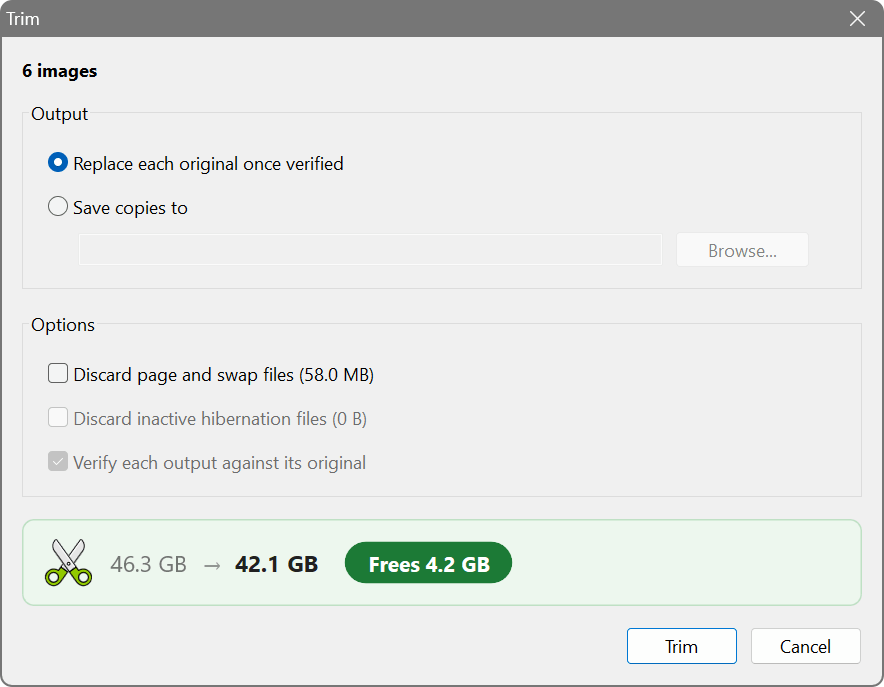
- Optional removal of page, swap and hibernation files, which the guest recreates by itself. A hibernation file is only dropped when the guest is not hibernated.
- Fixed-size disks give up their empty space too: a fixed or preallocated disk is rebuilt as a dynamically expanding one that takes only what it holds.
- Whole disk in one pass: every partition and volume of an image is handled together.
- Whole folders at once: add a folder and every image in it is found, analysed and trimmed in turn.
- The disk keeps its identity, so the virtual machine finds it as before and nothing needs to be attached again.
- Converts between formats while trimming: the command line tool can write the result in any of the six formats, so moving a disk to another hypervisor is one step.
- Window and command line: a multilingual interface for everyday use, and a command line tool with batch mode and a JSON report for scripts.
See the saving before you decide
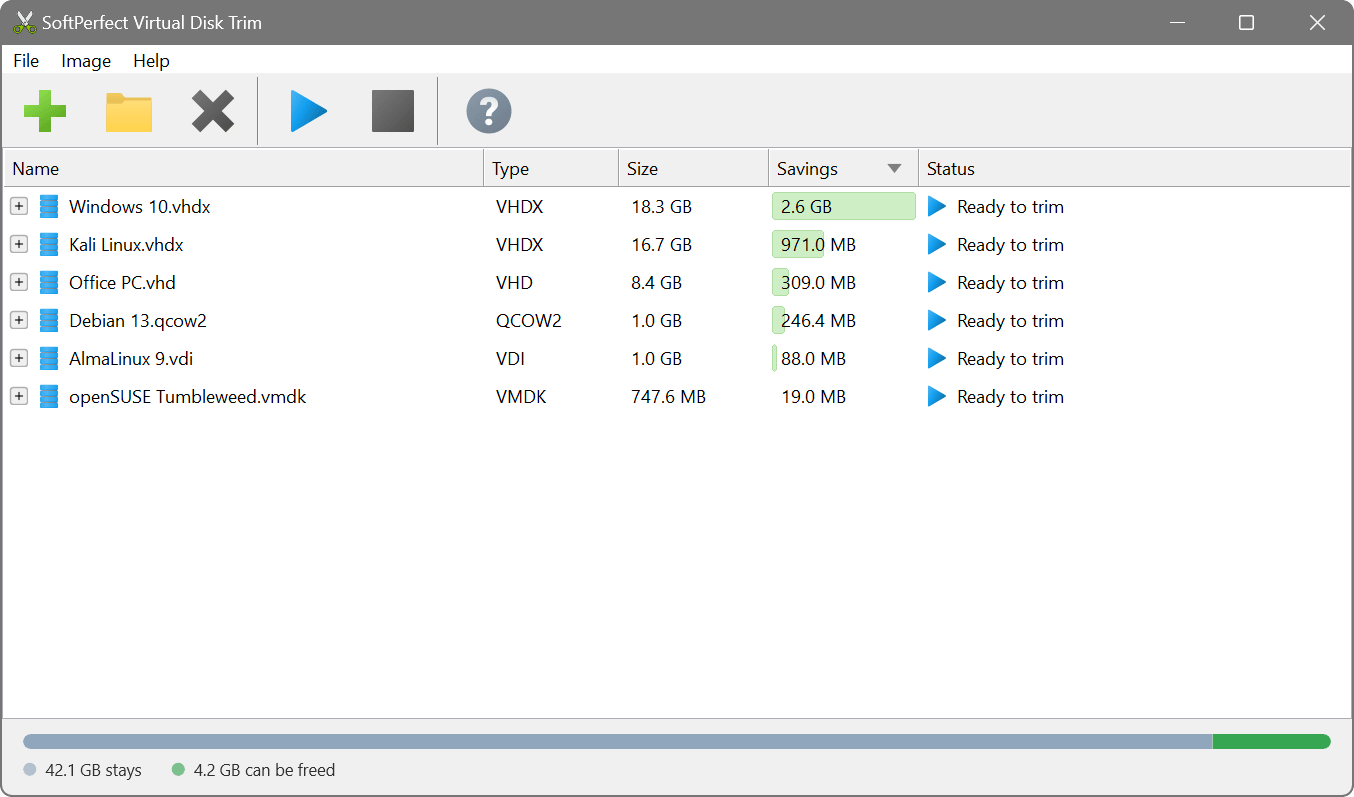
Add an image or a folder of images and Virtual Disk Trim shows, for each image and each volume inside it, how much a trim would give back. This analysis is free and unlimited, changes nothing, and takes moments, as only the file system’s bookkeeping is read. How much there is to reclaim depends on how much has been deleted inside the guest since the image grew: a freshly installed system has little, a machine used for months usually has a lot more.
How it compares with the usual methods
There are established ways to shrink a virtual disk and they do work. What sets Virtual Disk Trim apart is how little it asks for.
| Usual method | The catch | Virtual Disk Trim |
|---|---|---|
| Zeroing the free space inside the guest with a tool such as SDelete or zerofree, then compacting the image on the host | The VM has to be started and a tool run inside it. The image grows towards its full size first, it takes a long time on a large disk and adds wear to an SSD. It also tends to reclaim less, as a running system cannot safely be filled to the last block. | The VM stays off and nothing is written to its disk. The free space is read from the file system’s own records, so there is nothing to zero and no second step. |
| Optimize-VHD in Hyper-V | Needs a Windows host with the Hyper-V role, and works with VHD and VHDX images holding NTFS only. | About the same result for a Windows guest, but with no hypervisor installed, on Windows, macOS or Linux, and for far more image formats and file systems. |
| Compact tools of VMware and VirtualBox, and qemu-img convert | Leave out only the blocks that are already zero. They do not read the guest file system, so space freed by deleting files stays in the image unless it is zeroed inside the guest first. Each handles only its own formats. | Finds the free space by itself, whether it was zeroed or not. One tool for every format and every hypervisor. |
Step-by-step guides: Hyper-V VHD and VHDX, VMware VMDK, VirtualBox VDI, QEMU and Proxmox qcow2, converting between formats.
How it keeps your data safe
- The original stays until the result is proven. The trimmed image is written beside the original, read back and compared with it, and only then put in its place. Alternatively, trimmed copies are saved to a folder of your choice and the originals are left alone.
- A trim that is stopped or fails changes nothing. There is room for the result or the trim does not begin, and an interruption at any moment leaves a usable disk.
- It declines when it cannot be sure, and says why: a guest that was not shut down cleanly, a disk with snapshots, an encrypted image, a disk another program has open.
- What it does not recognise, it copies as it is. A volume with a file system it cannot read is carried over untouched while the rest of the disk is trimmed.
What it does not do
- It does not shrink partitions or reduce the capacity the guest sees. That is a different job, which changes the layout of the disk inside the guest; a trim leaves the layout exactly as it was and only makes the image file smaller.
- Snapshot and differencing disks are not trimmed; merge or delete the snapshots first. The base disk under them cannot be told from an ordinary disk, so do not trim it while they exist.
- Compressed qcow2 and stream-optimised or flat VMDK images are not handled as they are.
- A volume it cannot read, such as ReFS, ZFS or an encrypted one, is copied as it is and gives no space back; the rest of the disk is still trimmed.
Command line
The package includes vdtrim, a command line tool with the same engine. It analyses and trims single images or whole folders, writes a JSON report and returns exit codes a script can act on. It can also write the trimmed image in another format, turning a VMDK into a VHDX in the same pass, and zero the remaining free space of the file systems it reads, which clears most traces of deleted files from an image you hand to someone else. See the user manual for details.
Screenshots
Latest version
26.10 (9 October 2026)
Changelog
Supported platforms
Intel, AMD and ARM64
Licence
Try before you buy:
see how much you could save for free
Download
🌐 Multilingual packages
Size: 6.9M
Size: 6.0M
Size: 9.4M