How to shrink a qcow2 image and reclaim space
Virtual Disk Trim product page & download
When QEMU, KVM or Proxmox use a qcow2 image, the image grows when the virtual machine writes to it, and keeps its size when files are deleted in the guest. This guide describes the ways to reclaim that space, including a very efficient way offered by Virtual Disk Trim.
The conventional way: built-in tools
qemu-img convert. Shut the VM down and copy the image; clusters that are all zeros are left out. Space freed by deleting files is recovered only if it was zeroed inside the guest first.
virt-sparsify. Part of guestfs-tools, built on libguestfs. It reads the guest file systems and releases their free space, with no zeroing. The VM must be shut down.
Discard. With discard enabled on the virtual disk (the Discard box in Proxmox, discard=unmap in libvirt), fstrim in the guest hands space back while the VM runs. It has to be set up for each disk, otherwise it does nothing for that image.
When a disk image does not shrink
- The free space was not zeroed before qemu-img convert, so the deleted files are still occupying the space.
- Discard is off, or the disk is on a controller that does not pass it on; fstrim then either fails, or succeeds without freeing anything on the host.
- The image has internal snapshots, which keep the old blocks alive.
- The storage is not a file. On Proxmox with LVM-thin or ZFS there is no qcow2 to shrink; space is managed by the storage itself.
The simpler way: Virtual Disk Trim
Virtual Disk Trim reads the guest file system from the image file itself and rebuilds the image without the unused blocks. The VM stays off, nothing needs to be zeroed, and it runs on Windows, macOS and Linux with no QEMU or libguestfs installed.
- Shut the virtual machine down.
- Add the qcow2 image, or the folder with all your disk images. The Savings column shows what each image could give back.
- Press Trim. The trimmed image will be verified against the original before it replaces the original.
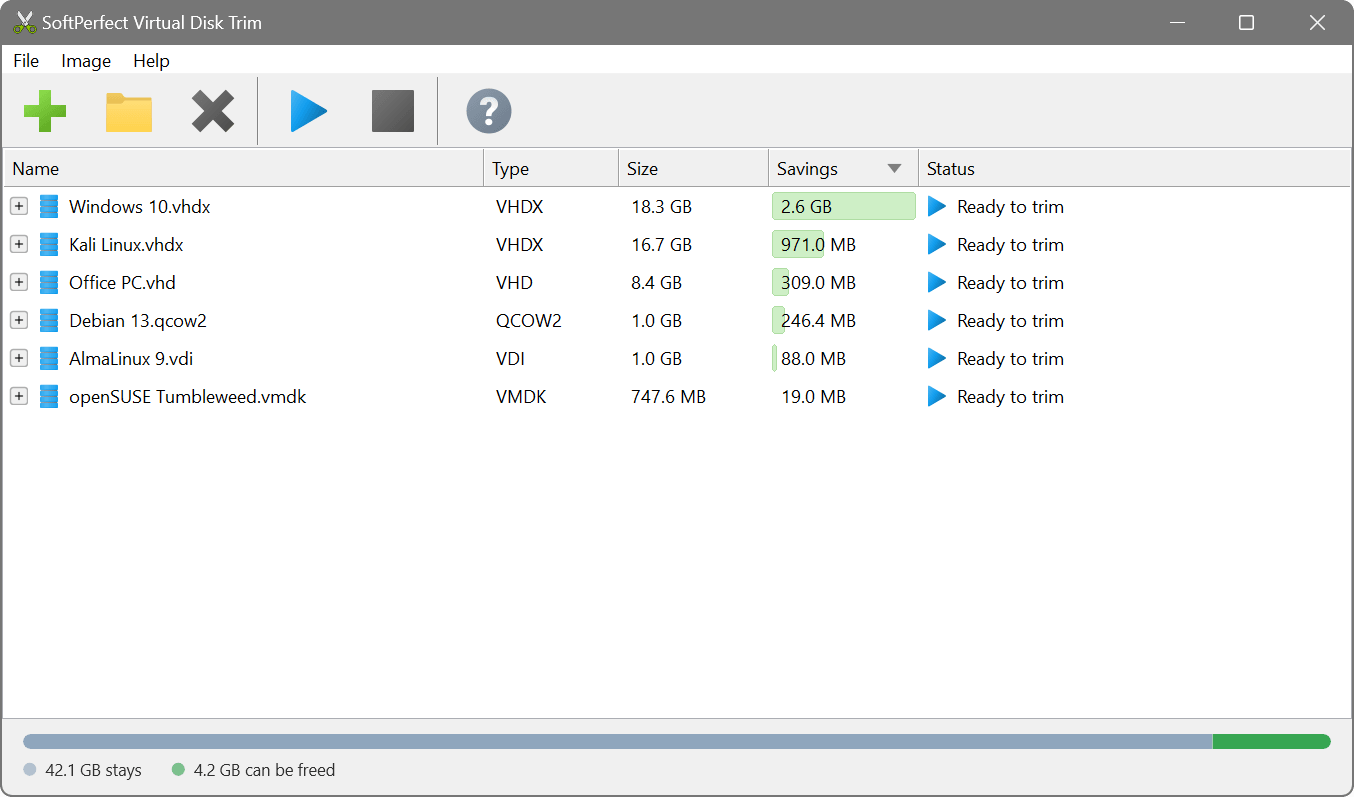
Or from the command line, including on a headless server:
Which to choose
If discard is set up and the guest runs fstrim, the image stays lean with no offline step, and nothing else is needed. On a Linux host, virt-sparsify does a similar job to Virtual Disk Trim. Virtual Disk Trim is the better choice when:
- the image is on Windows or macOS, where libguestfs has no official builds;
- the image was never set up for discard: a download, a template, an archive, a backup;
- you want every trimmed image compared with its original before the swap;
- you want page, swap and hibernation files left out as well;
- you have many images, or VHD/VHDX, VMDK and VDI files alongside qcow2.
Compressed images, as cloud images are usually published, have to be converted with qemu-img convert first. Images with snapshots or a backing file, and encrypted images, are not trimmed. An image used as a backing file should be left alone.
Moving to another hypervisor? The vdtrim command line tool can trim and convert the image in one pass; the extension of the output image file determines its format:
Shrink, compact or compress?
With qcow2 this is usually called reclaiming space or sparsifying, and shrinking means the same thing: dropping the clusters the guest no longer uses. Compressing is different: in qcow2, qemu-img convert -c -O qcow2 packs the data itself, which makes a smaller but slower image, the kind cloud images are published as. Reducing the capacity the guest sees is a different thing again: the file system and partition have to be shrunk inside the guest so that they end within the new size, before qemu-img resize --shrink cuts off the end of the disk.