Latency graph not visible when using IP filters
6 posts · Closed
Hi,
I want to apply latency between two specified IP addresses. I used the filter option for the source and destination IP addresses in the emulator tool, but I can't see the latency graph when the test is running. Please help me with this feature.
Thanks
Does the traffic between those IP addresses actually flow through the connection that you are using the Connection Emulator on?
If you have device A and device B, and run the Connection Emulator software on device C, then A's and B's traffic must be routed via C. Otherwise the emulation will not work.
I have device A,where the Emulator is installed, and device B, which I have configured in setup the filter. The Established Connections list shows the connections. But the Latency chart and the Network Flow graph are empty.
Here is the profile: [profile.XML]
It seems the issue is that your VLAN ID tag set to 1:
<vlanid>1</vlanid>
This feature is for rare cases where network packets carry VLAN tags. Normally these are stripped by switches and there is no need to specify one. Try setting the VLAN ID to zero in the filter settings, and you should be able to see the traffic.
Thanks for your support. Now I can see the Network Flow graph, but the Latency chart still shows nothing.
It is likely that in your case the data exchange was less than 100 packets.
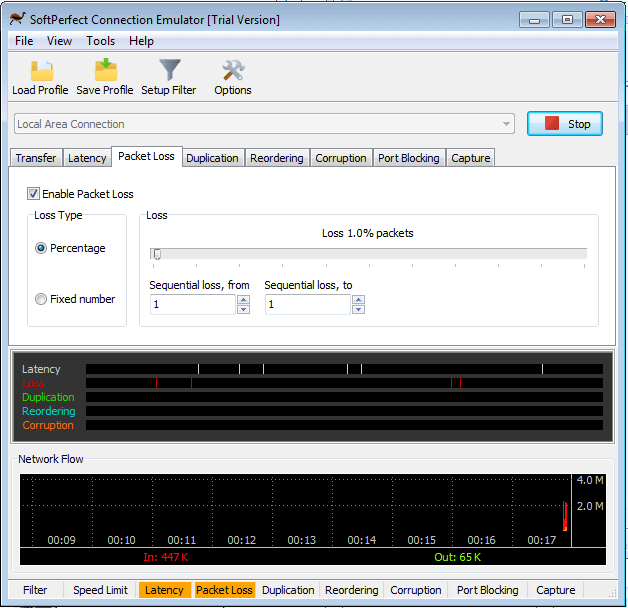
As you are applying the loss and latency to only 1% of the packets, it will affect 1 packet out of 100 on average. So if you send less than 100 packets, it can happen that the 1/100 chance of the loss doesn't occur. Below is a screen shot taken when using your profile, but with more data passing through the connection; and you can see the marks in the Latency, Loss and Network Flow charts.
To get the losses and latency reflected on the graph, you can either send more data through, or change it to apply to more packets, e.g. 50% or 100%.