Add a Local PowerShell option for running queries
4 posts · Closed
May I suggest you add a "Local PowerShell" option, so we could run PowerShell queries, for example, the hostname.
Example:
"C:\Windows\System32\WindowsPowerShell\v1.0\powershell.exe" -Noexit Get-ADPrincipalGroupMembership (Get-ADComputer [Host Name]) | Select-object name
I use this to get the computer's Active Directory group membership, but of course it opens a separate window. It would be nice to have it working inside NetScanner.
Could you please clarify how you'd like this to work?
At the moment, you can add this command to the list of applications (Options - Applications), and it can then be executed against any host name (via Open Device context menu), as shown below.
Did you want something different?
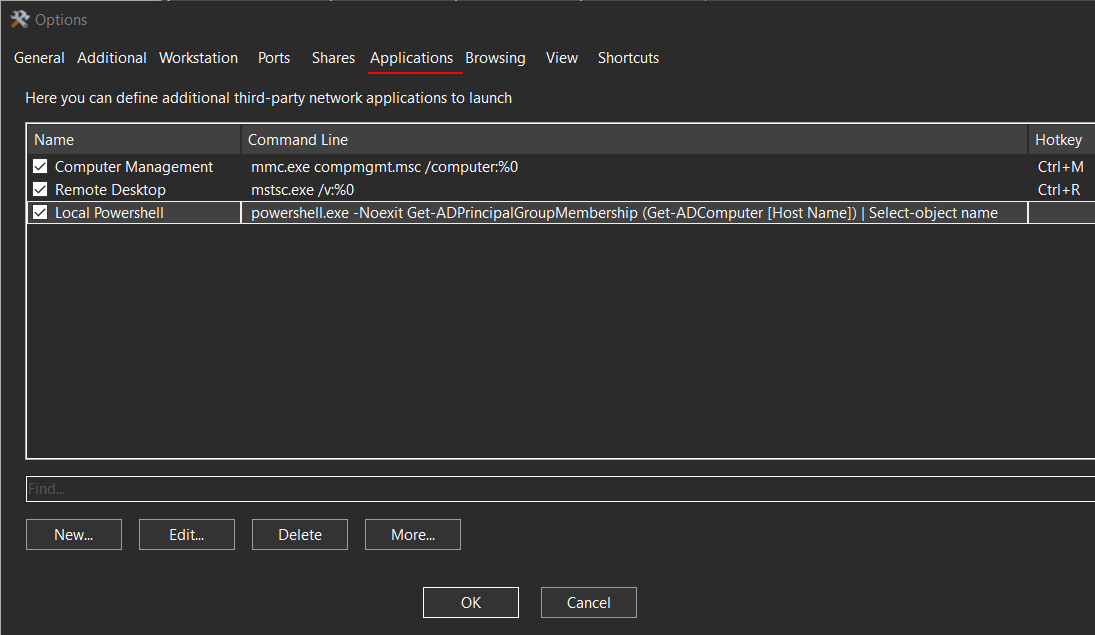
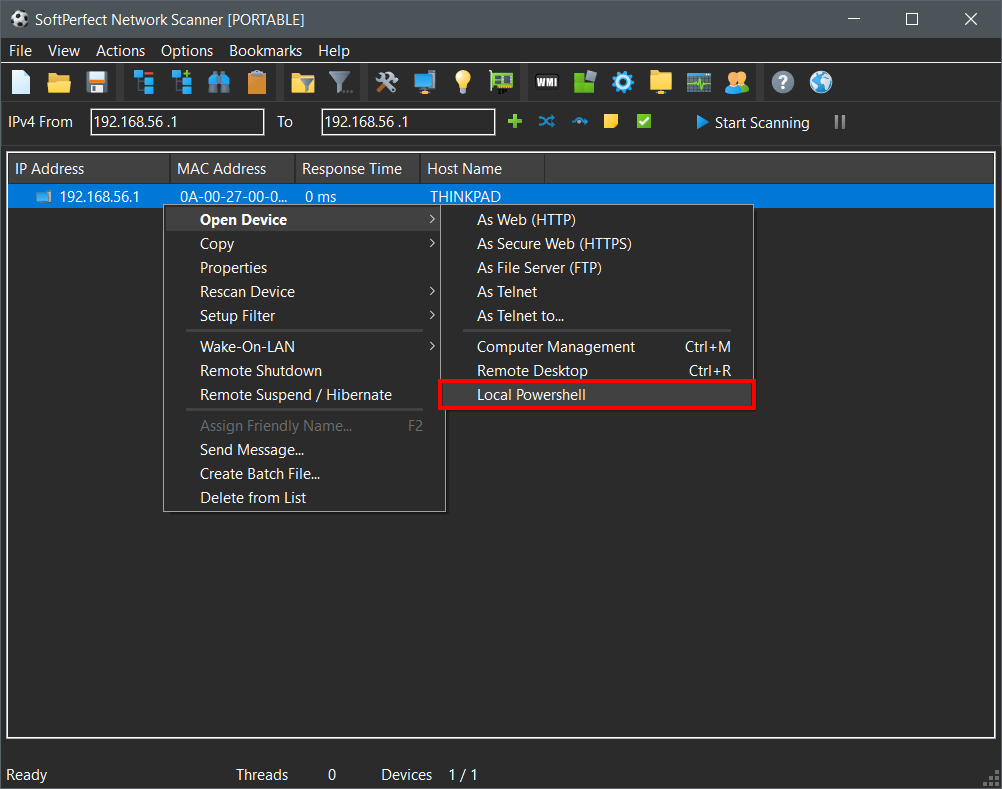
Yes, that is how I am doing this exact thing right now. However I use SoftPerfect NetScanner and run reports from scanned computers across the company. If this was a built-in feature where the results showed up in a populated column like the remote PowerShell results do - that is what I am after.
I use PowerShell to grab Active Directory data like the logged-in user name and group membership, as well as membership of
computers, but having to do it manually for each PC is never going to work. But if you cannot add that as a built-in function, I understand completely.
Thanks for your time and really enjoy your product!
This can be easily done with a custom VB Script that launches the command and captures its output into a column. Simply do the following:
- Open Remote Scripting via Options - Remote Scripting.
- Create a new item and load the below script.
This gives you a lot of flexibility with launching any console command and with post-processing its output as required. In the Network Scanner application you can see another example named 'Packet loss', which launches ping and uses a regex to parse the output.
Const Quote = """"

Dim cmd
cmd = "powershell.exe " & Quote & "Get-ADPrincipalGroupMembership (Get-ADComputer " & Input.Column("Host Name") & ") | Select-object name" & Quote

'Create process object and execute PowerShell
Set proc = Internal.CreateObject("process")
proc.execute(cmd)

'Check process exit code
If proc.ExitCode = 0 Then

  'Traverse output lines
  For Each line in proc.output
    Output.Write Line
  Next
Else
  Output.Write "Exit code " & proc.ExitCode
End If