Shared folder permission icon not displaying correctly
6 posts · Closed
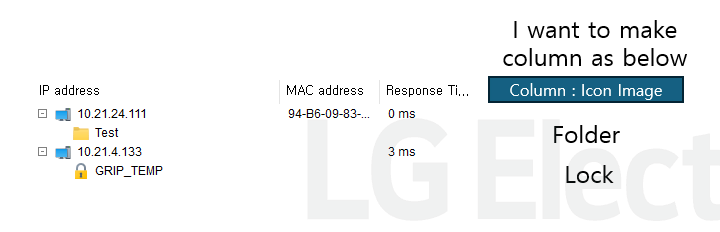
The shared folder result icon is displayed normally (folder image), but the permission is not displayed normally.
Is there a way to display the folder icon and the lock icon as a screen column?
Thank you for your help :)
Could you please attach a screenshot showing the current display, including the shared folder icon and the area where you expect to see the permission or lock icon?
Thank for your reply.
Now, i'm check share folders which is not set permission.
What i want to do is like below image
Thank you in advance for your help.
It isn't possible to display the share status in a separate column. However, if you're looking for a specific type of shared folder, you can use the share filter instead.
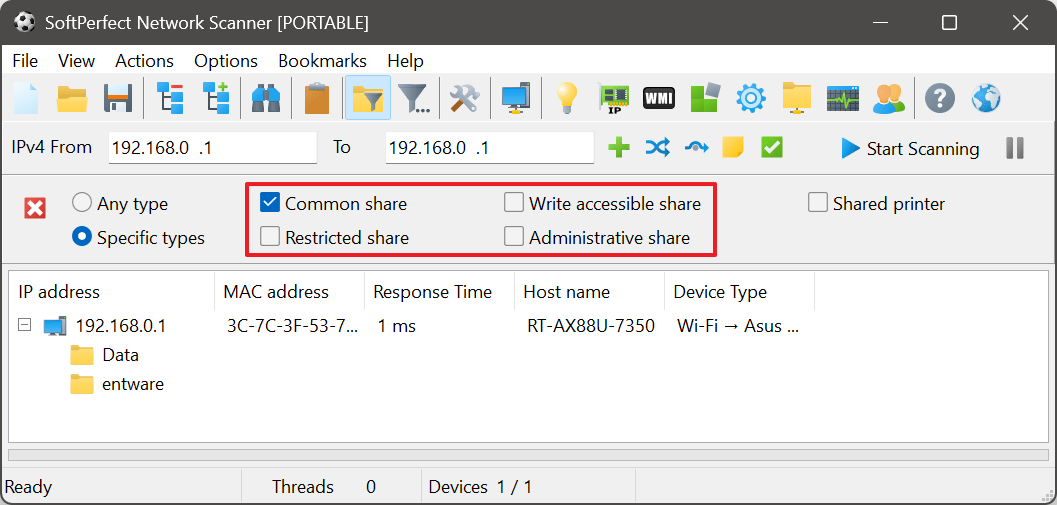
From the main menu, select View > Quick Host Filter > Shared Folders, then choose the types you wish to display, as illustrated below.
To view folders with a lock icon, select Restricted. Otherwise, choose Common or Write-accessible, depending on your preference.
Thank you very much for your answer. It was very helpful.
I have one more question:
I want to run it through command and save only filtered items. How should I type the command?
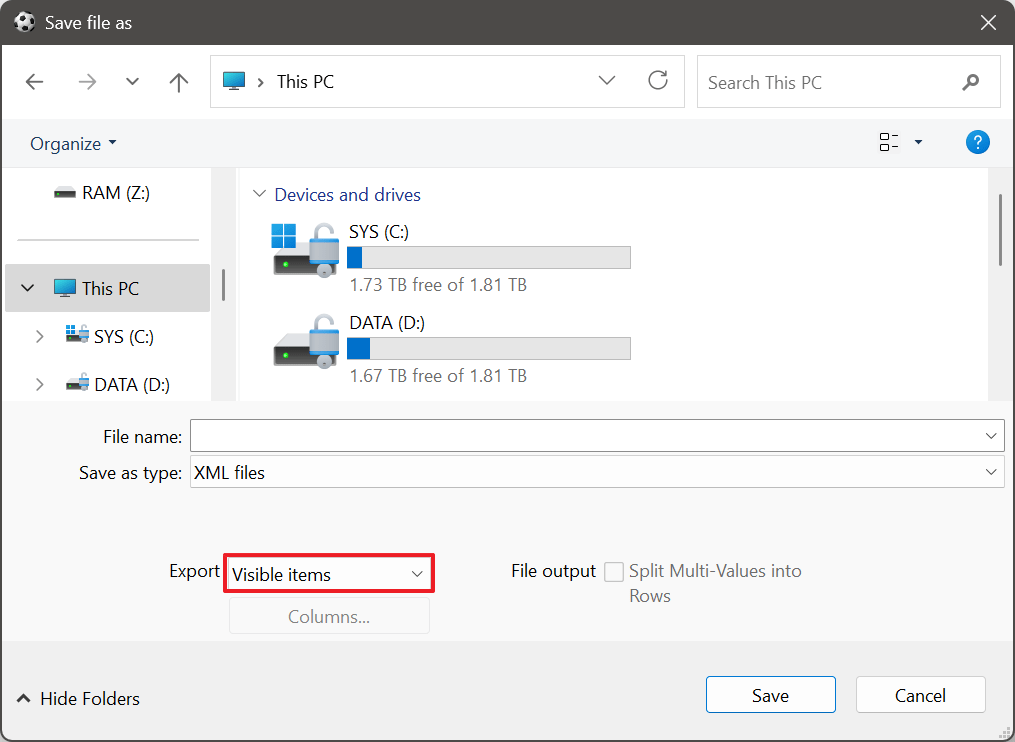
Assuming you are asking how to save only the filtered items, you can do this by selecting Visible items in the Save dialog, as shown in the screenshot below.
Please note that there is no command-line parameter for this functionality. Filters are purely interactive and cannot be applied through command-line operations.