Best settings to check user access to network shares
2 posts · Closed
Hi there,
I like to document all our network shares. I have bought Network Scanner and have a couple of questions.
I login to a workstation on the LAN with the credentials of the user group I like to check. I have a portable SoftPerfect Network Scanner on a USB.
What are the best settings for the scanner if I only like to show what resources on the LAN this user can access?
Most important is to find out what network shares are accessible.
What does the tick box "Enable security and user permission scan" actually do?
It would be nice to be able to show what shares:
- are on the network
- this user can access
Is it a better option to logon to the workstation as LAN administrator and use the Authentication option in Shares to set the user I like to check?
Thanks
It is better to logon as the user whose access rights you want to check, like you did. Then on the Shares tab tick Scan for shared resources and Check for write access.
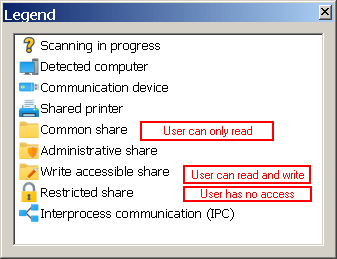
Once the scan has finished, the share icons will represent what the user can do with them. Basically three options here:
- the user can only read files from the share,
- the user can read and write files to the share,
- the user cannot access the share and cannot see files in it.
The other option you mentioned, Enable security and user permission scan, works best under a domain admin account and will list what users and groups can read and write each share, as well as what the Everyone group can do.