Variable for local IP address in Remote Scripting
4 posts · Closed
Could you add a variable to represent the IP address of the computer running Netscan for use in Remote Scripting, Applications and other areas? Similar to how %0 inserts the remote system IP, but this variable would insert the Netscan host's IP.
It would need some way to handle multiple adapters/addresses. Right now my system is connected to a VPN (10.247.0.165/32), Ethernet LAN (192.168.13.52/24) and Wireless LAN (192.168.100.30/24). Not to mention the IPv6 addresses. Perhaps a drop-down menu listing the detected IP addresses and allowing the user to select the address represented by the variable?
Thank you for your excellent support and development of this amazing program! It's been worth every cent, every year.
-Andrew
This sounds good, but what's the practical use? I can't really think of a scenario where I'd need a host's IP address to be used.
Regarding handling multiple addresses that a host computer might have, it should be possible to select one relative to the remote system. For example, if you launch an application against 192.168.13.X, the variable would contain 192.168.13.52 as it belongs to the same subnet. Likewise, if a script is running against 192.168.13.X, a script variable would be set to 192.168.13.52. This will not work for public IP addresses though. May be in that case we can use the IP address linked to the default gateway.
How would you personally use this feature in practice?
I change from LAN connected, to Wi-Fi connected and across different locations enough during a day that DNS can't ever keep up. Anything I would execute on the remote system where I don't know how long it will take to complete, but I want the report or log file back when it's done. Or utilities I remote execute from a share on my system because I can't risk accidentally leaving a copy behind where a user might find it.
Execute a program/script/batch on the remote host with command line conditional execution to copy a log file or report back to my system.
Something like:
PSEXEC \\%0 -d CMD /C "Program.bat & robocopy \temp \\{MY-PC-IP}\Temp %Computername%.log"
The remote system would execute:
CMD /C "Program.bat & robocopy \temp \\10.247.0.165\Temp RemoteSys001.log"
It would run Program.bat which creates the RemoteSys001.log file. When that process terminates it would execute "robocopy \temp \\10.247.0.165\Temp RemoteSys001.log" which copies the RemoteSys001.log file back to my system.
Send a command to a remote system to map a drive and remote execute a utility stored on a share hosted on my system:
PSEXEC \\%0 -d CMD /C "RunMyTool.bat {MY-PC-IP}"
Where RunMyTool.BAT is:
:: Map Z: to My share
Net use z: \\%0\SecretTool$

:: Execute SecretTool
z:\SecretTool.exe

:: Unmap Z: drive
Net use z: /del

:: Self Delete RunMyTool.bat
(goto) 2>nul & del "%~f0"
Since NetScan would replace {MY-PC-IP} with 10.247.0.165, the command passed to the remote system would be:
CMD /C "RunMyTool.bat 10.247.0.165"
Within the RunMyTool.bat file, executed by the remote system:
Net use z: \\%0\SecretTool$
becomes
Net use z: \\10.247.0.165\SecretTool$
We have played with this a little bit and found it was easy to obtain host address without any changes to the application.
It can be simply done with the following VBScript:
Set NICs = GetObject("winmgmts:").InstancesOf("Win32_NetworkAdapterConfiguration")

BestAddr = ""
BestMatch = 0

For Each NIC in NICs
  if NIC.IPEnabled then
    Match = 0
    CurrOctets = Split(Input.Current, ".")
    HostOctets = Split(NIC.IPAddress(0), ".")
    For i = LBound(CurrOctets) to UBound(CurrOctets)
      if CurrOctets(i) = HostOctets(i) then
        Match = Match + 1
      End if
    Next
    if BestMatch < Match then
      BestMatch = Match
      BestAddr = NIC.IPAddress(0)
    End if
  End if
Next
Output.Write BestAddr
Here are some examples. Like yours my PC has multiple connections (192.168.56.1, 192.168.0.154) and you can see a suitable IP is chosen:
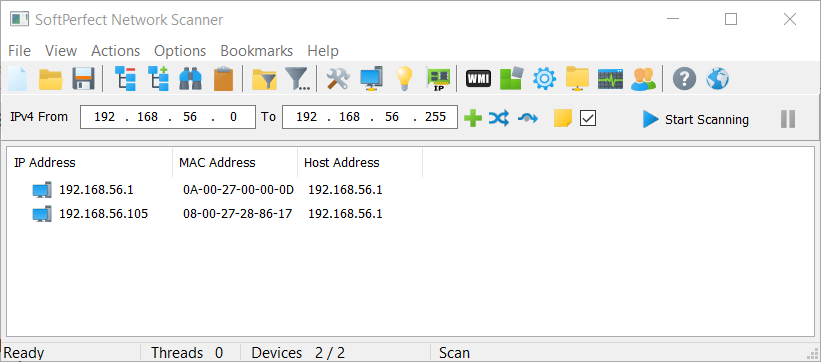
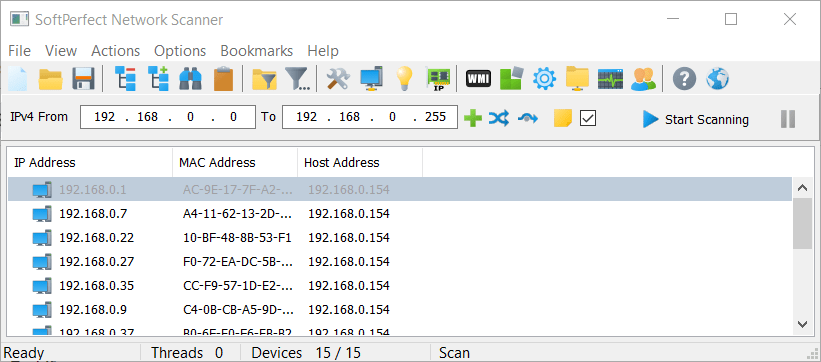
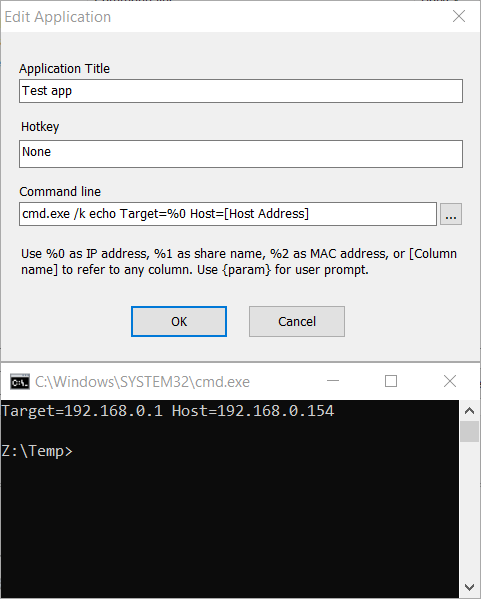
You can use this address when launching applications by using [column name].