How to manually add devices not found during discovery
4 posts · Closed
When I perform the discovery, it finds my switches and IDF in the VLAN, but there are devices that do not appear. How can I add them manually?
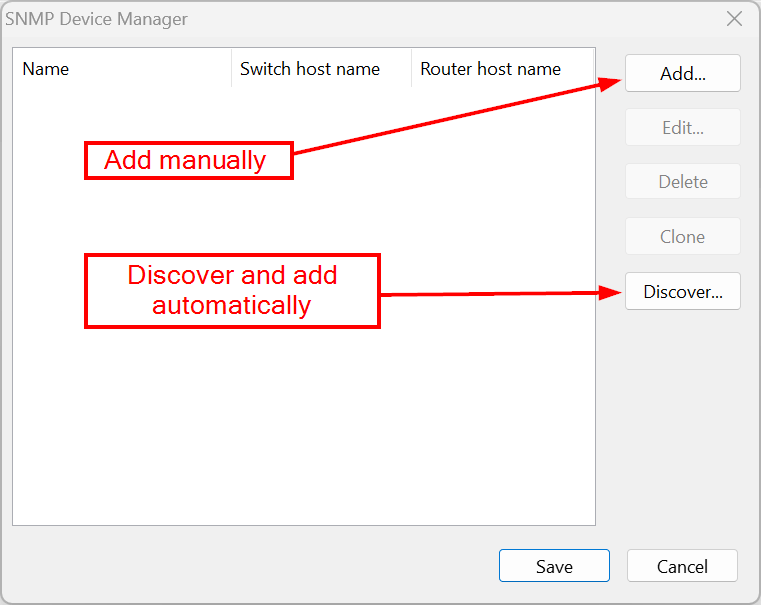
In the SNMP Device Manager:
- click Add to add a device manually, or
- click Discover to scan the network and add devices automatically.
I have tried to add manually as indicated in the manual and it does not allow me to access some switches in my infrastructure. Some are seen and others are not found. When I add them manually I see this error: "Unable to connect to the device".
For example, I need to map these switches and they do not appear after scanning:
172.31.34.16
172.31.34.20
172.31.34.21
172.31.34.3
172.31.34.44
Regarding the issue with your switches 3, 16, 20-21 and 44 not being discovered during the subnet scan, here is some information about how the discovery process works and some troubleshooting steps you can try.
The software sends a regular SNMP-GET request to port 161 at every IP address in the specified range. It first tries SNMPv3 if configured, then SNMPv2c, and finally SNMPv1 to fetch basic device data like sysDescr and sysName from the OID 1.3.6.1.2.1.1. If a response is received, the switch will be discovered. If no response is received, it could mean the switch is not reachable, firewalled, or SNMP is not configured to respond.
In your case, it seems that no response is received from those switches. Determining the root cause can be challenging, as it could be due to various reasons, such as network connectivity issues, firewall rules, or SNMP configuration problems.
To begin the investigation, you can try using the SNMPwalk command-line tool. Run SNMPwalk against the IP addresses of switches 3, 16, 20-21 and 44, and see if you can receive any data from them. If SNMPwalk does not yield any results either, you may need to conduct a more in-depth investigation.
Some steps you can take:
- Verify network connectivity to the switches by pinging them from the machine running the software.
- Check if there are any firewall rules or access control lists (ACLs) blocking SNMP traffic to the switches.
- Ensure that SNMP is properly configured on the switches, including the community string (for SNMPv1/v2c) or user credentials (for SNMPv3).
- If possible, use Wireshark to capture and inspect the SNMP traffic between the software and the switches.