Displaying RAM disk in Task Manager
2 posts · Closed
I don't see RAM disk in Task Manager. How can I display it there?
Thanks.
If you are referring to the Performance tab in the Task Manager, tick the Hard Disk Emulation setting in the RAM Disk's properties. This will enable the emulation of a real/physical device, and it will be shown in the Task Manager as a regular disk:
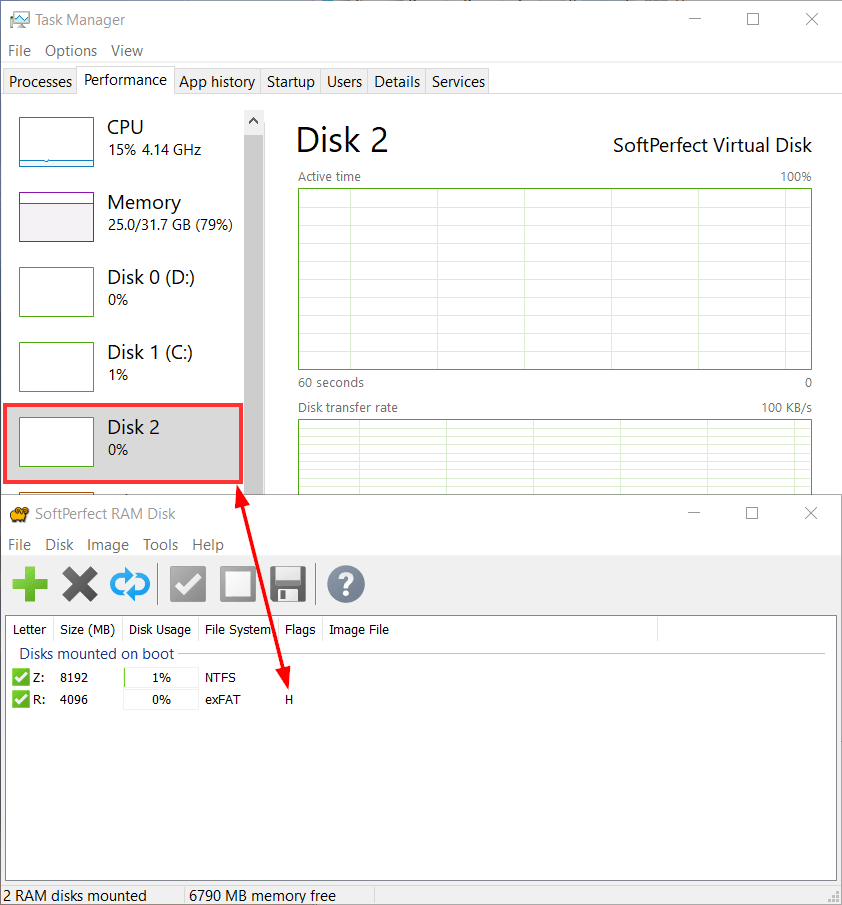
The purpose of Hard Disk Emulation is to emulate a complete hard disk drive with partitions indistinguishable from a real device. Some specialised applications or disk utilities may not work with a standalone volume, or simply unable to access it (as in your case, you are unable to see the disk in the Task Manager). The downside of the enabled emulation is that, with an extra layer of emulation, such disk is slower than a standalone volume. Also, if you are using an image file and choose this option, make sure the image file you create is of the Hard Disk type.