Old configuration remains after reinstalling
14 posts · Closed
After uninstalling RAM Disk, restarting the system, reinstalling RAM Disk, restarting again, then opening RAM Disk, I still see the configuration from my previous install. Can you please advise how I can achieve a truly clean uninstall/reinstall?
I'm trying to uninstall/reinstall because the GUI has become permanently unresponsive. See the attached screenshot of what the RAM Disk GUI looks like on a fresh boot, even after the reinstall cycle I described above. I'm unable to select anything from the GUI or even the system tray context menu, not even to exit the program. My hope is that a truly clean reinstall will clear up this issue. Please advise.
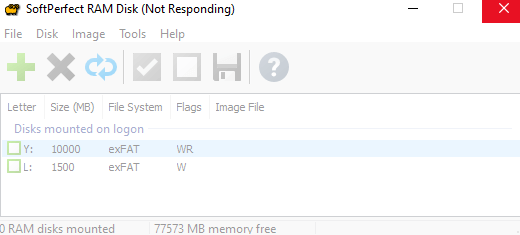
You can simply remove the current configuration by deleting the following folder:
%PROGRAMDATA%\SoftPerfect\RAM Disk
It looks like the reason for the frozen GUI is that you have defined two logon-time disks, mounting which takes time. I recommend waiting for a couple of minutes and then the GUI should start working again.
In general, unless you have specific reasons for using logon-time RAM disks, it is better to use boot-time RAM disks as they are managed by the driver and are ready on system boot.
Per your advice, removing the configuration folder gave me a blank slate that unfroze the GUI. I was able to add a disk and it is useable. However, per attached screenshot, the GUI again becomes permanently unresponsive the moment I added that disk, even a boot-time disk as you suggest. As mentioned, uninstalling/reinstalling via the packaged uninstaller merely restarts this cycle and does not fix the frozen GUI. Can you please further advise on next steps for me?
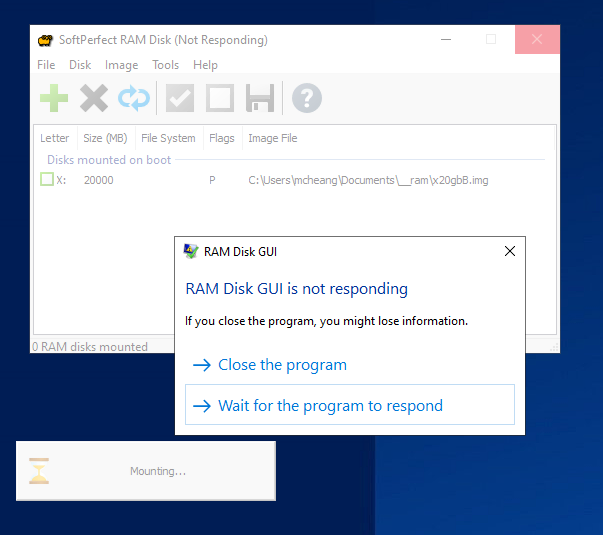
Normally you would simply need to wait a little more. Reading a 20 GB image file and allocating memory for it might take from seconds to minutes, depending on the power of your PC.
I recommend waiting for a few minutes and most likely the GUI will unfreeze. If not, there may a conflict with some other software, in which case it's probably easier for you to simply use a different RAM disk product.
As mentioned, the GUI is permanently disabled. The RAM disk is mounted and can be accessed normally (although the auto-save feature is set but not working,) but the GUI remains frozen no matter how long I wait. Are there any troubelshooting steps you can recommend?
Head's up that I'm in year two of using your software after purchasing four licenses. It has been reliable up to now. This frozen GUI issue first occured when I unmounted the 20 GB boot-mounted image from X: and mounted a smaller 2 GB logon-mounted disk, also to X:. I think having two disks of each type mapped to the same drive (one active, one not) caused the GUI to short circuit to the point that a typical uninstall/reinstall cannot fix. Hope this helps tease out further troubleshooting steps.
Hmm... what version do you have installed?
v4.1.1
I would recommend installing the latest version (4.3.3) as we have fixed and improved the software in many areas. If it works well for you but requires a new licence, please send us a private message and we will issue one to you at no extra cost.
So the weirdest thing is happening. It turns out 4.3.3 did not solve my frozen GUI issue, so I went ahead and did a complete uninstall as instructed by this article. When I rebooted, the test 2.5 GB Y: drive I had last created was still mounted and even persisted my old test folders, this despite no longer having RAM Disk software installed.
Attached is a screenshot showing my current situation. As you can see, the RAM Disk software is definitely not present in my system, yet the Y: drive is still there. It doesn't appear in Disk Management and I cannot unmount or affect it in any way.
I have a feeling that fixing this issue is likely to also fix my original issue of the RAM Disk GUI permanently freezing on me. Please advise.
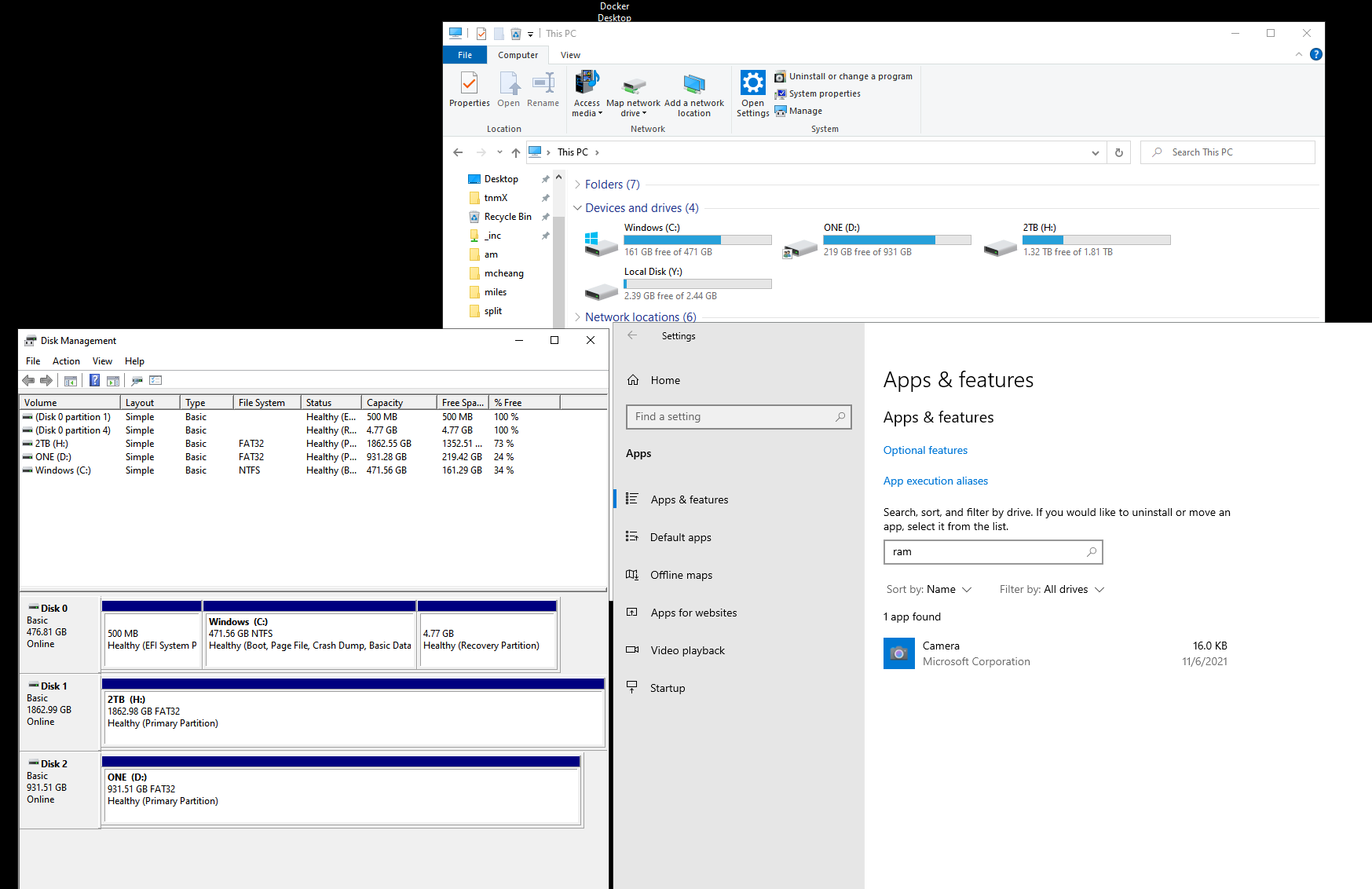
What does typing the following commands in a command prompt display?
sc query spvdport
sc query spvvengine
If the RAM disk drivers are installed and loaded it will be shown like this:
C:\Users\User>sc query spvdport

SERVICE_NAME: spvdport
        TYPE               : 1  KERNEL_DRIVER
        STATE              : 4  RUNNING
                                (STOPPABLE, NOT_PAUSABLE, IGNORES_SHUTDOWN)
        WIN32_EXIT_CODE    : 0  (0x0)
        SERVICE_EXIT_CODE  : 0  (0x0)
        CHECKPOINT         : 0x0
        WAIT_HINT          : 0x0

C:\Users\User>sc query spvvengine

SERVICE_NAME: spvvengine
        TYPE               : 1  KERNEL_DRIVER
        STATE              : 4  RUNNING
                                (STOPPABLE, NOT_PAUSABLE, IGNORES_SHUTDOWN)
        WIN32_EXIT_CODE    : 0  (0x0)
        SERVICE_EXIT_CODE  : 0  (0x0)
        CHECKPOINT         : 0x0
        WAIT_HINT          : 0x0
I am guessing in your case they are still present though following the article you referenced should have them removed.
Attached is a screenshot showing your commands as well as evidence that I fully carried out that uninstall article. What's next?
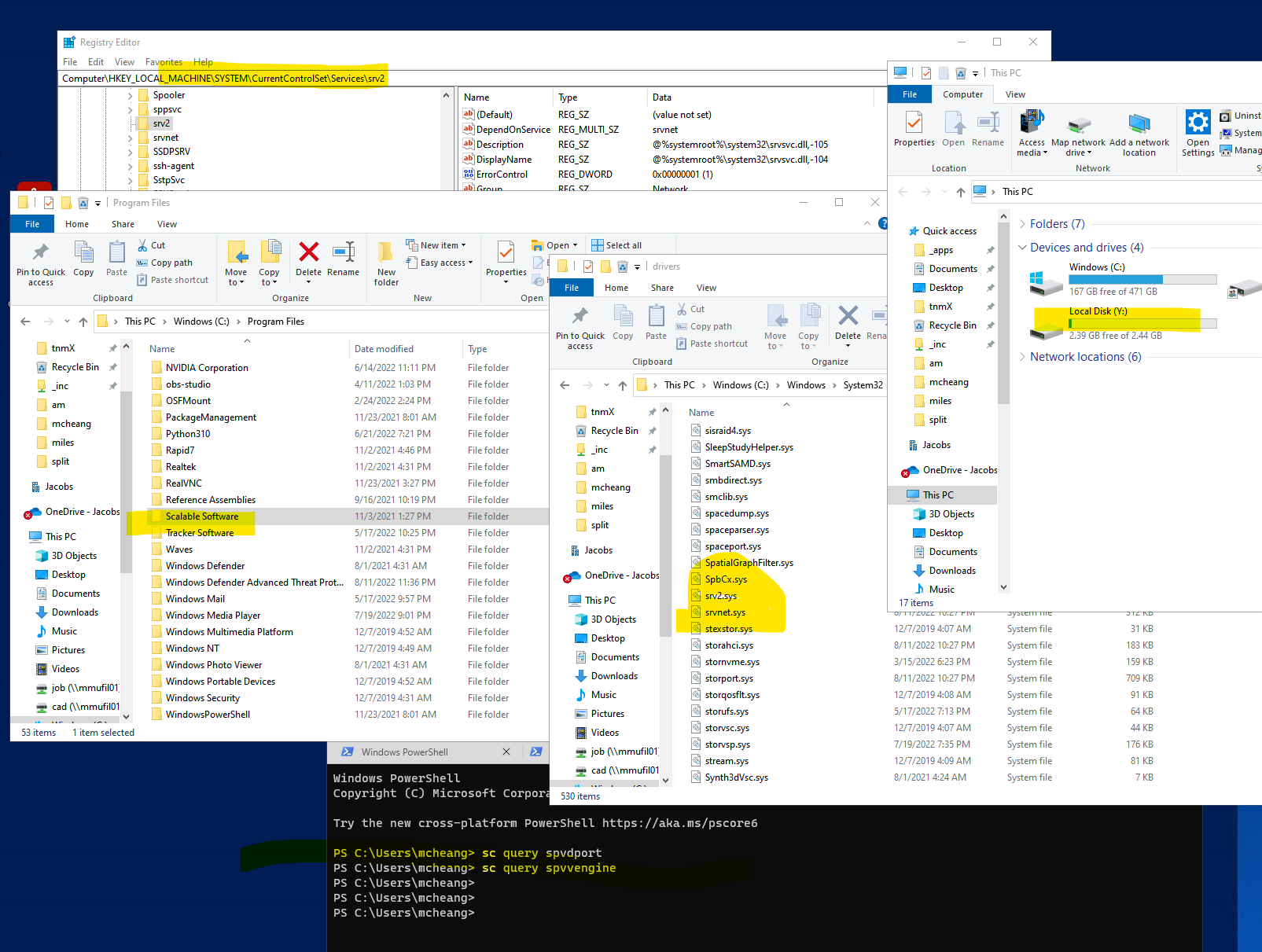
If running in PowerShell, please type sc.exe instead like this:
sc.exe query spvdport
sc.exe query spvvengine
This should give us the definite answer if the kernel drivers are running.
If they do, you can check where they were loaded from by typing:
sc.exe qc spvdport
sc.exe qc spvvengine
Thanks, that did it. It turns out the drivers were indeed running as you suspect and what's more, the rogue Y: drive disappeared after another reboot.
With the rogue Y: drive gone, the time felt right to try a fresh install with 4.3.3. Sadly the attached screenshot is the result of mounting the first test Y: drive, same frozen GUI as before. The Y: drive shows as mounted in the frozen GUI but is not available to access. Note that I was able to trigger an unmount (as shown on screenshot) from the system tray which is still accessible although not really functional.
Any idea how we can troubleshoot?
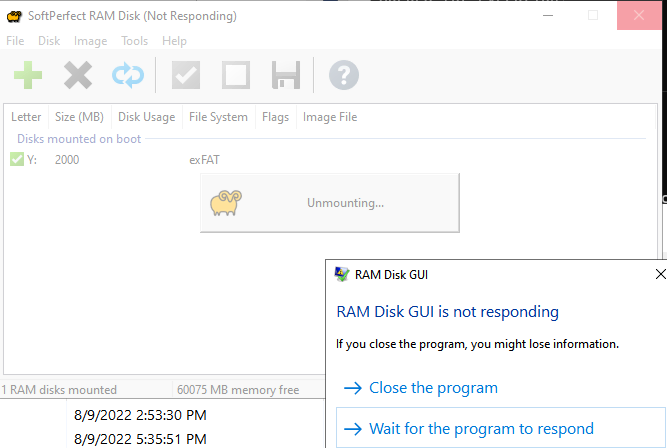
Sorry we don't know what's causing this.
Unfortunately it's impossible to pinpoint the cause without having your computer with kernel debugger attached to it. There may be something wrong with Windows or its disk configuration. Another possibility is that there may be some third party software that is conflicting with the RAM disk.
You could try this workaround still, but if nothing works, I am afraid the only solution is to do a clean Windows reinstall:
- Run regedit.exe and delete HKEY_LOCAL_MACHINE\SYSTEM\CurrentControlSet\Services\SPVVEngine\Options\Auto.
- Reboot. The app should start without any configuration.
- Try creating a RAM disk using a different drive letter (not Y:) and use different mount flags (i.e. Removable or Hard Disk Emulation)