Change Windows TEMP folder settings via command line
5 posts · Closed
Hello SoftPerfect team. Thank you for this software, it's an SSD saviour!
Is there a way to change the settings for Windows TEMP folders via other means than the GUI? If yes, where are these settings stored and how can I modify them? Is that data retrieved through some stored file on Windows, or are the settings retrieved via environmental settings, or is it in the Windows regedit? I was looking to find a way to change this through a command line, but alas, there is no such command.
The reason why I'm asking is because I want to write a script to handle this variable more dynamically.
I searched through the regedit and through Windows folders, but only found RAMDiskWS.xml in the path "C:\ProgramData\SoftPerfect\RAMDiskWS" without the settings I'm looking for.
There is a couple of ways of reading and changing these data, though not within the RAM Disk application.
These are called environment variables, and Windows uses four of them to determine the location of temporary folder:
- System-wide %TEMP%
- System-wide %TMP%
- User-specific %TEMP%
- User-specific %TMP%
When you change the Windows temporary folders location in the RAM Disk app, it updates the last two, i.e. user-specific %TEMP% and %TMP%.
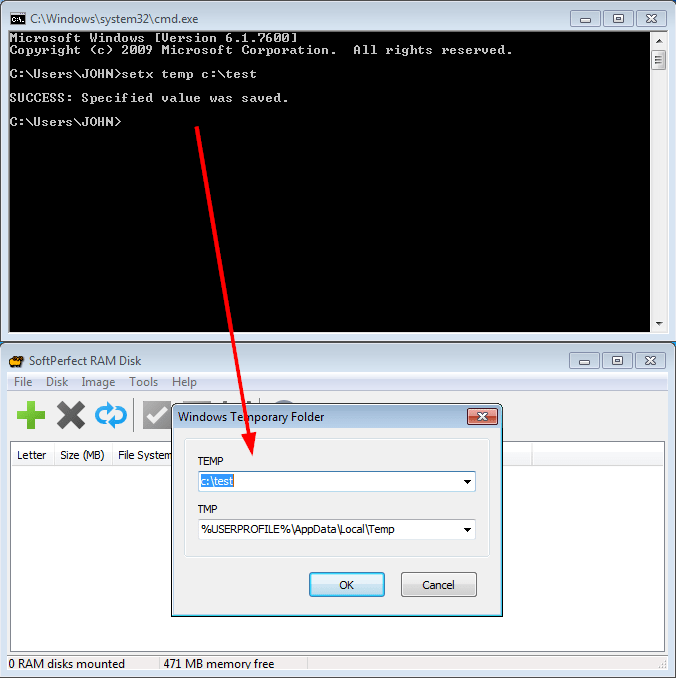
You can set these with the setx command in a command prompt:
SETX TMP R:\Temp
SETX TEMP R:\Temp
Alternatively these variables can be inspected and changed in the registry at
HKEY_CURRENT_USER\Environment
After changing these, you may need to log out and log back in to apply the new values.
Ah, yes. Thank you. I was familiar with these methods of changing the temp folder within Windows.
However changing these settings through these means does not make the Ram Disk switch to these settings immediately, but correct me if I'm wrong.
Having Ram Disk to respond snappy to changing TEMP-directory can only be done through the SoftPerfect Ram Disk GUI then?
Some applications may not pick up the new values until they are restarted or until you log off and then log on again. But the newly set values will be reflected in RAM Disk GUI right away if you change either the TEMP or TMP variable with setx:
Thanks Andrew for getting back to me and confirming this. I will try out this command line and test it for various scenarios, this may come in handy when the Ram Disk is full or the installation-application exceeds the current Ram Disk capacity to dynamically or automatically to either purge the Ram Disk or temporarily switch to a path with more disk space.