GUI not displayed in the middle of the screen
17 posts · Closed
When I turn on my computer and click the WiFi Guard icon in the system tray, the WiFi Guard GUI is not displayed in the middle of the screen (please see attached screenshot). It's not a big deal, but maybe this can be fixed. I did not have this problem with older versions of WiFi Guard. Thanks in advance for your help.
OS: Windows 11 Pro
WiFi Guard version v2.2.1, latest pre-release
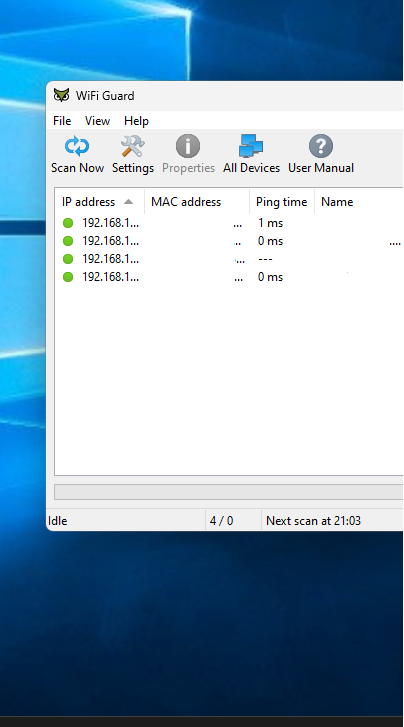
It looks like for some reason WiFi Guard has remembered incorrect screen coordinates.
Please try dragging it to the middle of the screen, then choose File - Quit from the main menu (don't use the [X] button in the title bar). After that, restart WiFi Guard and it should appear where you placed it.
Thanks for your reply. WiFi Guard always appears where I placed it before I quit the app. However, this is not the case when I boot up my computer the next morning and open WiFi Guard for the very first time of the day. As mentioned above, I did not encounter this problem when I used older versions of the app.
Sorry we have been unable to reproduce this so far. Even after a reboot of Windows 10 the window opens up where it's supposed to be.
Anyway, thanks for letting us know about this issue. We will keep an eye on it to see if it happens to any one else.
As far as I know, WiFi Guard remembers its last window position even after a reboot, but this does not seem to be the case when I boot up my computer after a couple of hours/days. Anyway, it's not really a problem, but maybe this can be fixed sooner or later. Again, thank you very much for your help.
I installed the WiFi Guard build you released on 5 Sep a couple of minutes ago and rebooted my computer. Guess what? WiFi Guard remembered the correct screen coordinates! I do hope this will also be the case when I boot up my computer tomorrow morning, but it does seem as if the bug I reported above has been fixed with the latest build. Well done. Thank you very much.
I spoke too soon. When I fired up my computer this morning, the bug mentioned in my first post was back. :-(
No problems so far with the latest build. WiFi Guard has so far always remembered the correct screen coordinates. :-)
The issue may be related to timing, wherein Windows attempts to apply the default window position after WiFi Guard has read its settings and positioned the window based on its last location.
If you encounter this problem again, we recommend upgrading to the newest version. We have modified this version to prevent Windows from applying the default window position.
Additionally, the 'File Not Open' issue has been resolved. The previous builds contained some leftover debug code that has now been removed.
I have upgraded to the newest version of WiFi Guard, which works as expected. Well done. Thank you very much.
Last night, I decided to give WiFi Guard another try after not using it for a couple of months. Unfortunately, the problem regarding the application window is back or has not been resolved yet. I still hope this problem can be fixed with one the next releases. I also use RamDisk, which always opens the GUI right in the middle of the screen. This should also be possible for Wifi Guard, shouldn't it?
Andrew wrote:
The issue may be related to timing, wherein Windows attempts to apply the default window position after WiFi Guard has read its settings and positioned the window based on its last location.
Maybe it helps to start WiFi Guard with a delay of a minute or two. I have tried to achieve that via task planer, but I did not succeed (not even with the /hide parameter). As soon as the app is launched via task planer, I see a WiFi Guard icon on my taskbar. This is not what I want; I only want to see the icon in sys tray.
Is there an option to start WiFi Guard with a delay of a couple of minutes without placing the icon on my taskbar? Maybe a delayed start stops Windows from messing with the WiFi Guard window location. It should be somehow possible to always see the WiFi Guard window right in the middle of my screen. Really annoying ...
A fourth option for "UI behaviour" could help:
"Start with a delay of X minutes"
A delayed start would only be a workaround, not a solution.
We've just updated the positioning code again, so please try the latest build and let me know how it works for you.
I agree, but this workaround could help to do something about the strange window location.
Thank you very much for the new build. Unfortunately, this new build did not help to resolve this problem. This is what I tried:
- I shut down my computer and booted it up two hours later: The WiFi Guard GUI opened right in the middle of my screen, so the new build seemed to have resolved the problem.
- I shut down my computer again and booted it up after twenty hours. No luck! The WiFi Guard did NOT open the GUI in the middle of my screen. Instead, I can only see half of the window on the right-hand side of my screen (as can be seen in the screenshot that I attached with my first post).
Do you have multiple monitors connected or a laptop and an external monitor? It must be an unusual display configuration.
No, I have a desktop with just one monitor (acer 1920x1080), and no, I don't have an unusual display configuration. WiFi Guard is the only app that does not open its window where it is supposed to open it. Even Ram Disk, which works like a charm here, always opens its window right in the middle of the screen. I really don't think it's got something to do with my display configuration; I think it's WiFi Guard that causes this display oddness. Apart from that, I'm very pleased with WiFi Guard, but I will have to stop using it if this problem cannot be resolved because I find it really annoying. Anyway, thank you very much for your help and support, which is very much appreciated here.
Edit: Here are some of my monitor values:
Monitor: Property Value _FROM
Video Adapter Intel(R) UHD Graphics 630
Availability Running
Name [SIW] Intel Corporation CoffeeLake-S GT2 [UHD Graphics 630] [ASUSTeK Computer Inc]
Code Name Coffee Lake GT2
Video Processor Intel(R) UHD Graphics Family
Technology 14 nm
Adapter DAC Type Internal
PCI ID 0x8086 / 0x3E92 - Intel Corporation / CoffeeLake-S GT2 [UHD Graphics 630]
PCI sub ID 0x1043 / 0x8694 - ASUSTeK Computer Inc
DirectX 12 Feature Level 12_1
Memory 1024 MB
Adapter BIOS String Intel Video BIOS
Video Mode Description 1920 x 1080 x 4294967296 Farben
Driver Version 30.0.100.9805
Drivers C:\WINDOWS\System32\DriverStore\FileRepository\iigd_dch.inf_amd64_e648bb2a2af8e9de\igdumdim64.dll|C:\WINDOWS\System32\DriverStore\FileRepository\iigd_dch.inf_amd64_e648bb2a2af8e9de\igd10iumd64.dll|C:\WINDOWS\System32\DriverStore\FileRepository\iigd_dch.inf_amd64_e648bb2a2af8e9de\igd10iumd64.dll|C:\WINDOWS\System32\DriverStore\FileRepository\iigd_dch.inf_amd64_e648bb2a2af8e9de\igd12umd64.dll
Driver Date 2021-07-23 (Freitag, 23. Juli 2021)
Properties
DirectX DirectX 12
Feature Level 12_1
File Version 10.0.22621.1
Agility SDK Yes
Monitor Generic Monitor (G276HL)
Name [SIW] G276HL
Model G276HL
Monitor ID ACR0300
Manufacturer (Standardmonitortypen)
Manufacturing Date 2019, Week 12
Input Digital
Serial Number LW9EE0328531
Display Size 27,2" (60 cm x 34 cm)
Horizontal Frequency 31-83 KHz
Vertical Frequency 56-76 Hz
Current Resolution 1920 x 1080 @ 75 Hz - Aspect Ratio 16:9
Supported Resolution 1920 x 1080 @ 60 Hz - Bildseitenverhältnis 16:9
Supported Resolution 1152 x 864 @ 75 Hz - Aspect Ratio 4:3
Supported Resolution 1280 x 960 @ 60 Hz - Aspect Ratio 4:3
Supported Resolution 1280 x 1024 @ 60 Hz - Aspect Ratio 5:4
Supported Resolution 1280 x 720 @ 60 Hz - Aspect Ratio 16:9
Supported Resolution 1280 x 800 @ 60 Hz - Aspect Ratio 16:10
Supported Resolution 1440 x 900 @ 60 Hz - Aspect Ratio 16:10
Supported Resolution 1680 x 1050 @ 60 Hz - Aspect Ratio 16:10
Supported Resolution 1920 x 1080 @ 60 Hz - Aspect Ratio 16:9
EDID Version 1 Änderungsstand 3
Max dot clock (video bandwidth) 220 MHz
DPMS Mode Support Unterbrechen;Bereitschaft
Properties
Display Device \\.\DISPLAY1
Device Name Intel(R) UHD Graphics 630
Device Key \Registry\Machine\System\CurrentControlSet\Control\Video\{718455C5-AD7D-11ED-B7D6-806E6F6E6963}\0000
Device Flags DISPLAY_DEVICE_ACTIVE, DISPLAY_DEVICE_MODESPRUNED, DISPLAY_DEVICE_PRIMARY_DEVICE
Video Modes
Monitor \\.\DISPLAY1\Monitor0
I have found a workaround in the form of a small app that automatically moves all windows to the centre of the screen. It's not a solution, I know, but at least the misbehaving WiFi Guard window now also opens right in the middle of my screen, as do all other non-maximised windows, including Ram Disk.