Devices list remains empty on startup
8 posts · Closed
I'm using the latest version of WiFi Guard. Whenever I turn on my computer (Win 11 Pro 23H2), WiFi Guard does start with Windows, but the list of devices remains empty. Only when I click on the WiFi Guard icon in the system will the app start scanning. If I don't click on the icon, no devices are shown and the status remains "Idle". Is this a bug or a feature?
I thought WiFi Guard would start scanning my devices after booting up my computer, but this does not seem to be the case here. Maybe WiFi Guard needs to be started as a "service", which, I think, is currently not possible, is it? Anyway, thanks for your help in advance.
WiFi Guard is a regular application, not a service, which means it starts when a user logs on. It's usually not an issue as it's used on regular desktop computers where a user logs on as soon as the system starts.
If it then doesn't scan your network automatically, please check if scheduled scanning is enabled in the Settings as shown below. In the status bar it should display when the next scan is scheduled to run:
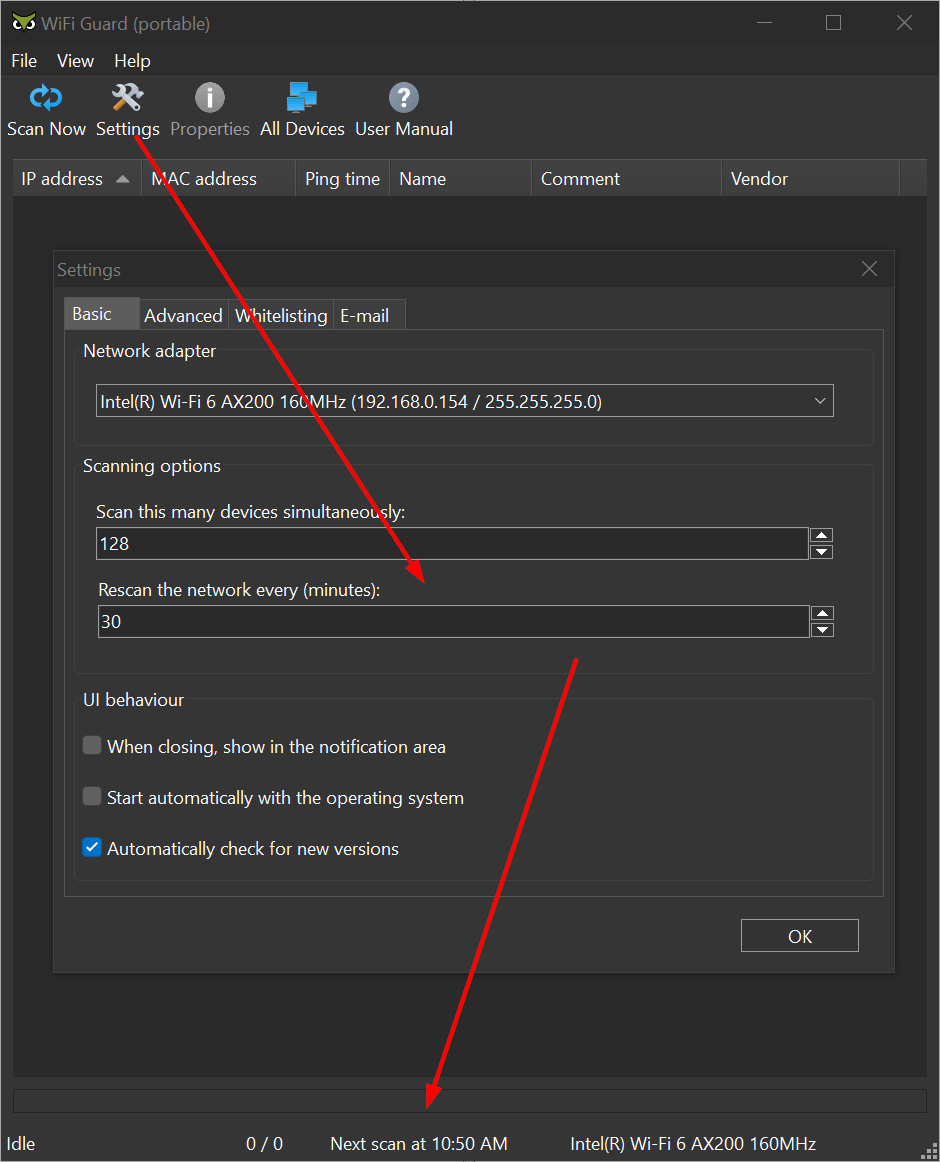
Scheduled scanning is enabled in the Settings as shown in my screenshot. However, the status bar is empty. Only when I click the WiFi Guard icon does the app start scanning my network. If I don't click the icon, no scans are performed and the status remains "Idle". I don't remember having this issue with older versions of WiFi Guard.
Apart from that, the issue concerning the WiFi Guard window opening too far to the right of the screen seems to have been reintroduced with one of the latest versions.
I would like to go back to an older version of WiFi Guard (maybe 2.1 or 2.0 or even older) because they always worked fine for me. Are older versions of WiFi Guard still available?
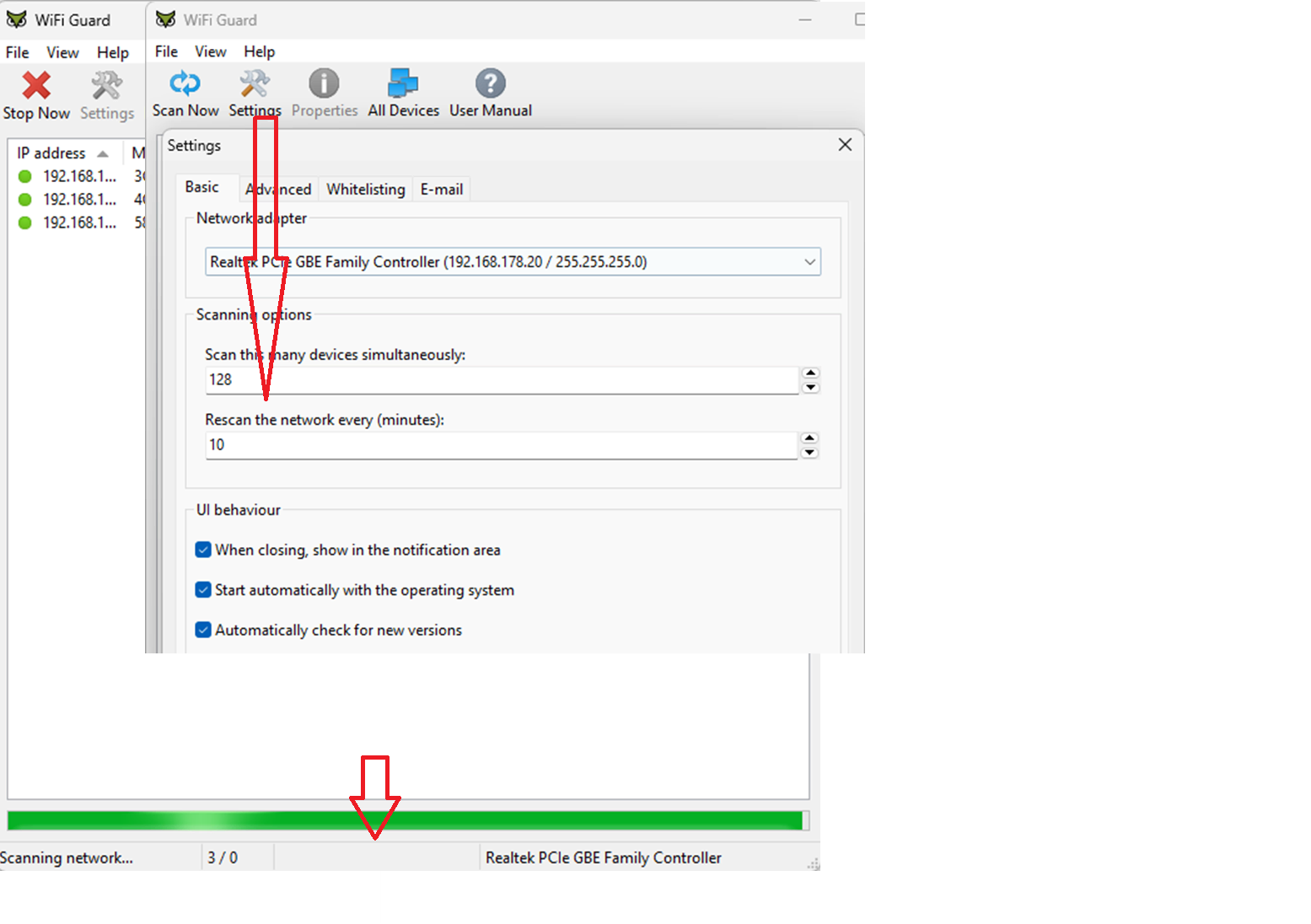
Maybe I should add that WiFi Guard does start with Windows, but WiFi Guard does not start scanning on its own. The scanning process always needs to be triggered by the user. The screenshot I added is a bit misleading because the time of the next scan is not shown when the app starts scanning. Unfortunately, I was not able to make a screenshot before WiFi Guard starts scanning. As soon as I trigger the scanning process, the time of the next scan is shown.
I'm currently trying the portable version of WiFi Guard. This version seems to have the same bug, but at least the GUI always opens right in the middle of the screen. Nevertheless, I would like to go back to an older version of WiFi Guard because I want the app to start scanning the network as soon as I have booted up my computer.
Sorry I am afraid it's a mystery why the latest version doesn't work for you.
While in most cases we don't keep older versions, you can download previous releases from this third-party site. I recommend starting with version 2.1.6.
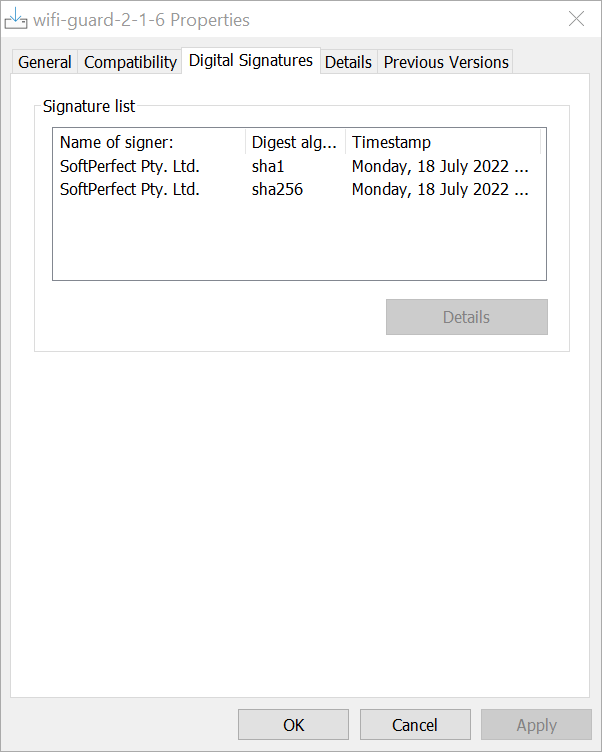
After downloading it, it's a good idea to check our Digital Signature in the file's properties. If it's valid, it means the file is authentic and safe to install:
Thank you, Andrew. I will give an older version of WiFi Guard a try and see how it works here. Your help is much appreciated.
Good news: we have found the bug that prevented the automatic scanning process from starting. Please download the latest build to fix the issue.
This is good news, Ann. Thank you very much. I will give the latest build a try as soon as I can.