Unable to switch back to light mode
4 posts · Closed
I switched WiFi Guard to dark mode, and now I can't find a way to switch back to light...
To switch back to light mode, here's a quick guide:
- Open View in the main menu of WiFi Guard.
- Uncheck Dark Mode there.
- Restart WiFi Guard by selecting File - Quit from its main menu. Avoid using the [X] button for closing the app, as this may send it to the notification area instead of exiting.
Once restarted, the application should appear in light mode.
Thanks for your quick response.
I used the "Quit" drop-down field instead of the "X" button in the corner, and it works fine that way...
I want to use the dark mode because of my eye condition, but I can't do anything on the top bar with black letters on a black background... Let me know when you have fixed it...
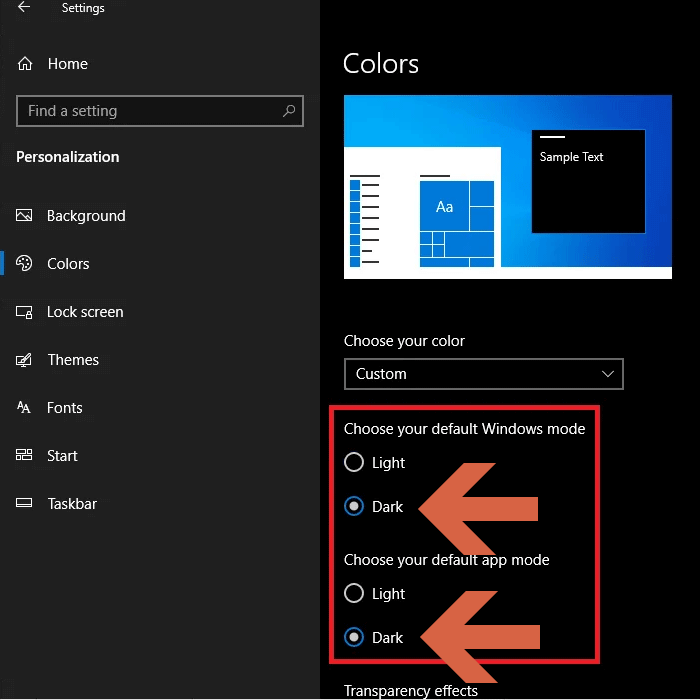
The poorly visible text in the dark theme is most likely related to your Windows system theme.
WiFi Guard's dark mode functions optimally when both the Windows system and the app are configured to use dark mode, as shown below: