Rules
The software examines each data packet passing through the network. If the data packet matches a rule, then the specified speed limit is applied to that packet. The rules are matched in descending order of the rules list, with highest priority rules at the top. The first matching rule applies and no remaining rules are checked. The rules can be reordered if needed. If a network packet does not match any rule in the list, it is let through without limitations. See also the rule examples.
To add a new rule, or modify or delete an existing rule, select Rules - Add New Rule/ Edit Rule/ Remove Rule respectively from the main menu. To change the rule priority use Rules - Move Up or Move Down to move the rule within the list, or simply use drag & drop.
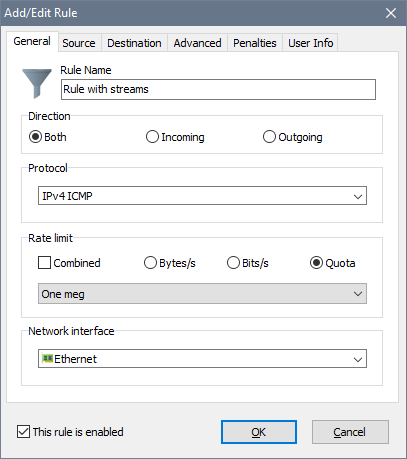
The input fields are as follows:
- Rule Name: a descriptive name for the rule.
- Direction: traffic direction on the network interface.
- Protocol: the network protocol this rule must match.
- Rate limit: a data transfer speed limit. You can specify this limit in bytes per second or bits per second, or use a quota for variable rates. In order to use different download/upload rates in a bidirectional rule, specify the rates separated by a colon. For example 100000:50000 would enforce a 100 kB/s limit on incoming traffic and a 50 kB/s limit on outgoing traffic.
- Combined: allows to share the transfer rate limit in a bidirectional rule. For example, if you set a 128 kB/s combined limit, the sum of upload and download rates will not exceed 128 kB/s.
- Network interface: the network interface type the rule applies to.
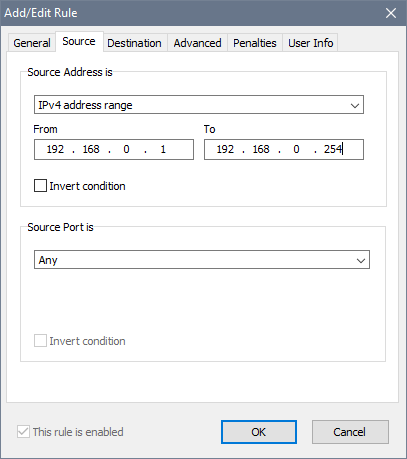
If you have specified an IP based protocol, you also need to specify Source and Destination parameters. These can be IP addresses, MAC addresses, address ranges or address groups. Other special parameters allowed are Any and Local host:
In order to specify the advanced rule properties, choose the Advanced tab:
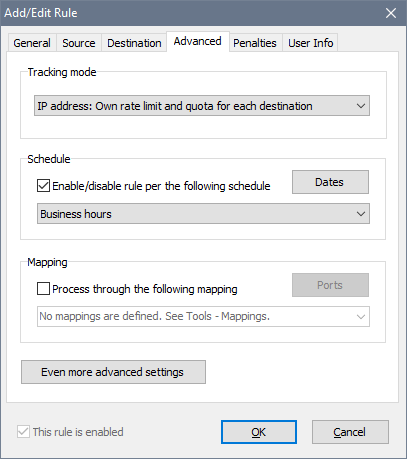
The Tracking mode option determines how the rule handles connections. When it is set to share the rate limit and quota, the rule does not identify individual connections. Whether there is one computer traffic flowing through the rule or multiple computers traffic, they have to compete for bandwidth and their individual usage is recorded as a whole. To limit individual connections, there are 4 options for setting the Tracking mode to do it: source IP address, source MAC address, destination IP address, destination MAC address. These individual connections are called streams, and you will see them dynamically emerging in the list of rules.
If you decide to use a Schedule, the rule will be either enabled or disabled according to the timetable you choose. For instance, you can configure your rules to allow high speed Internet access on working days and disable it at all on holidays. The This rule is enabled option becomes read-only and cannot be changed manually when the rule is linked to a schedule. See schedules for details.
The Mapping feature allows you to redirect incoming connections to a local port or a web-site. See mappings for details.
There are more features under Even more advanced settings:
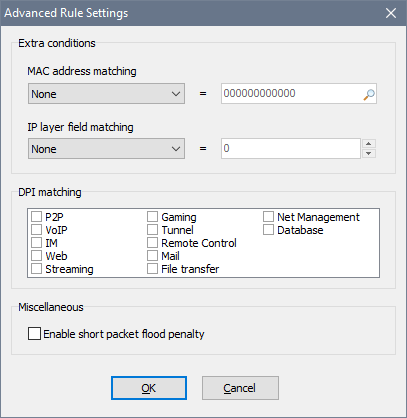
Here you can configure a couple of extra conditions. The MAC address matching requires the rule to match packets from/to the specified MAC address only. This could be useful if your network uses IP + MAC address authentication. The IP layer field matching requires the rule to match an IP header value in IPv4/IPv6 packets. If you need this, you probably know what you are doing.
The DPI matching group defines which type(s) of traffic this rule must match. This could be useful if, for example, you want to ban P2P applications and watching online videos.
You can also Enable short packet flood penalty to penalise users that send a lot of small packets into the network; remember to adjust the global short packet flood penalty parameters if needed.
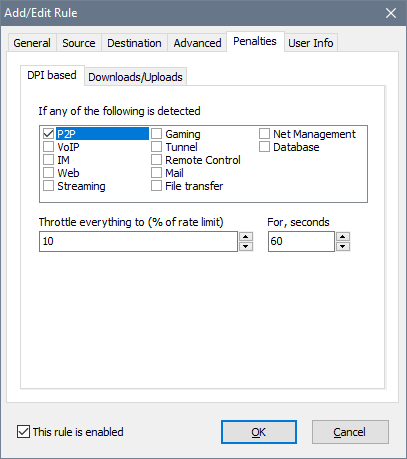
The Penalties tab can be used to discourage users from heavy downloads, watching online videos or using BitTorrent. Two types of penalties are available: DPI-based and Downloads/Uploads.
The DPI-based penalty allows you to throttle the entire rule’s throughput upon detecting a prohibited activity. For example, with the P2P penalty switched on on and set to 60s, the user is penalised for 60s after a P2P packet was detected. If the user keeps running a torrent app, there normally is at least one P2P packet every 60s, so the user is penalised until the torrent app is closed. Once the torrent app is closed and consequently no P2P packets have been detected for 60s, the penalty is removed.
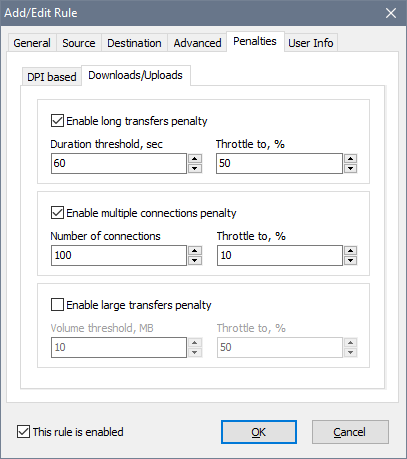
By using the Downloads/Uploads penalty, you can throttle long or large data transfers or the users who open too many connections. Unlike the DPI-based penalty, these apply to individual TCP/UDP connections and not the entire rule’s throughput. For example, if the Volume threshold is set to 1 MB and Allocate is set to 50%, this means that if the user downloads or uploads anything larger than 1 MB, the user’s connection speed will drop by 50% until the transfer ends. Once it ends, the normal transfer rate is restored in a few seconds. If multiple penalties are chosen and go off, the strictest one applies.
The User Info tab allows to set a password to access usage reports with a web-browser as well as to choose what notifications the user receives:

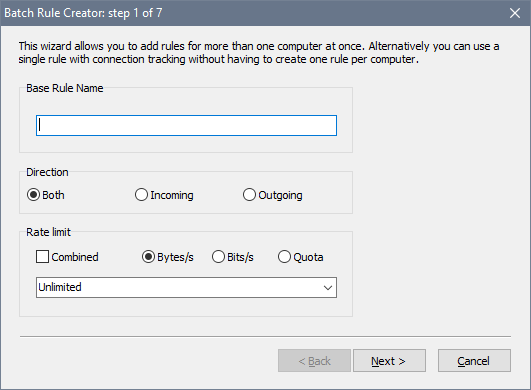
In order to facilitate multiple rule creation, the software has a batch wizard. If you would like to add a number of rules, for example to cover a LAN segment, use the Rules - Add Batch command. It helps you create many similar rules within a single action: