NetWorx: questions and answers
Common questions about NetWorx. For how it works and what each setting does, see the NetWorx manual.
I forgot the NetWorx password
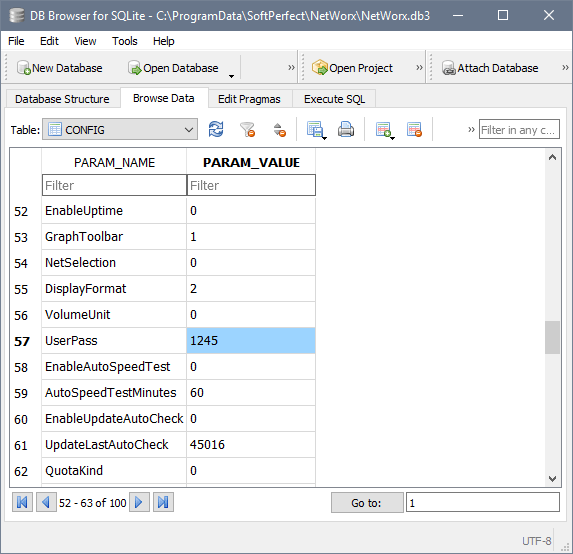
NetWorx keeps its password in its own database, where you can read it with a free SQLite viewer:
- Download and install DB Browser for SQLite.
- Start it, click Open Database and open the NetWorx database file:
- Windows: %PROGRAMDATA%\SoftPerfect\NetWorx\NetWorx.db3 (paste the folder into the file name field and press Enter to get there);
- macOS: /Users/Shared/Library/Preferences/SoftPerfect/NetWorx/NetWorx.DB;
- Linux: ~/.config/SoftPerfect/NetWorx/NetWorx.DB;
- the portable version: the database file in the folder NetWorx runs from.
- Go to the Browse Data tab and choose the CONFIG table.
- Find UserPass in the PARAM_NAME column. The password is beside it, in the PARAM_VALUE column.
The application monitoring option is greyed out
On the Main page of Settings, the mode Monitor application Internet usage while excluding local network traffic needs to see which application each connection belongs to. On Windows, NetWorx does this through its own driver, and the option is greyed out when the driver is not there:
- You are using the portable version. It has no driver. Download and install NetWorx with its installer instead.
- The driver was not chosen when NetWorx was installed. The installer offers it as Per-App Internet Monitoring Driver in the list of components.
- Security software blocked the driver. Allow NetWorx in your antivirus or similar software, then reinstall it as below.
When you update NetWorx, the installer keeps the components you chose the first time and does not show the list again. To add the driver later:
- Back up your usage data: in the Usage Report, click More and choose Backup.
- Uninstall NetWorx. When asked Delete all NetWorx data and settings?, answer No.
- Restart your computer.
- Download and run the latest NetWorx installer, and tick Per-App Internet Monitoring Driver.
- If your usage data is missing, restore it in the Usage Report with More and Restore.
On Linux, application monitoring needs raw network access, which the .deb and .rpm packages grant to NetWorx when they install it. If the option is greyed out, install NetWorx from one of the packages.
NetWorx shows more or less usage than expected
Too high
- More than one adapter is monitored. When NetWorx monitors network adapters, the same traffic can pass through two of them, for example a VPN adapter and your Wi-Fi adapter, and be counted twice. On the Main page of Settings, select only the adapter that connects you to the Internet.
- Local network traffic is counted. In adapter monitoring, copying files to another computer or a network drive counts too. Switch to Monitor application Internet usage while excluding local network traffic, which ignores traffic within your local network.
Too low
- Other devices are not counted. NetWorx monitors only the computer it is installed on. Phones, tablets, TVs and games consoles use your Internet allowance too; see how to monitor all your devices.
- Application monitoring counts slightly less. In this mode it is normal for NetWorx to report up to 5–10% less than your provider, depending on your connection.
- NetWorx only counts while it is running. It is a regular application, not a service, so traffic before you sign in, such as operating system updates downloaded at start-up, is not counted.
The tray icon is missing
Windows hides notification area icons it considers inactive. This applies to any program with a tray icon, including NetWorx, NetGenius and WiFi Guard.
- On Windows 11, open Settings, then Personalisation, then Taskbar, expand Other system tray icons and turn the program on.
- On Windows 10, open Settings, then Personalisation, then Taskbar, click Select which icons appear on the taskbar and turn the program on.
If the program is not in the list, or its icon still does not appear, the list of icons Windows keeps may be damaged. In that case, download this batch file, unzip it and run it: it resets the list and restarts Windows Explorer, after which the icons should appear correctly. This also resets your choices for all other icons.
The batch file deletes the IconStreams and PastIconsStream values under the first two of these registry keys, and the whole third key:
HKEY_CURRENT_USER\Software\Classes\Local Settings\Software\Microsoft\Windows\CurrentVersion\TrayNotifyHKEY_CURRENT_USER\Software\Microsoft\Windows\CurrentVersion\Explorer\TrayNotifyHKEY_CURRENT_USER\Control Panel\NotifyIconSettings
Still have questions? Drop us a line.