Getting started
The main window lists mounted volumes with their drive letter, size, usage and compression state, and shows overall memory use along the bottom.
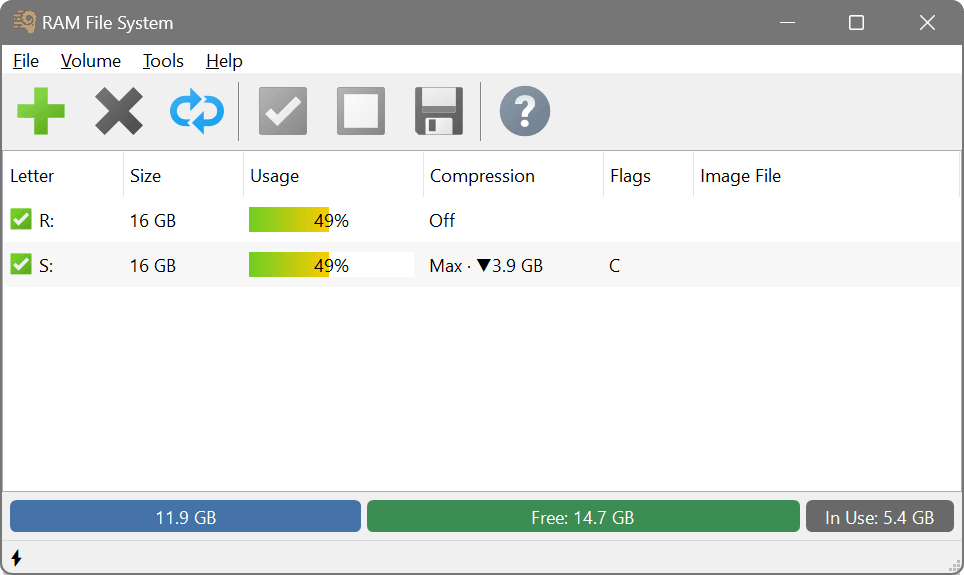
To create a volume, use the Add button on the toolbar or Volume → Add in the main menu. Set at least the size and drive letter; the full option set is described in Adding a volume. The volume mounts immediately and appears as a local drive.
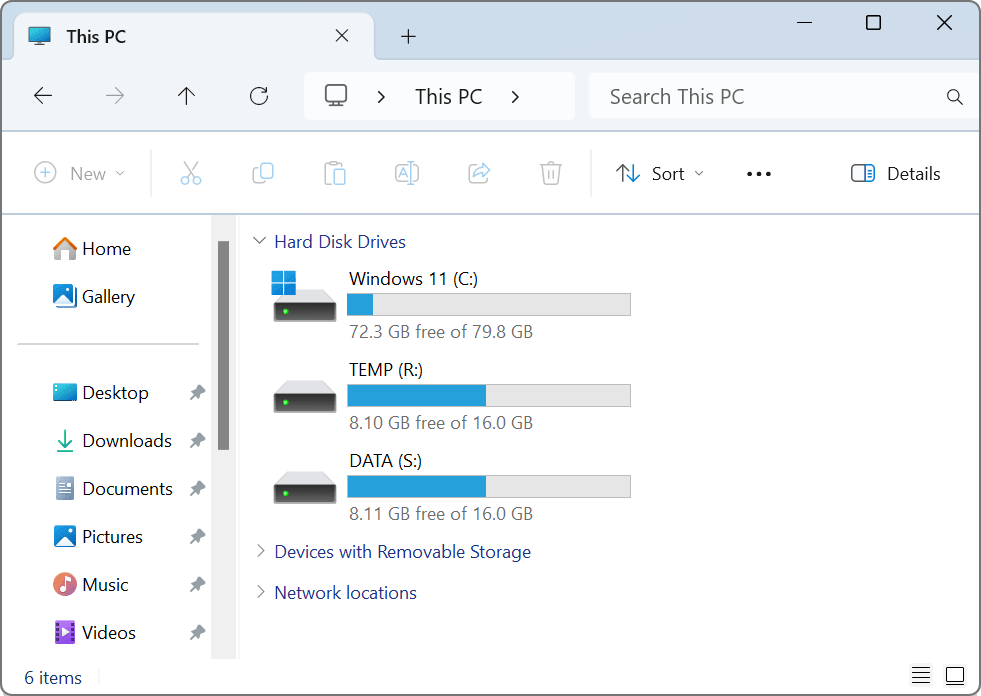
RAM FS volumes behave like any other drive, but its contents are cleared on dismount or shutdown unless saved to an image. A typical first task is to redirect temporary files to a RAM FS volume.
The screenshots in this manual are from the Windows edition; the macOS and Linux applications look and work the same, except that ordinary volumes are named rather than lettered and mount under /Volumes on macOS and /mnt/ramfs on Linux — see Cross-platform considerations.