Resizing a volume
A mounted volume can be resized live, with no dismount and no interruption to open files. Select the volume and open Resize. The dialog shows the current size and usage:
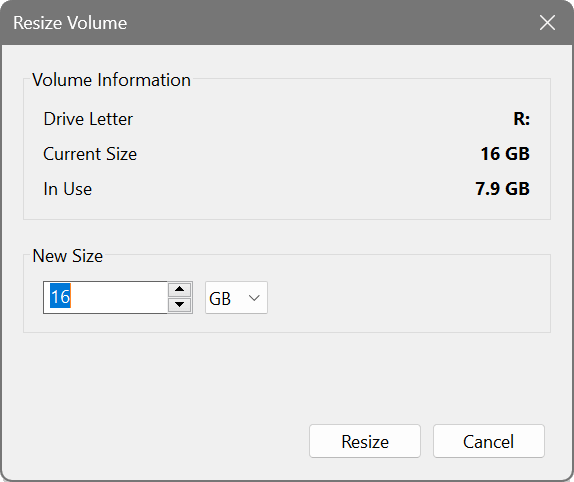
Growing the volume always succeeds and takes effect immediately. Shrinking succeeds only if current usage fits the new size. A volume cannot be shrunk below its used space, so clear and reduce your data first if you need to shrink the volume further. A process that was blocked because the volume was full resumes automatically shortly after the volume was enlarged. If the volume is image-backed, the new size is recorded at the next save.
Because the volume is thin, it only consumes memory for the data it actually holds, and deleting files frees that memory. Resizing changes the logical capacity, not the memory in use. Grow to raise the ceiling when a volume is filling up; shrink to lower the maximum it may reach (to cap the RAM a volume is allowed to consume).