Temporary files
Redirecting temporary data to a RAM FS volume is the most common deployment. Temporary files, browser caches and application scratch data are write-heavy and short-lived; serving them from memory speeds up I/O-bound work, reduces SSD wear and keeps disposable files off the permanent drive.
Windows TEMP and TMP
Open Tools → Set Windows Temporary Folder in the main menu. Point TEMP and TMP to a folder on your RAM FS volume, for example R:\Temp, and press Apply. This tool is specific to the Windows edition; on macOS and Linux, point individual applications at a volume folder directly.
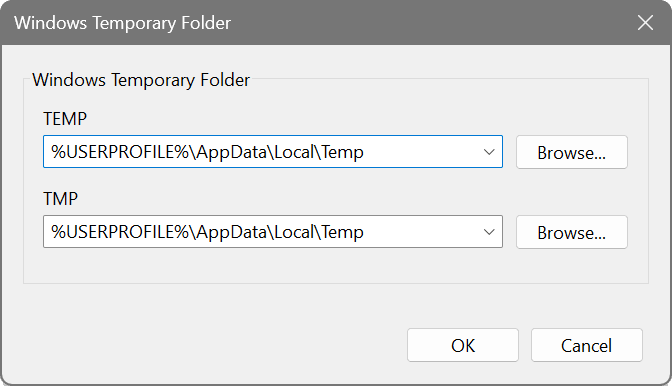
Processes read these environment variables at launch, so log off and on (or restart) for the change to reach all your applications.
Folder must exist
A RAM FS volume is empty on every mount, so the target folder must exist before the OS and other apps reference it. Make sure the volume is created with the necessary folder in its Create Folders list, and enable Create automatically at startup. The volume and its Temp folder are then present from boot, before anything else needs them.
Other uses
Browser caches, media-editor scratch directories, database temp and spool paths, and build intermediates are all good candidates for using RAM FS. Point each application's cache or scratch setting at a folder on the RAM FS volume.
Note: volume contents are lost on shutdown unless saved to an image file, which is the intended behaviour for temporary data. Keep non-temporary data on a normal drive.