Console mode
The console version (TFTPServerCon.exe on Windows) provides a lightweight, command-line interface to the TFTP server. It is ideal for:
- Headless servers without a graphical environment
- Scripting and automation
- Linux and macOS systems
- Minimal resource usage
- Quick testing and troubleshooting
Usage
TFTPServerCon [config_file]
- No arguments
- The server uses the default configuration file location:
- Windows:
C:\ProgramData\SoftPerfect\TFTP Server\TFTPServer.ini - Linux:
~/.config/SoftPerfect/TFTP Server/TFTPServer.ini - macOS:
~/Library/Preferences/SoftPerfect/TFTP Server/TFTPServer.ini
- Windows:
- With config file path
- Specify a custom configuration file:
TFTPServerCon /path/to/custom.ini
This allows running multiple instances with different configurations.
Running the console server
When started, the console server displays its configuration and begins listening:
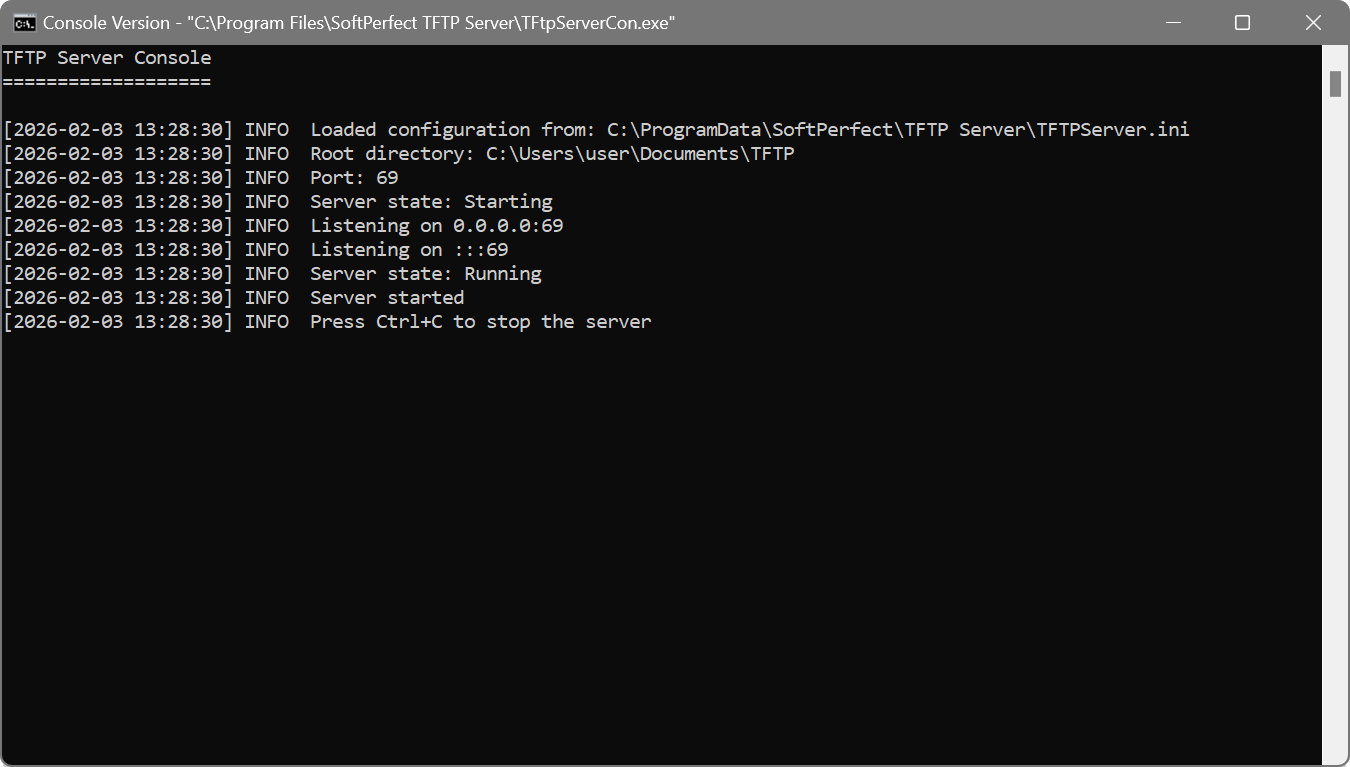
Transfer activity and events are printed to the console in real time. Press Ctrl+C to stop the server gracefully.
Configuration
The console server uses the same INI file format as the GUI application. You can:
- Configure settings using the GUI, then run the console server with the same configuration.
- Edit the INI file manually with a text editor.
- Create multiple INI files for different scenarios.
Running as a background process
On Linux and macOS, you can run the console server in the background:
nohup ./tftpserver &
Or use a process manager like systemd to manage it as a system service.
Console vs Service
On Windows, you have two options for running without a GUI:
| Feature | Console | Windows Service |
|---|---|---|
| Requires login session | Yes | No |
| Auto-start with Windows | Manual setup needed | Built-in |
| Output | Console window | Log file |
| Multiple instances | Easy (different configs) | One per service name |
| Cross-platform | Yes | Windows only |