Windows service
The TFTP Server can run as a Windows service for unattended, 24/7 operation. This is ideal for production environments where the server must start automatically and run without user interaction.
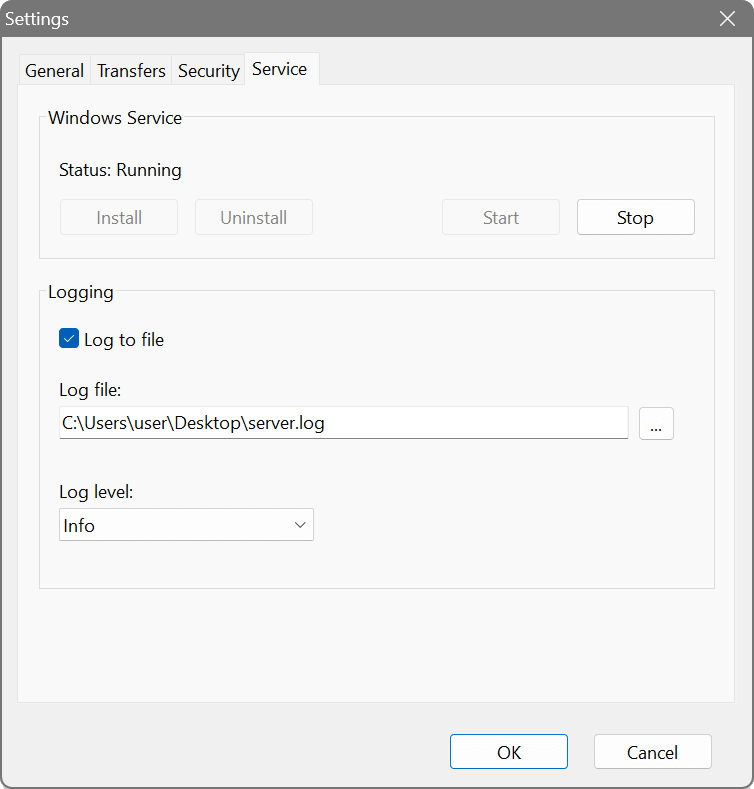
Service vs GUI mode
Understanding the difference between service and GUI modes is important:
| Feature | GUI Application | Windows Service |
|---|---|---|
| Requires user login | Yes | No |
| Starts with Windows | Optional (at login) | Yes (at boot) |
| User interface | Full GUI with transfer list | None (background only) |
| Activity monitoring | Real-time in window | Log file only |
| Configuration | GUI settings dialog | Shared with GUI |
Shared configuration
The GUI application and Windows service share the same configuration file, located at:
C:\ProgramData\SoftPerfect\TFTP Server\TFTPServer.ini
This means:
- Settings changed in the GUI apply to the service after it restarts.
- You can configure the service using the GUI, then close the GUI and let the service run independently.
- Both can run simultaneously, but they cannot share the same port. If the service is running, the GUI server will fail to start on the same port.
Managing the service
Use the Service tab in Settings to manage the Windows service:
- Status
- Shows the current service state: Not installed, Stopped, Running, or transitional states.
- Install
- Registers the TFTP Server as a Windows service. The service is configured to start automatically with Windows. Administrator privileges are required.
- Uninstall
- Removes the service registration. The service must be stopped first. Administrator privileges are required.
- Start
- Starts the service. The service will begin listening for TFTP requests using the shared configuration.
- Stop
- Stops the service. Active transfers will be terminated.
Logging
Since the service has no user interface, it relies on file logging to record activity:
- Log to file
- Enable this option to write server events and transfer activity to a log file. This is essential for monitoring service operation.
- Log file
- The path to the log file. The default location is in the same directory as the configuration file:
C:\ProgramData\SoftPerfect\TFTP Server\TFTPServer.log - Log level
- Controls the verbosity of logging:
- Error: only errors are logged.
- Warning: errors and warnings.
- Info: general operational messages (recommended).
- Debug: detailed diagnostic information.
Typical workflow
- Run the GUI application and configure settings as needed.
- Test the server by starting it in the GUI and verifying transfers work correctly.
- Go to Settings → Service tab and click Install to register the service.
- Click Start to start the service.
- Stop the GUI server (or close the GUI entirely), and the service will continue running.
- The service will now start automatically whenever Windows boots.
Command-line management
The service can also be managed from the command line using TFTPServerSvc.exe:
TFTPServerSvc.exe /install    - Install the service
TFTPServerSvc.exe /uninstall  - Remove the service
TFTPServerSvc.exe /start      - Start the service
TFTPServerSvc.exe /stop       - Stop the service
TFTPServerSvc.exe /status     - Show service status
Administrator privileges are required for install and uninstall operations.