Detail panel & graphs
The detail panel is where a single host gets the full treatment: a latency graph that redraws as each reply arrives, and a day’s worth of quality underneath it. It sits alongside the table or tile view, View → Charts or the toolbar button shows and hides it, and it remembers where you left it.
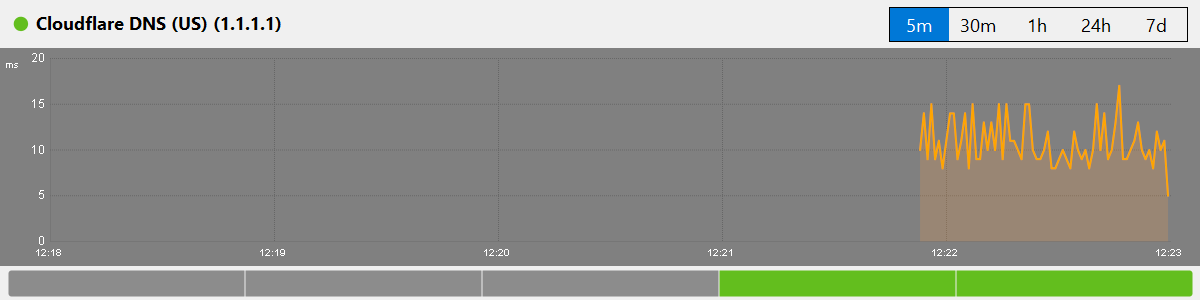
Latency graph
Milliseconds up the side, time along the bottom. The line is the round-trip time; the soft band around it is jitter, so a wide band means an unsteady connection even where the line itself looks level. Vertical red marks are pings that never came back.
Time range
The buttons above the graph decide how far back it reaches: 5m and 30m for what is happening right now, 1h while you test something, 24h to catch a daily pattern, and 7d when you need to show someone it has been like this all week.
Heat strip
Below the graph runs a strip covering the last 24 hours, one block per period, coloured by average quality: green for good, yellow for elevated latency or some loss, red for bad or unreachable, grey where there is no data. It is the fastest way to see whether a problem keeps to a schedule.
Colours
The graph, the sparklines and the heat strip all follow the active colour scheme – seven to choose from, each adjustable down to the individual colour. See Appearance settings.
Your connection feels fine in the morning but stutters in the evening. Select the host, switch the time range to 24h, and look at the heat strip: if the amber and red segments cluster around the same hours each day, you are seeing congestion at peak times rather than a hardware fault. Switch to 7d to confirm the pattern repeats – solid evidence to take to your ISP.
Support teams tend to ask “have you rebooted the router?” until you show them numbers. Leave Ping Monitor running against a stable public host for a few days, then open the detail panel at the 7d range. The latency line and the red loss markers give you a clear, dated record of when the connection misbehaved – far harder to wave away than “it feels slow”.