Tile view
Tile view turns the host list into a grid of coloured tiles, each with its status, latency and sparkline. It is the view to leave on a spare screen: readable from across the room, and any tile that is not green pulls your eye straight to it.
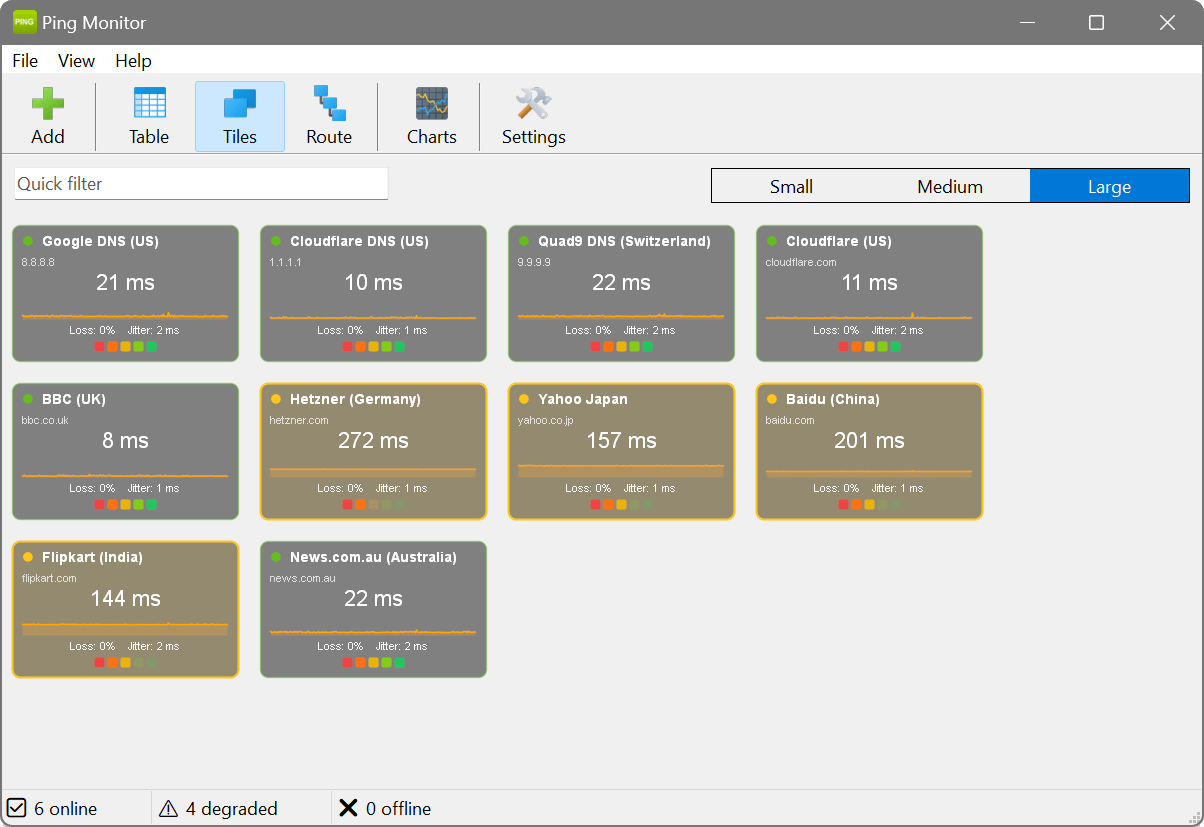
Tile sizes
Three sizes, switched from the toolbar while you are in tile view:
- Small (120 × 70)
- Name, status colour and current latency. Fits a great many hosts on one screen.
- Medium (180 × 110)
- Adds packet loss and a small sparkline.
- Large (240 × 150)
- Everything, including jitter and a sparkline big enough to read a trend from.
Your choice is remembered between sessions, and the size tile view opens at lives in Appearance settings.
Colours and interaction
Each tile takes its background colour from the host’s status – green for good, amber for degraded, red for critical or offline, grey for unknown or disabled. Click a tile to select the host and update the detail panel; right-click for Edit, Remove, Pause/Resume Monitoring and Trace Route. Any tags show as coloured squares on the tile, and the filter bar above the grid works just as it does in the table.
Put a spare monitor in the corner of the room and let it earn its keep. Add your key infrastructure, switch to tile view at the Large size, and maximise the window. Anyone walking past sees a wall of colour-coded tiles – green is calm, amber and red mean someone should look. The sparkline on each tile shows the recent trend, so you can tell a one-off blip from a host that is on its way down.
Watching dozens of hosts? Switch to the Small tile size to fit far more on screen at once. Each tile still carries the host name, status colour and current latency, so a single screen becomes a dense overview where any colour that is not green draws the eye immediately.