Table view
The table view is Ping Monitor’s spreadsheet-style home screen: every host on one line, every number in its own column, and a tiny history graph beside each. When you are looking after more than a handful of hosts, this is where you will spend most of your time – sort by any column and the trouble floats straight to the top.
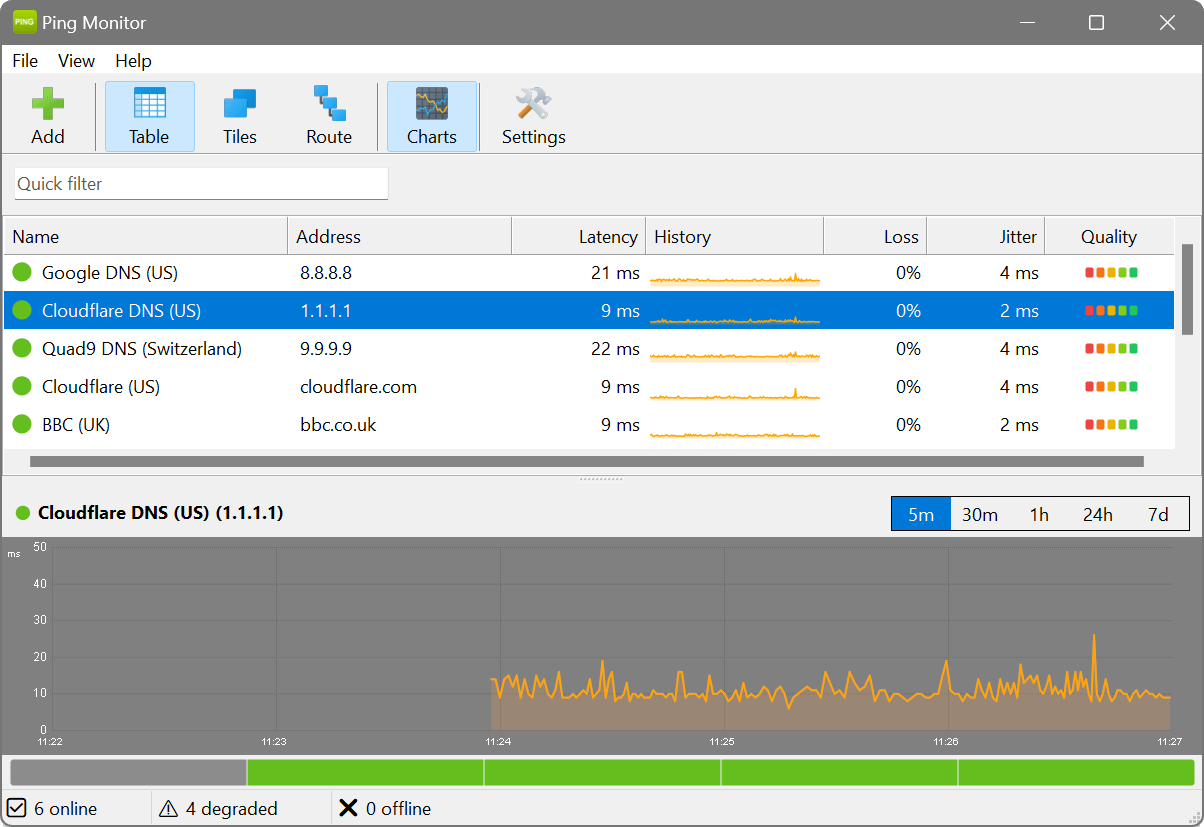
Columns
- Name
- Whatever you called the host when you added it, or its address if you did not.
- Address
- The IP address or hostname being monitored. Enter a hostname and it is resolved first, then pinged by address.
- Latency
- The most recent round-trip time in milliseconds, or a dash (–) if the host did not answer.
- History
- A sparkline of recent latency – green for good, yellow for degraded, red for critical or timed out. Its shape matters as much as its height: a steady line and a spiky one can share the same average.
- Loss
- The share of pings that went unanswered over the recent history window.
- Jitter
- How much the latency wanders, in milliseconds – the average deviation from the mean. Jitter is what makes calls and games feel bad even when the average looks respectable.
- Quality
- Latency, loss and jitter rolled into a single verdict.
Status indicators
The coloured dot beside each name is the quick version:
- Green: answering within your “good” latency threshold.
- Yellow: answering, but slower than the degraded threshold or losing some packets.
- Red: past the critical threshold, losing packets badly, or not answering at all.
- Grey: nothing to report yet – monitoring has not started, or the host is disabled.
Sorting and selecting
Click a column header to sort by it, click again to flip the direction. Selecting a host updates the detail panel; right-clicking one offers Edit, Remove, Pause/Resume Monitoring and Trace Route.
Tags
Any tags a host carries appear as small coloured squares after its name, and the filter bar above the table narrows the list to whichever tags you click – useful when only the data-centre or VPN hosts matter for the next five minutes.
A user reports “the network feels slow” but will not say which service. Click the Loss column header to sort by packet loss, then the Latency column to sort by response time. The struggling hosts jump to the top, and their sparklines show whether the problem is constant or comes and goes. Select the worst one and the detail panel fills in the full picture.
Monitoring hosts for several sites in one window can get noisy. Give each host a tag for its site, then click that tag in the filter bar to hide everything else. The table now shows just that site’s hosts – perfect for a quick health check before a call – and a second click brings the rest back.