Appearance settings

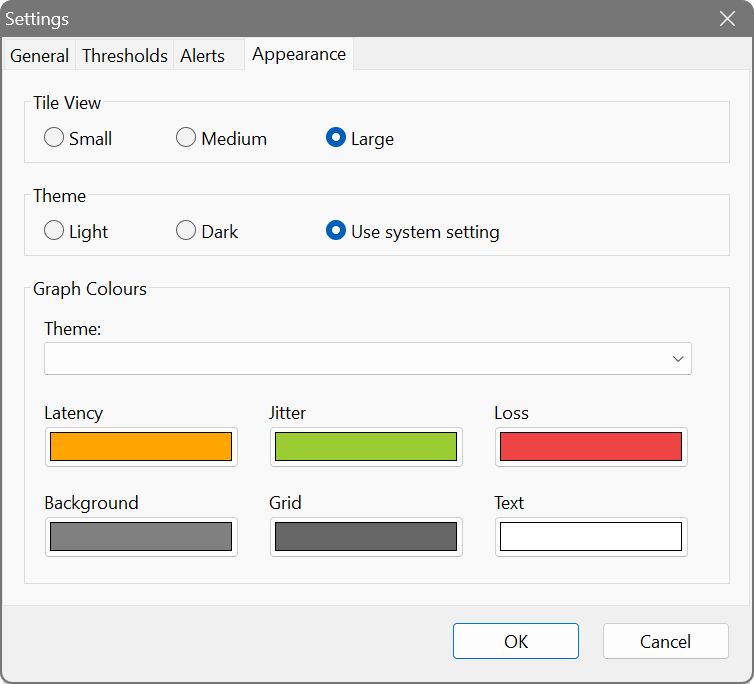
The Appearance tab controls the visual style of the application, including theme, graph colours and tile size:

Ping Monitor - Appearance settings

Theme

Light
Uses a light colour scheme for the application interface.
Dark
Uses a dark colour scheme, reducing eye strain in low-light environments.
Use system setting
Follows the operating system’s current theme setting. The application automatically switches between light and dark modes when the system theme changes.

Tile view size

Default tile size
Sets the initial tile size used in the tile view. Choose from Small, Medium, or Large. This can also be changed directly from the toolbar while using the tile view.

Graph colour scheme

Select from seven built-in colour schemes that control the appearance of latency graphs, sparklines and heat strips:

  • Citrus — Orange and lime on a grey background. The default scheme for light mode.
  • Frost — Cyan and purple on a white background.
  • Ocean — Teal and sand on a navy background. Suited for dark mode.
  • Sunset — Orange and yellow on a black background. The default scheme for dark mode.
  • Springtime — Teal and gold on a light background.
  • Retro — Gold and red on a light grey background.
  • Cranberry — Teal and red on a white background.

Custom colours

Each colour scheme can be further customised by changing individual colour values:

Latency colour
The primary colour used for the latency line in graphs and sparklines.
Jitter colour
The colour used for jitter/variance shading around the latency line.
Loss colour
The colour used for packet loss markers (vertical lines in the graph).
Background colour
The background colour of graph areas.
Grid colour
The colour of horizontal and vertical grid lines in graphs.
Text colour
The colour used for axis labels and value text in graphs.

Click any colour swatch to open the colour picker and select a custom value. Changes take effect immediately and are previewed in the graphs. To revert to the scheme’s default colours, select the scheme again from the drop-down list.