Route trace
Pinging a host tells you that it has gone slow. A route trace tells you where: every router between you and the destination, in order, each with its own latency and history.
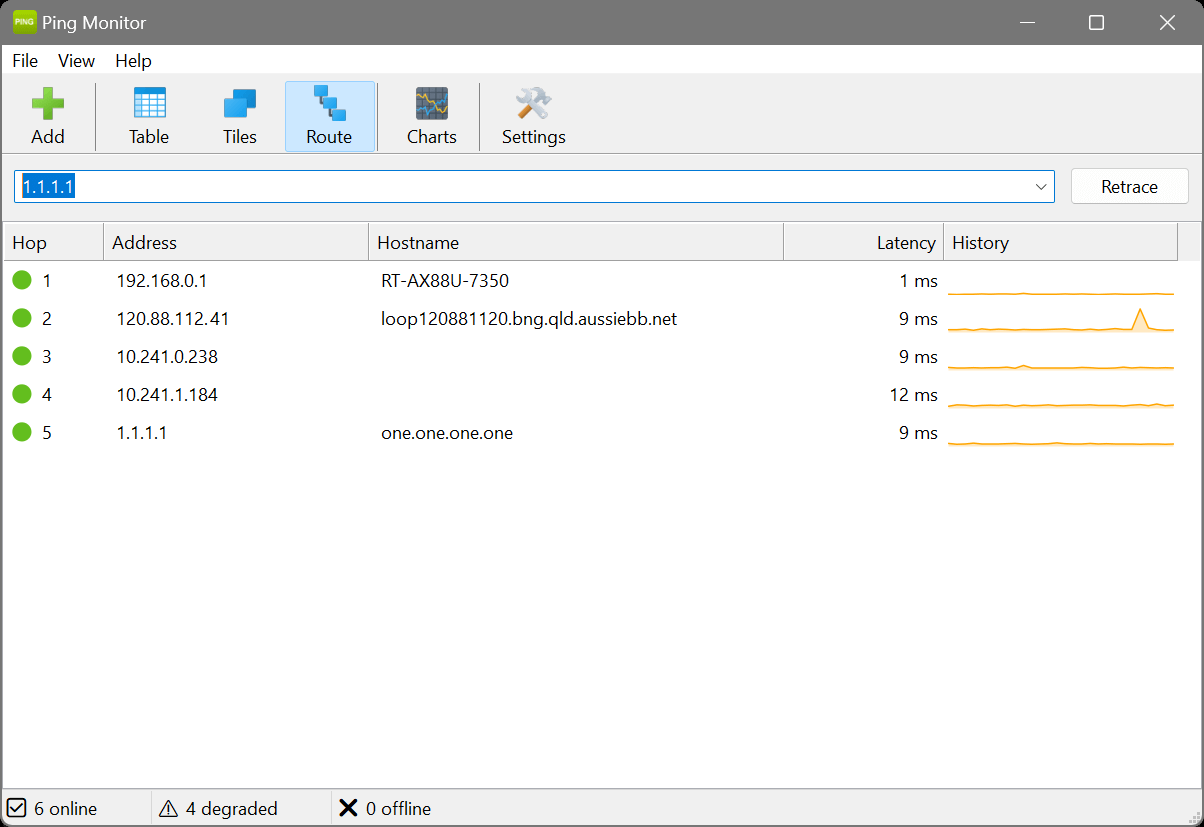
Running a trace
Select a host, then click Trace in the toolbar or right-click it and choose Trace Route. The Route tab opens and hops appear as they are found. Retrace runs it again – worth doing a few times, both to see whether the path has changed and to give each hop’s sparkline something to show.
Hop table columns
- Hop
- Position in the path, counting from 1 at the first router.
- Address
- The device at that hop, or an asterisk (*) if it did not answer.
- Hostname
- Reverse DNS for that address, filled in as it resolves in the background.
- Latency
- Round-trip time to that hop, in milliseconds.
- History
- A sparkline built up over successive retraces.
Reading the results
- Latency climbing gradually down the list is normal, particularly over long distances.
- A sudden jump at one hop is the interesting one – a congested or slow link, with everything after it inheriting the delay.
- An asterisk in the middle usually means no more than a router configured not to answer probes. Do not read too much into a single one.
- A trace that stops short of the destination points to a firewall or router blocking ICMP rather than a fault.
- A path that differs between traces is load balancing at work. Retrace to see the alternatives.
A host you rely on has gone sluggish and you want to know whose problem it is. Trace the route to it and read down the hop list: if latency is fine through the first few hops (your own network and your ISP) and only jumps further along, the slowdown is out on the wider internet, not on your side. That single screen is often enough to settle a “your service is slow” argument – and to point your ISP at the exact hop where things go wrong.
Intermittent trouble that you cannot pin down? Trace the host, then click Retrace a few times and watch the hop sparklines build up. If the path or the per-hop latency keeps shifting between traces, you are likely looking at load balancing or an unstable link upstream rather than a fault at the destination.