Device management
The Network Scanner provides several tools for remotely controlling devices on the network, including waking them up, shutting them down, and sending messages.
Wake-On-LAN manager
The Wake-On-LAN (WOL) manager maintains a list of devices that can be woken up by sending a “magic” packet. Open it by choosing Options → Wake-On-LAN Manager from the menu or clicking the toolbar button  .
.
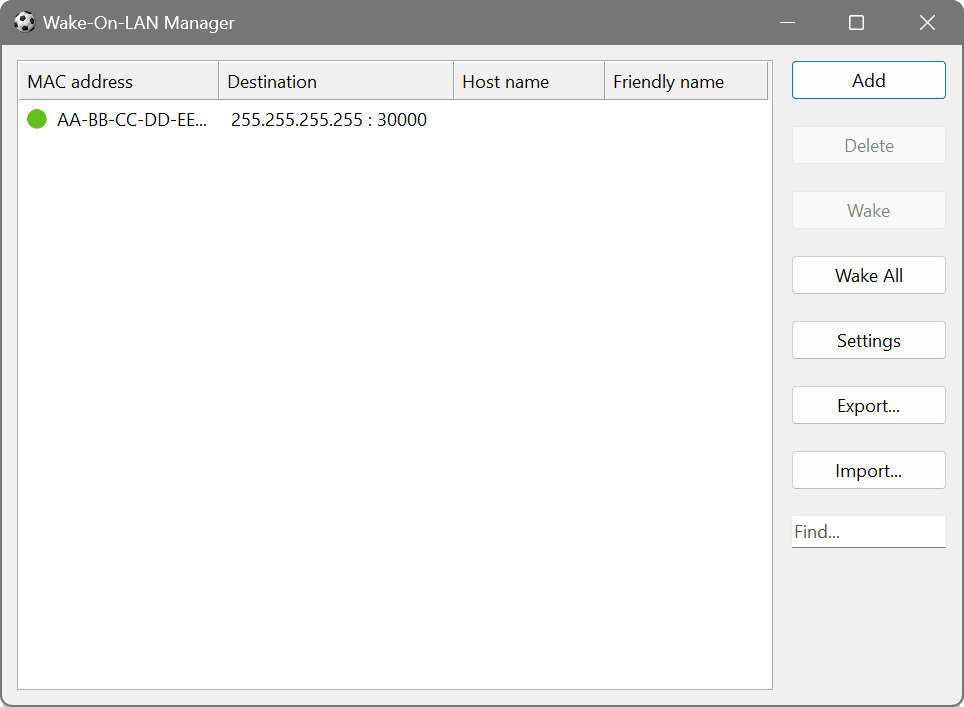
The dialog shows four columns: MAC address, Destination, Host name and Friendly name. You can:
- Add: add a new target. Choose between an IPv4 target, IPv6 target or host name target.
- Delete: remove a selected target.
- Wake: send a WOL signal to the selected device.
- Wake All: send a WOL signal to every device in the list.
- Settings: configure the default target address, UDP port and delay between wakeups.
- Export / Import: save or load the device list.
You can also add devices directly from scan results: right-click a device and choose Wake-On-LAN → Save MAC to WOL Manager.
If you want to send WOL packets to a subnet-specific broadcast address, change the default broadcast address in Settings to 0.0.0.255. When adding a device from the main view, the device’s actual IP address will be combined with this default. For example, adding 192.168.1.10 with a default of 0.0.0.255 creates a WOL entry targeted at 192.168.1.255.
Add all lab workstations to the WOL manager, then use Wake All to start them up before the first class. This can also be automated with the command line switch /wakeall combined with the Windows Task Scheduler.
Remote shutdown
To shut down or reboot a remote Windows device, right-click it in the scan results and choose Remote Shutdown, or select one or more devices and choose Actions → Remote Shutdown.
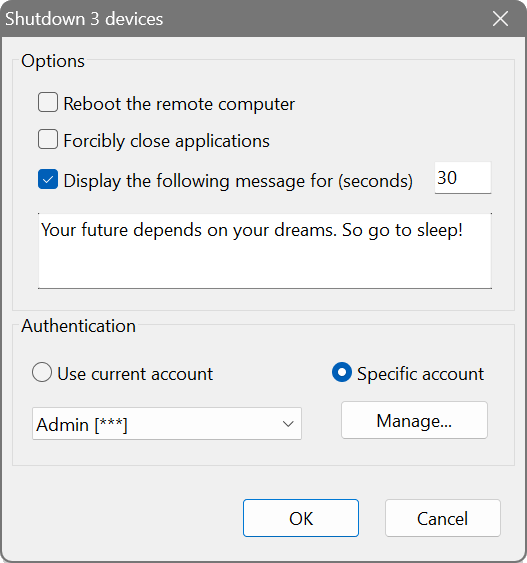
- Reboot the remote device
- Restarts the device instead of shutting it down.
- Forcibly close applications
- Forces running applications to close without saving.
- Display the following message for ... seconds
- Shows a warning message on the remote device’s screen for the specified duration before the shutdown or reboot proceeds.
For remote shutdown to work, several conditions must be met:
- Administrative shares must be enabled.
- The administrator account must have a non-empty password.
- Simple file sharing must be turned off.
- Administrative shares IPC$ and ADMIN$ must be accessible.
Otherwise you may encounter Access is denied or Network path not found errors.
Send message
You can send a text message to a remote Windows device. Right-click the device and choose Send Message, or use Actions → Send Message. Enter the message body and the display time in seconds. The message will appear on the remote device’s screen.
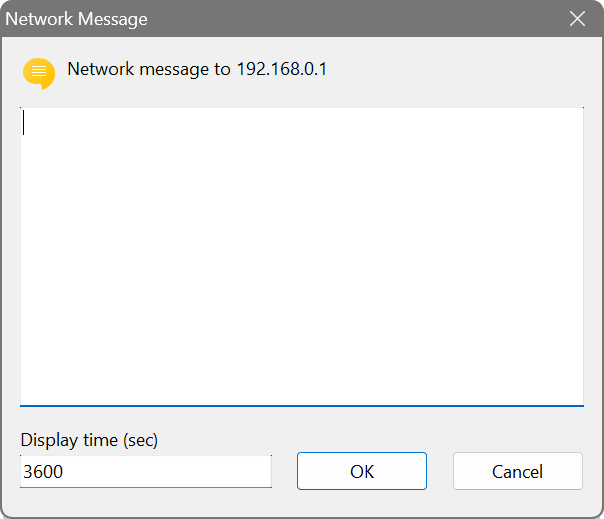
Select all devices that need rebooting, then use Send Message to warn users that a restart is imminent. After the display time expires, follow up with Remote Shutdown with the reboot option enabled and a reasonable timeout.