Remote PowerShell
The application can execute PowerShell scripts on remote Windows devices using Invoke-Command and captures their output. Choose Options → Remote PowerShell from the menu.
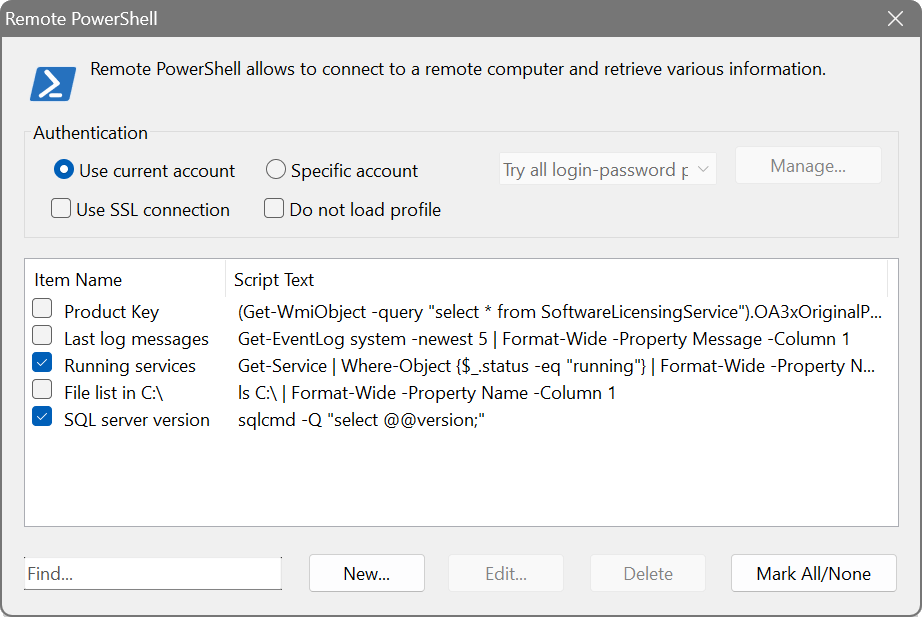
The dialog shows two columns: Item Name and Script Text. When creating or editing an entry, you can write the script in a syntax-highlighted editor and click Run to test it on your local machine.
Prerequisites
PowerShell remoting relies on the Windows Remote Management (WinRM) service. On the target devices, WinRM must be enabled. You can enable it by running Enable-PSRemoting -Force in an elevated PowerShell prompt on each target, or deploy it via Group Policy.
Connection options
- Use SSL connection
- Encrypts the PowerShell remoting connection using HTTPS. The target must have an appropriate SSL certificate configured for WinRM.
- Do not load profile
- Skips loading the PowerShell profile on the remote device, which can speed up execution and avoids side effects from profile scripts.
Authentication
By default the scanner connects using your current Windows account credentials. If the target devices require different credentials, supply a username and password in the authentication section. Credentials are managed via the Credential Manager.
Script examples
- Get-PSDrive C | Select-Object Used, Free
- Reports used and free space on the C: drive.
- Get-Service | Where-Object {$_.status -eq "running"} | Format-Wide -Property Name -Column 1
- Lists all running services.
- Get-EventLog system -newest 5 | Format-Wide -Property Message -Column 1
- Shows the five most recent System event log entries.
- sqlcmd -Q "select @@version;"
- Returns the SQL Server version (requires sqlcmd on the target).
Create a PowerShell query with the script Get-PSDrive C | Select-Object Used, Free. After scanning, each device will show the used and free space on its C: drive. This provides more detailed information than what the built-in share scanning offers.