Background scanning
Background scanning keeps the scan results up to date by continuously rescanning the network. When a device joins or leaves, it is reflected in the main window and optionally triggers a notification.
Enabling background scanning
Use the background scan panel at the bottom of the main window, or toggle it via View → Background Scan. When enabled, the scanner repeatedly scans the configured address ranges at the interval and mode set in scan options on the Browsing tab.
The three background scan modes are:
- Scan for previously undiscovered devices: only looks for new devices that were not found in the initial scan.
- Rescan already discovered devices: only updates information for devices already in the list.
- Both: discovers new devices and updates existing ones.
Background scan log
When background scanning is active, click the Show Scan Log button on the background scan panel to open the Background Scan Log. It shows a timestamped list with two columns: Date/Time and Description.
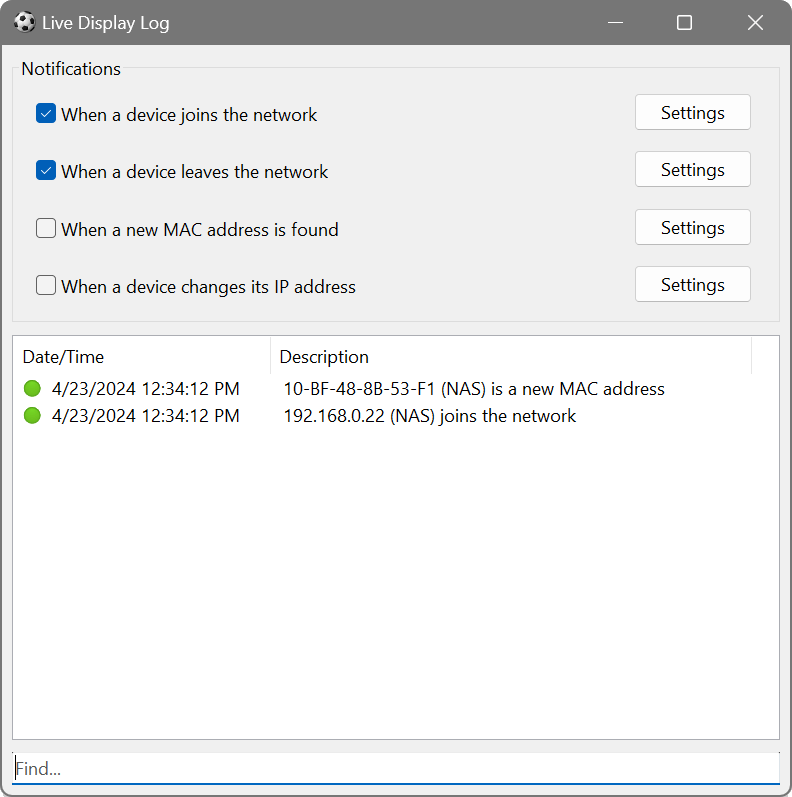
The log tracks four types of events, each of which can be individually enabled:
- When a device joins the network
- A previously unseen device has responded.
- When a device leaves the network
- A previously responding device has stopped responding.
- When a new MAC address is found
- A new MAC address was found in the network.
- When a device changes its IP address
- A known MAC address is now associated with a different IP address.
For each event type, click Settings to configure additional actions.
Notification preferences
When any of the above events is enabled, a balloon notification will pop up in the system tray. In addition, you can configure the following actions for each event type:
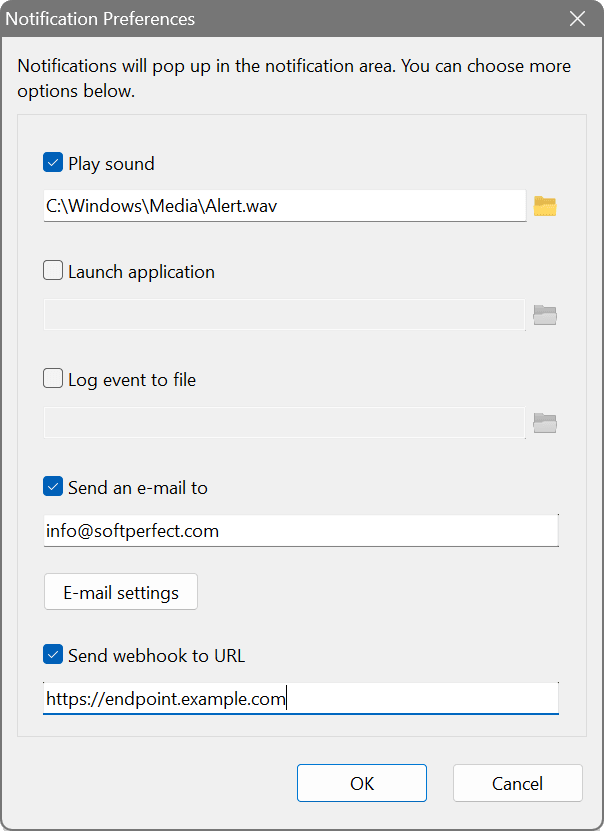
- Play sound
- Plays a custom sound file when the event occurs.
- Launch application
- Runs an external program. You can pass the contents of any column to the application by enclosing the column name in square brackets, e.g. [IP address] or [Host Name]. There is also a pseudo column [event] containing the event type: JOIN, LEAVE, NEWMAC or IPCHANGE.
- Log event to file
- Appends the event details to a text file.
- Send an e-mail to
- Sends an e-mail notification to the specified address. Click E-mail settings to configure the SMTP server.
- Send webhook to URL
- Sends an HTTP POST request to the specified URL, which can be used to integrate with monitoring systems, chat applications or automation platforms.
E-mail settings
The e-mail settings dialog lets you configure the SMTP server for sending notification e-mails. You can choose Use automatic settings for using our email backend, or manually enter the SMTP server, Username and password. The Connection type can be:
- Regular: unencrypted connection.
- Secure to regular port (STARTTLS): starts unencrypted and upgrades to TLS.
- Secure to dedicated port (TLS): connects directly over TLS.
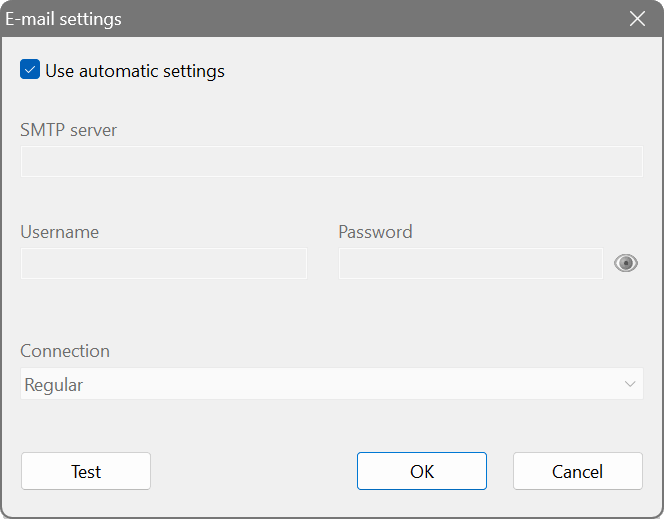
Click Test to verify the settings by sending a test e-mail.
File output
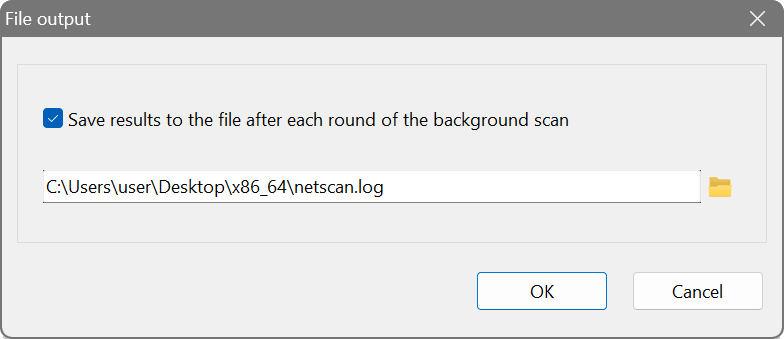
The background scanner can automatically save results to a file after each round. Enable this in the file output settings accessible from the background scan panel. Tick Save results to the file after each round of the background scan and choose the output file. This is also available via the command line with the /live switch.
Loading and rescanning
When loading a previously saved scan file (File → Load Results or Ctrl+L), a dialog lets you choose how to handle the data:
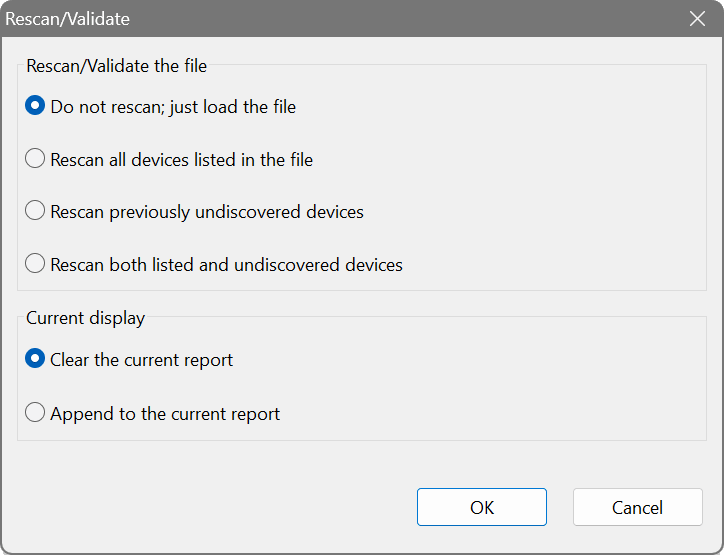
- Do not rescan; just load the file
- Displays the saved results without sending any network traffic.
- Rescan all devices listed in the file
- Rescans every device in the file to get current data.
- Rescan previously undiscovered devices
- Only scans IP addresses that were not found in the saved file.
- Rescan both listed and undiscovered devices
- Rescans everything: both the devices in the file and any new addresses.
You can also choose whether to Clear the current report or Append to the current report.
Set up a scan of your server subnet with background scanning enabled in Both mode. Enable the When a device leaves the network notification with an e-mail action. The scanner will continuously check all servers and send you an e-mail the moment one goes offline. Combine this with file output to maintain a log of all changes.
Enable When a device joins the network with a webhook action pointing to your monitoring or automation endpoint. The scanner sends a JSON payload containing the event type, a message, a timestamp and the device details. You can feed this into a service like Zapier, Make or a custom script that reformats the data and forwards it to a Slack or Teams channel, allowing your security team to investigate promptly.