Friendly names and comments
Raw scan results identify devices by IP or MAC address, which is rarely meaningful at a glance. Friendly names let you attach your own descriptive label to a device, such as Reception printer or John’s laptop, so it is easy to recognise in the results. You can also store extra information against each device, such as an asset tag, physical location or responsible person.
Assigning a friendly name
There are two ways to assign a friendly name:
- From the results: right-click a device and choose Assign Friendly Name, or select it and press F2. This pre-fills the matching key automatically.
- From the manager: choose Options → Friendly Names / Comments to open the full list, where you can add, edit and organise every name at once.
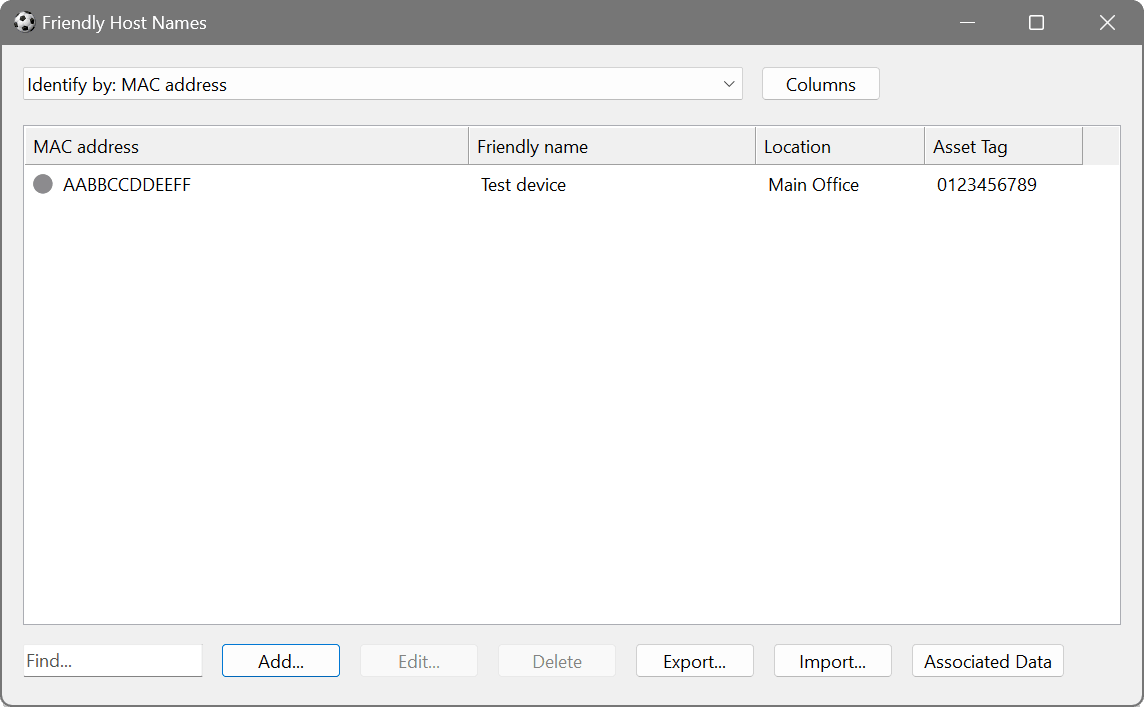
The manager lists each entry under the identifying column (its key, the value used to match the device), the Friendly name, and any associated data columns. The buttons let you:
- Add, Edit and Delete: manage individual entries. Double-clicking an entry also opens it for editing.
- Columns: choose which columns are used to identify devices (see below).
- Associated Data: define the extra parameters stored against each device (see below).
- Export and Import: save the list to a CSV file or load it back, with the option to append, merge or replace.
The Find box filters the list as you type, and the entries can also be copied to and pasted from the clipboard as CSV using the right-click menu.
How names are matched to devices (“Identify by”)
Because IP addresses change and devices come and go, the Network Scanner does not tie a friendly name to a fixed row. Instead it matches names to devices by a key, the value of one or more columns. The dropdown at the top of the dialog controls this:
- No mapping
- Friendly names are disabled and no labels are applied.
- Identify by: <columns>
- Names are matched on the value of the chosen column(s). Click Columns to select them. Use MAC address for the most stable identification, or IP address, Host name or another suitable column.
Whenever a scanned device has a key value that matches an entry, its friendly name is applied automatically. This is why a label you assign today reappears on the same device in next week’s scan, even if other details have changed.
On a network where addresses are handed out by DHCP, a device’s IP may differ from one scan to the next. Set Identify by to MAC address so your friendly names follow the hardware rather than the IP address, and the labels stay correct no matter which IP a device currently holds.
Associated data
Associated data lets you store additional information against each device as a set of named parameters, such as Asset tag, Location or Owner. Click Associated Data in the friendly names dialog to define the parameter names. Each one then becomes an editable field when you add or edit an entry, and appears as its own column in the scan results.
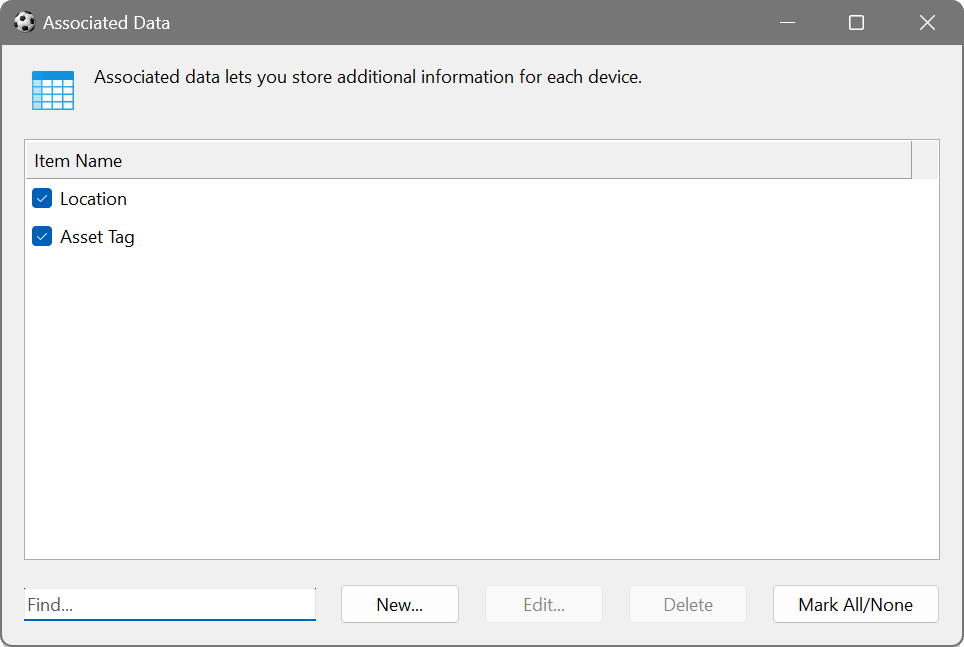
Like friendly names, associated data is keyed on the identifying columns, so the values are preserved across scans and follow the device.
Define associated data parameters for Asset tag, Location and Responsible person. As you walk the network, fill these in for each device via F2. The result is a self-maintaining inventory that updates itself on every scan and can be exported to CSV for reporting.
The Friendly name column
Once mapping is active, a Friendly name column appears in the main results, alongside a column for each associated data parameter you have defined. If these columns are not visible, enable them by right-clicking any column header and choosing the columns to display. Friendly names and associated data are saved with the application configuration and are included when you export results.