Duplicate IP address detection
When two or more devices are accidentally assigned the same IP address, it causes intermittent connectivity problems. Common causes include static IP conflicts, overlapping DHCP scopes, and rogue DHCP servers. The Network Scanner can detect these situations.
Requirements
Npcap (or legacy WinPcap) must be installed, as the feature requires low-level access to the network adapter for sending and receiving raw ARP packets. If the driver is not installed, the network adapter list will be empty and scanning will be disabled.
How it works
Choose Actions → Find Duplicate IP Addresses from the menu. Select a network interface from the drop-down and click Go.
The tool broadcasts an ARP request for every IP address on the selected subnet and listens for replies. Under normal conditions, each IP address should produce at most one reply from a single MAC address. If two or more distinct MAC addresses reply to the same IP address, the tool reports a duplicate.
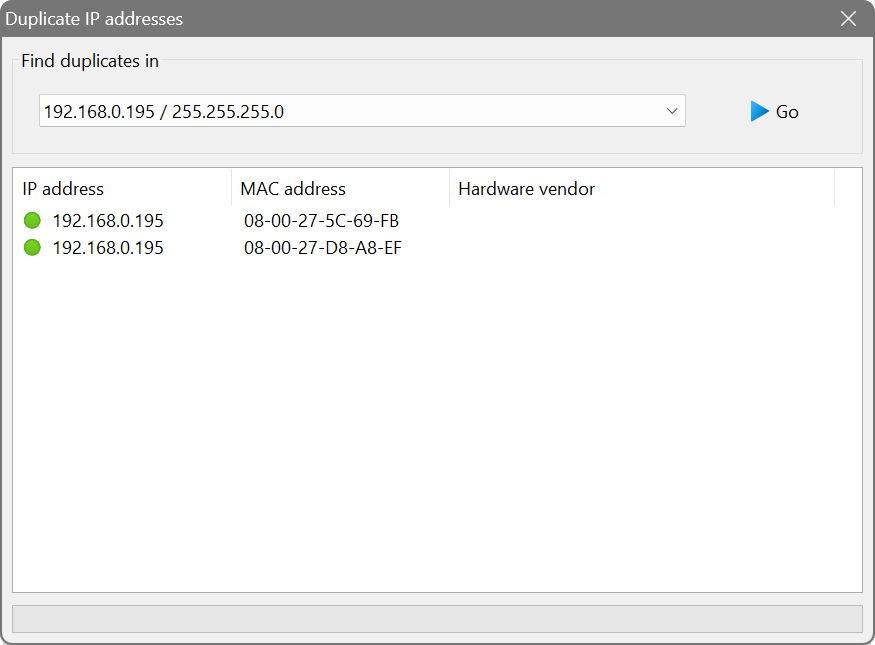
Results are shown in a tree: each duplicated IP address appears at the top level, with the conflicting MAC addresses and their hardware vendors listed underneath. You can copy or save the results from the context menu.
When to use this feature
- A device experiences intermittent network drops or connection resets.
- Users report that a server is unreachable at random intervals.
- You suspect a misconfigured device or rogue DHCP server is handing out addresses already in use.
- You want to audit a subnet for configuration compliance after a network change.
If a specific device keeps losing network access or users report that a server is unreachable at random intervals, run the duplicate IP detection on that subnet. If the affected IP address appears with two different MAC addresses, you have found the conflict. Identify the rogue device by its MAC address and hardware vendor, then correct its configuration.