Remote Files
This feature connects to administrative shares (C$, D$, etc.) on remote devices to retrieve information about specific files or folders. Choose Options → Remote Files from the menu.
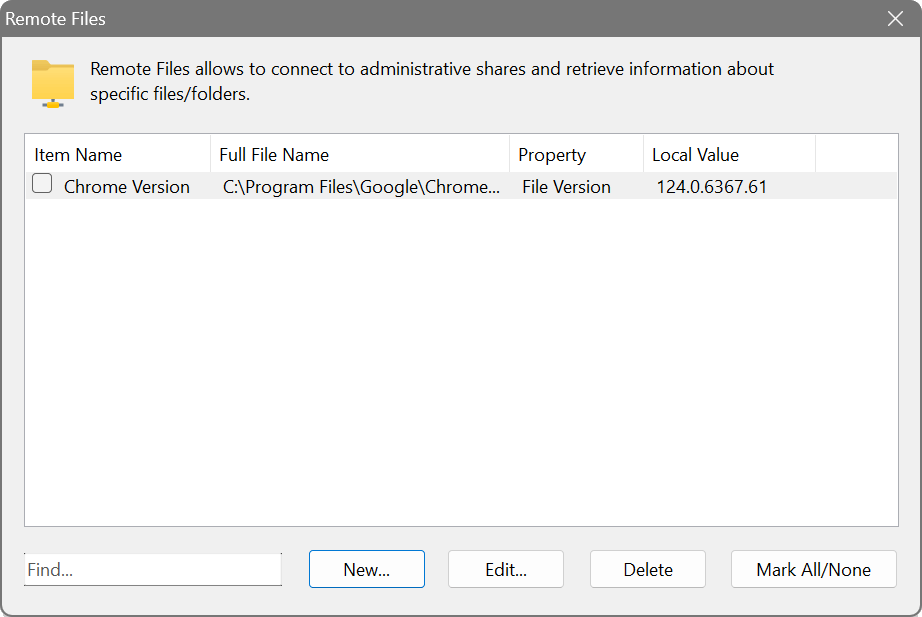
The dialog shows four columns: Item Name, Full File Name, Property and Local Value.
Available properties
- File Size
- Size of the file in bytes.
- Folder Size
- Total size of all files in the folder (recursive).
- File Exists
- Checks whether the specified file or folder is present on the remote device.
- File CRC32
- Calculates a CRC32 checksum of the file, useful for comparing file integrity across devices.
- File MD5 / SHA1 / SHA256
- Calculates a cryptographic digest of the file, for when checksum collisions matter: verifying that deployed binaries are exactly the intended build, or matching files against published hashes.
- Created Date / Modified Date / Accessed Date
- File timestamps: creation, last modification and last access.
- File Version / Product Version
- Extracts version information from executable files and DLLs.
Path format
Enter the full path to the file. Drive letters are automatically substituted with the corresponding administrative shares. For example, scanning the range 10.0.0.1–10.0.0.10 with a path of C:\Program Files\Google\Chrome\Application\chrome.exe will query \\10.0.0.1\C$\Program Files\..., \\10.0.0.2\C$\Program Files\..., etc.
Wildcards
Wildcards * and ? are supported in any path component. They are expanded recursively, so mid-path wildcards work too:
- C:\Program Files\Google\Chrome\Application\*.exe: all executables in that folder.
- C:\Users\*\Desktop\report.xlsx: a specific file under every user profile.
When wildcards match multiple files, the results are returned as a list of filename: value pairs.
Alternative paths
Use brackets with alternatives separated by a vertical bar to handle path variations:
The scanner tries each alternative and proceeds with the first valid one. This is useful when an application may be installed in different locations on 32-bit and 64-bit systems, or when folder names vary by locale.
To check the installed version of Chrome across all PCs, create a file query pointing to the Chrome executable and select the File Version property. After scanning, a new column will show each device’s Chrome version, making it easy to identify machines that need updating.