Scan options
Press Ctrl+O or click the Options button  to open the options dialog. It contains eleven tabs controlling what information is gathered during a scan and how results are presented.
There is a search field at the bottom of the dialog. Type a few characters to quickly find any setting across all tabs.
General
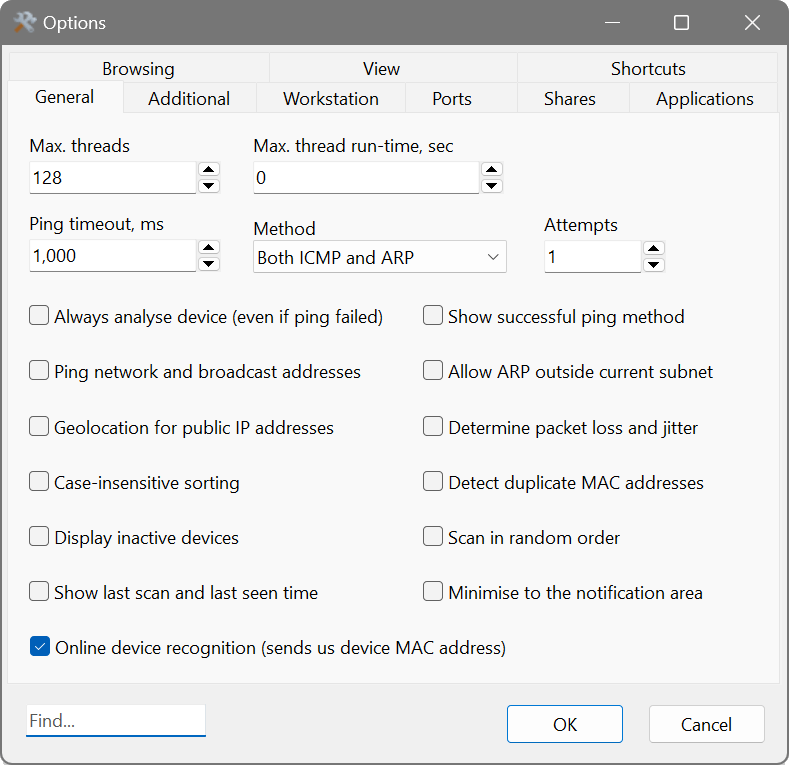
- Max. threads
- The maximum number of scanning threads running concurrently.
- Max. thread run time
- Gracefully stops a thread if it has not finished within this time (in seconds) and moves on to the next address. If the thread cannot be stopped, it will be forcibly terminated after twice the specified time. A value of zero sets no limit.
- Ping timeout, ms
- The number of milliseconds to wait for a reply from a remote device before considering it unreachable.
- Method
- The ping method: ICMP (standard ping), ARP (arping), or Both ICMP and ARP. If it appears that all IP addresses are detected as active, try switching to ICMP only. This can happen when scanning a different subnet, because the default gateway may respond to every ARP request with its own MAC address.
- Attempts
- The number of ping attempts before giving up on a host.
- Always analyse device (even if ping failed)
- Forces the scanner to collect information from a host even if it did not respond to ping. Useful for devices that block ICMP.
- Ping network and broadcast addresses
- When enabled, the scanner also pings the first and last IP addresses in a subnet (network and broadcast addresses).
- Allow ARP outside current subnet
- Normally ARP requests are only sent within the local subnet. Enable this if your router supports proxy ARP or forwards ARP packets, which may help detect more devices and their MAC addresses on remote subnets.
- Determine packet loss and jitter
- Sends a series of echo requests and reports the number of lost packets and the packet delay variation. High values indicate an unreliable connection.
- Detect duplicate MAC addresses
- Alerts you if two or more devices share the same MAC address.
- Geolocation for public IP addresses
- Displays the city and country of public (internet-routable) IP addresses.
- Online device recognition
- When enabled, the scanner attempts to determine the device type, brand and model using a cloud lookup service.
- Case-insensitive sorting
- Ignores case type when results are sorted.
- Display inactive devices
- Includes non-responding hosts in the results so you can see which addresses did not reply.
- Show last-scan and last-seen times
- Displays when each host was last scanned and when it was last seen online.
- Show successful ping method
- Adds a column showing which ping method (ICMP or ARP) received a reply.
- Display Time To Live (TTL)
- Shows the TTL (hop limit) value from ping responses.
- Scan in random order
- Scans IP addresses and ports in a random order rather than sequentially.
- Minimise to the notification area
- When minimised, the application goes to the system tray instead of the taskbar.
Additional
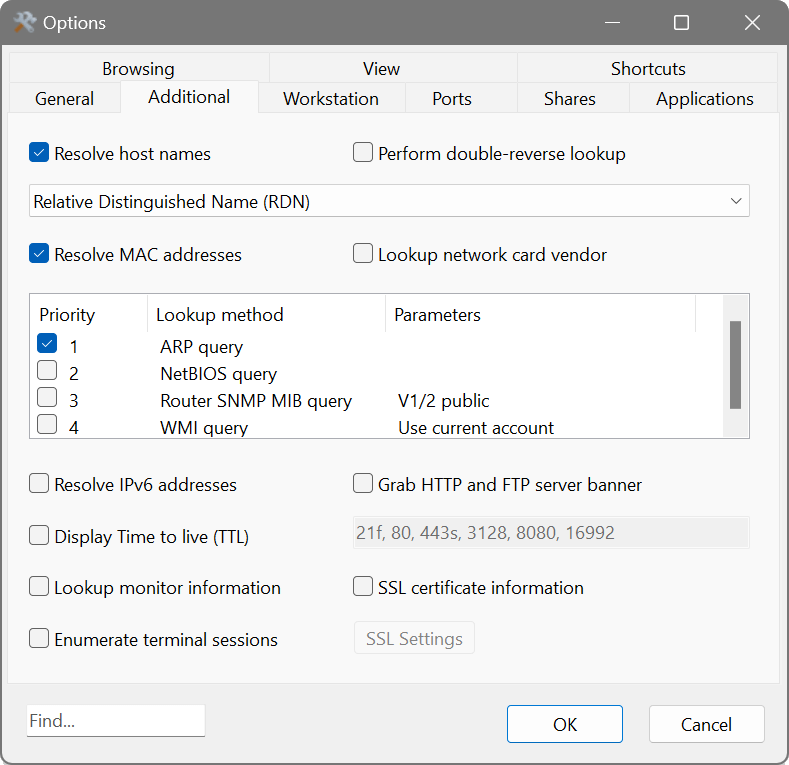
- Resolve host names
- Converts IP addresses to host names. You can choose between several resolution methods:
- Fully Qualified Domain Name (FQDN): returns the full domain name.
- Relative Distinguished Name (RDN): returns just the host name portion.
- Use legacy method (NetBIOS-capable): uses an older method that can also resolve NetBIOS names.
- NetBIOS Name Only: resolves using the NetBIOS protocol exclusively.
- Perform double-reverse lookup
- Resolves the host name back to an IP address to verify consistency.
- Resolve MAC addresses
- Discovers hardware (MAC) addresses. There are four methods available for address resolution in local or non-local subnets, which can be reordered by dragging to set priority:
- ARP query: sends an ARP packet to the target device directly.
- NetBIOS query: sends a NetBIOS packet. If the device responds, the reply contains its MAC address.
- WMI query: connects to the WMI subsystem on the target and reads its network adapter configuration.
- Router SNMP MIB query: queries the default gateway via SNMP to obtain its ARP cache, mapping IP addresses to MAC addresses.
Generally, ARP is sufficient for the local subnet. For devices behind a router, enable the NetBIOS and Router SNMP MIB methods and place them first. Double-click a method to access its additional parameters.
- Look up network card vendor
- Uses the IEEE OUI database to determine the NIC manufacturer from the first three octets of a MAC address. The vendor may or may not match the device brand.
- Resolve IPv6 addresses
- Obtains the IPv6 address of remote hosts that have a dual IPv4/IPv6 stack.
- Grab service banners
- Probes common network services and retrieves their software names and versions. Supported services include HTTP, SSH, FTP, SMTP, POP3, IMAP, MySQL, MSSQL, SMB, DNS, NTP, NBNS, SNMP, TFTP, TLS and MQTT. Click Select Services to choose which services to probe.
- Find open RTSP streams
- Detects open RTSP (Real-Time Streaming Protocol) media streams on devices such as IP cameras.
- Look up monitor information
- Displays the monitor vendor, model and serial number if available. This requires the Remote Registry service on the target.
- SSL certificate information
- Retrieves SSL/TLS certificate details for devices with open port 443, including the certificate issuer, subject, expiry date, serial number and more. This is useful for identifying certificates that are about to expire or for verifying that the correct certificates are installed on your servers.
- Enumerate terminal sessions
- Lists all connected users on a terminal server and their origin addresses.
Enable SSL certificate information on the Additional tab and check for open TCP port 443 on the Ports tab. After scanning, use the advanced filter to find certificates where the expiry date is approaching. This helps you renew certificates before they expire and cause service disruptions.
Workstation
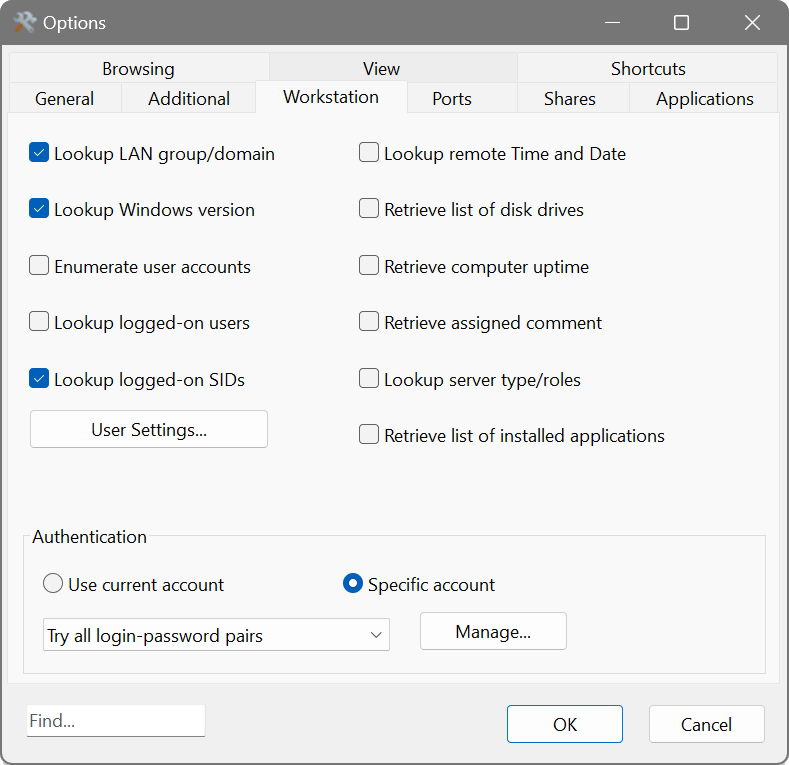
These options retrieve information from Windows workstations and servers. They work when scanning from any platform, not just from Windows.
- Look up LAN group/domain
- Displays the workgroup or domain name a Windows device belongs to.
- Look up Windows version
- Shows the Windows version running on the device.
- Enumerate user accounts
- Lists all user accounts registered on a remote device.
- Look up logged-on users
- Displays users currently logged on to a Windows workstation.
- Look up logged-on SIDs
- Displays the Security Identifiers of currently logged-on users.
- Look up remote Time and Date
- Retrieves and shows the current time on a remote system.
- Retrieve list of installed applications
- Lists installed applications and their versions from a remote device.
The User Settings button opens additional options for user account enumeration:
- Omit duplicate account names
- Removes duplicate entries when enumerating user accounts across multiple sources.
- Disregard specific account names (wildcards allowed)
- Excludes account names matching the specified patterns. Enter one pattern per line in the text field below; wildcard characters are supported.
The Authentication section at the bottom lets you choose whether to use your current Windows account or a specific account for these lookups. Click Manage to open the Credential Manager.
Ports
- Check for open TCP ports
- Attempts connections to the specified TCP ports and reports which are open. Enter port numbers separated by commas or dashes, e.g. 21, 80, 110-115, 443. Click the button next to the field to pick from a list of well-known ports.
- Display service names rather than port numbers
- Shows the service name (e.g. “http” instead of “80”) in the results.
- Check for open UDP ports
- Discovers common UDP-based services such as DNS, TFTP, NTP, NBNS, MSSQL and RADIUS.
Shares
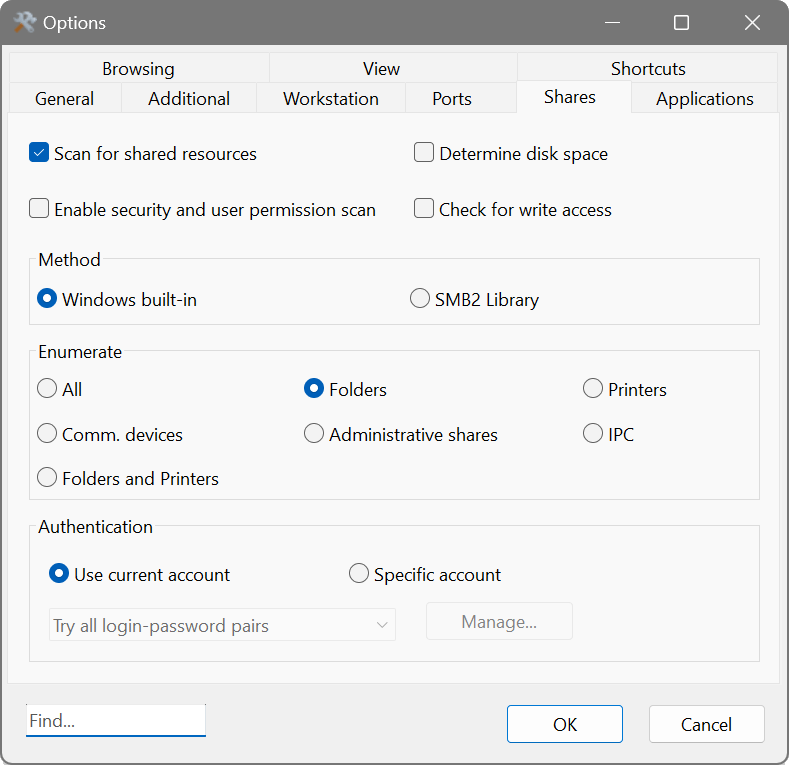
- Scan for shared resources
- Enables discovery of shared folders, drives, printers and other resources. Choose which types to enumerate:
- All: all shared resources.
- Folders: shared folders and drives.
- Printers: shared printers.
- Comm. devices: shared communication devices.
- Administrative shares: system shares such as ADMIN$, C$, D$.
- IPC: interprocess communication.
- Folders and Printers: a commonly used combination.
- Method
- Choose between the Windows built-in method or the SMB2 Library. The SMB2 Library works across platforms and does not depend on Windows APIs.
- Determine disk space
- Shows total and free space on shared folders.
- Enable security and user-permissions scan
- Discovers read/write privileges assigned to shared folders. You may need administrator access to retrieve this information.
- Check for write access
- Tests whether shared folders are writable or read-only.
To audit all shared folders on your network, enable Scan for shared resources with the Folders type, tick Enable security and user-permissions scan, Check for write access and Determine disk space. After scanning, use the shares filter  to see only devices with shares. You can then export the results to CSV for a compliance report.
Applications
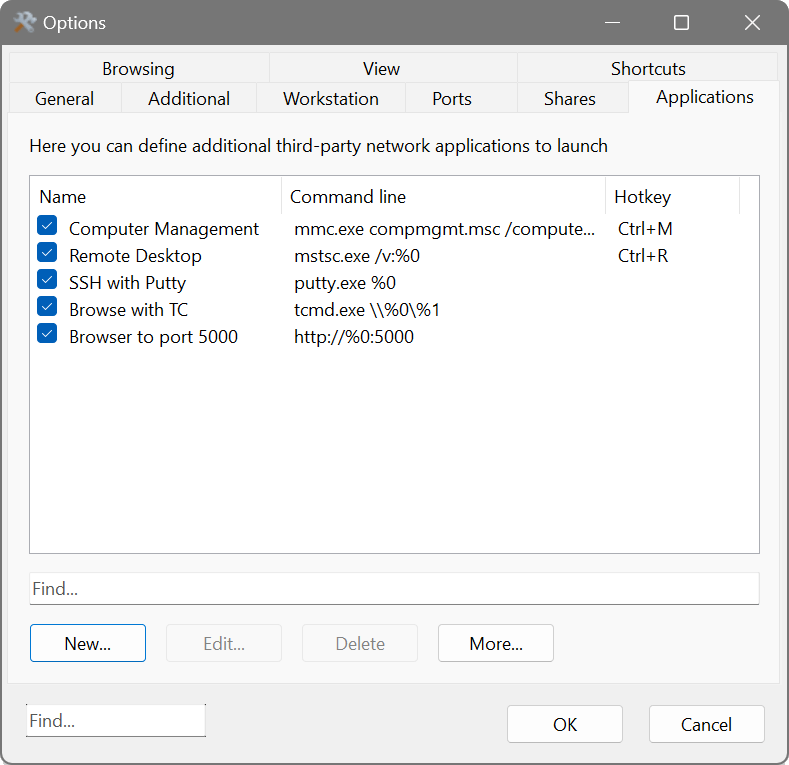
This tab lets you define third-party applications that can be launched directly from the Network Scanner for any discovered device. For example, you could set up RDP, VNC, PuTTY or any other tool.
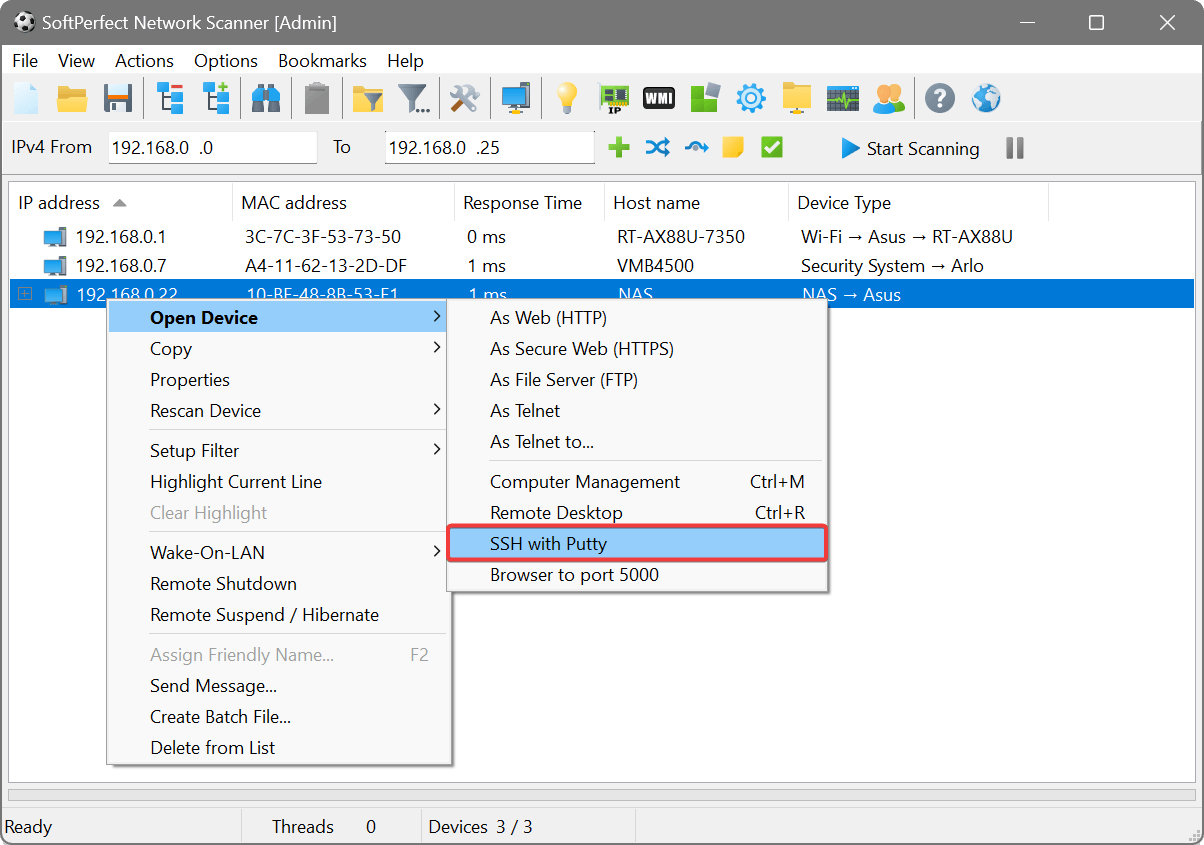
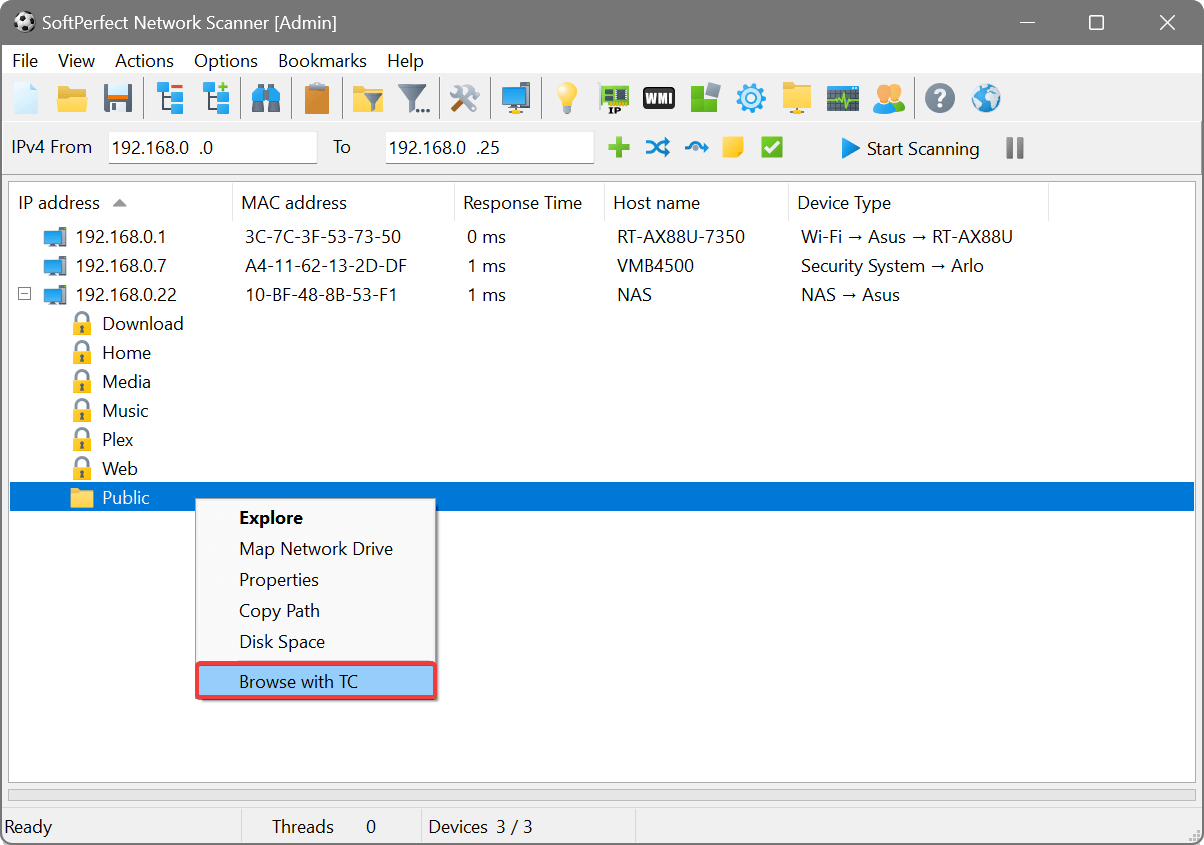
In the command line, use %0 for the device’s IP address, %1 for its host name, and %2 for its MAC address. For user-prompted parameters, enclose the parameter name in braces. You can also specify a default value after a colon. If the parameter name contains “file” or “path”, a browse button will appear. For example:
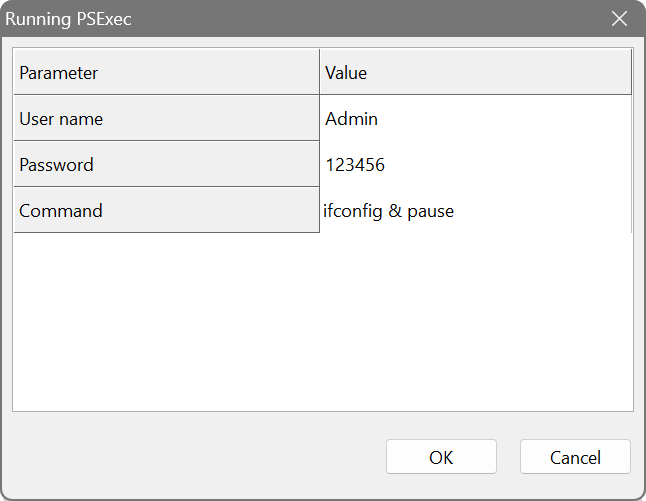
Since braces denote user-prompted parameters, double them if you need to pass a literal brace, e.g. {{12345678-ABCD-EFGH-1234-567890ABCDEF}}.
If several applications share common parameters such as a username and password, define them as global variables. Click More → Variables. A variable value can be plain text or an environment variable.
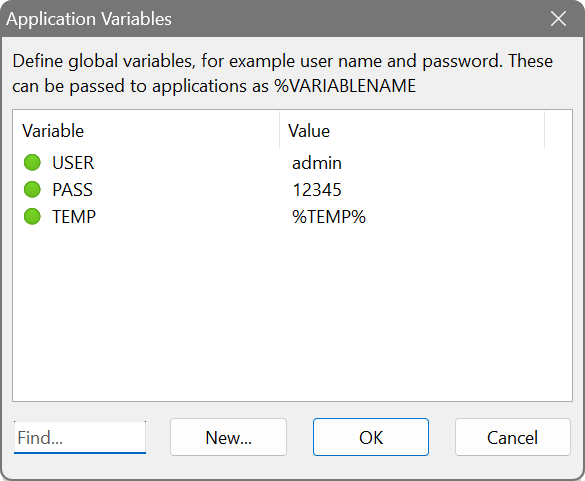
You can group applications by using a vertical bar in their names, e.g. FTP clients | FileZilla and FTP clients | Total Commander. This creates a submenu in the context menu.
Each application can also have a Hotkey assigned so it can be launched with a single keystroke for the selected device. The hotkey is shown in its own column in the applications list.
The More button provides additional options: Export Applications and Import Applications to save or load the entire applications list as a file, as well as Export Variables and Import Variables for the global variable definitions.
Browsing
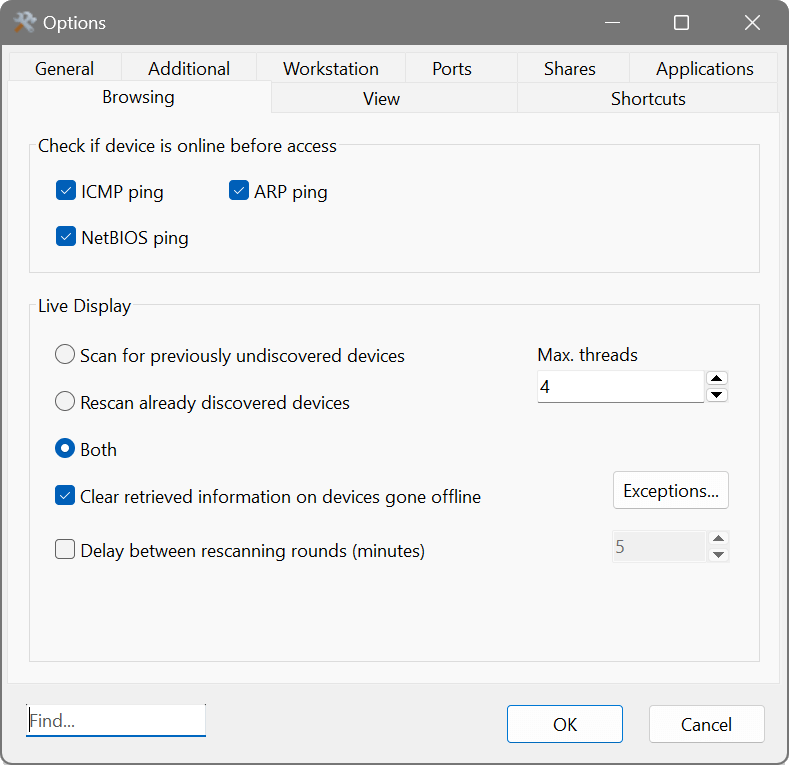
This tab controls how the Network Scanner behaves when you browse a device’s folders or connect to it, and how background scanning operates.
- Host check methods
- Before connecting to a device, the scanner can check whether it is online. Enable one or more methods: ICMP ping, ARP ping or NetBIOS ping. This prevents the interface from freezing when trying to reach an offline device.
- Background scan mode
- Controls what happens during background scanning:
- Scan for previously undiscovered devices: only looks for new devices.
- Rescan already discovered devices: only updates information for known devices.
- Both: discovers new devices and updates existing ones.
- Max. threads
- The maximum number of threads to use for background scanning.
- Clear retrieved information for devices that went offline
- Removes previously gathered data for devices that stop responding. Click Exceptions to choose which columns are retained even when a device goes offline. The checklist shows all visible columns except IP Address, MAC Address and RTT, which are always kept.
- Delay between rescanning rounds
- Sets a pause (in minutes) between each round of background scanning.
View
The View tab controls how scan results are displayed.
- Cell content separator
- The character used to separate multiple values within a single cell.
- Display grid lines
- Shows or hides grid lines in the results table.
- Display long values on multiple lines
- Wraps long cell content across multiple lines instead of truncating it.
- Repeating values in a column
- Controls how duplicate values in a column are shown: Do nothing (show all), Fold repetitions (collapse consecutive duplicates) or Hide repetitions (blank out consecutive duplicates).
- Font
- The font used for the results table. Click Change to choose from three options: Both Fonts (change the table row font and column header font together), Table Row Font (change only the data rows) or Column Header Font (change only the header).
- Row colours
- Set custom background colours for odd and even rows to improve readability, and a highlight colour for filtered results.
- MAC address format
- Choose how MAC addresses are displayed, e.g. AA-BB-CC-DD-EE-FF, AA:BB:CC:DD:EE:FF, AABBCCDDEEFF, and other common formats.
- CSV file encoding
- The character encoding used when exporting results to CSV files.
- CSV file delimiter
- The delimiter used to separate columns in CSV files. Choose System default to use the delimiter defined by your regional settings, or Custom to specify a single character of your choice.
History
The History tab switches long-term device history recording on or off, sets how many days of data to retain, and chooses which history columns appear in the results. See device history for what the recorded data enables.
Monitoring
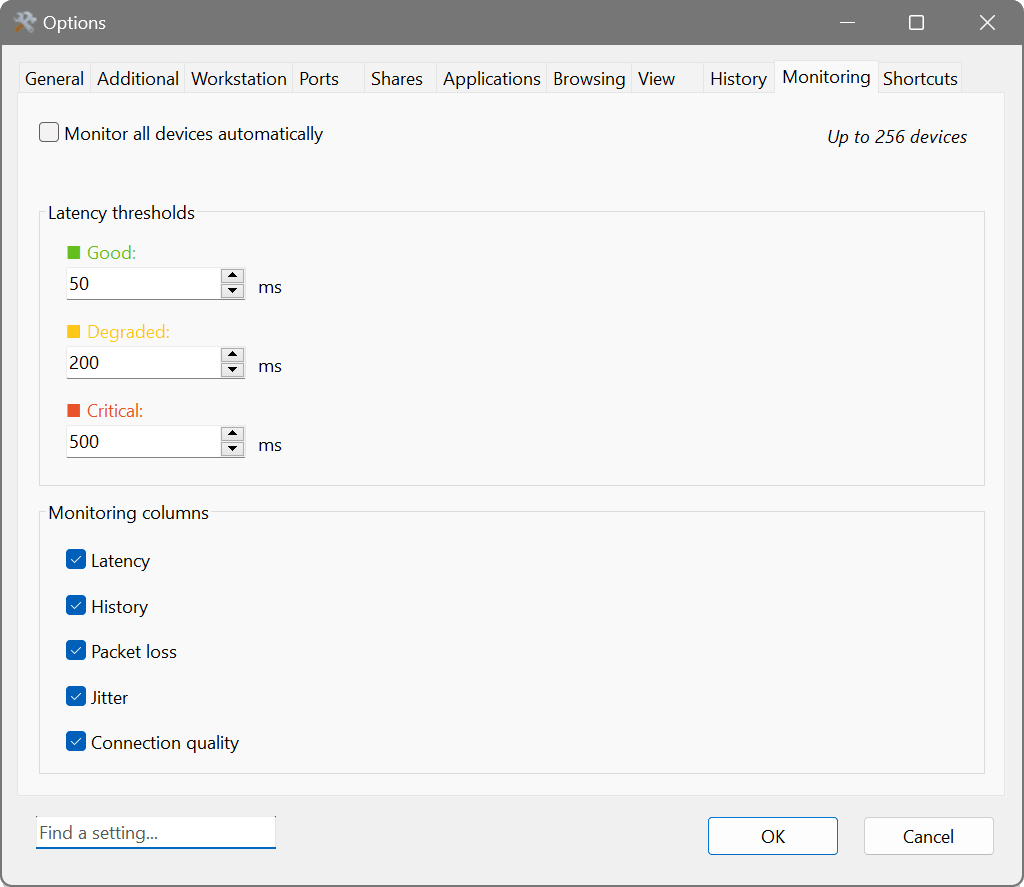
The Monitoring tab controls live monitoring. Tick Monitor all devices automatically to monitor every discovered device without selecting them by hand. The Latency thresholds define the boundaries between the Good, Degraded and Critical states used by the traffic-light indicators and charts, and Monitoring columns chooses which columns appear in the results.
Shortcuts
The Shortcuts tab lets you customise keyboard shortcuts for any action in the application. Double-click a row to change the assigned shortcut. Use the search field to find a specific action by name.